$ cat linux-fundamentals/part-03.md
Learning Linux Users, Groups, and Permissions
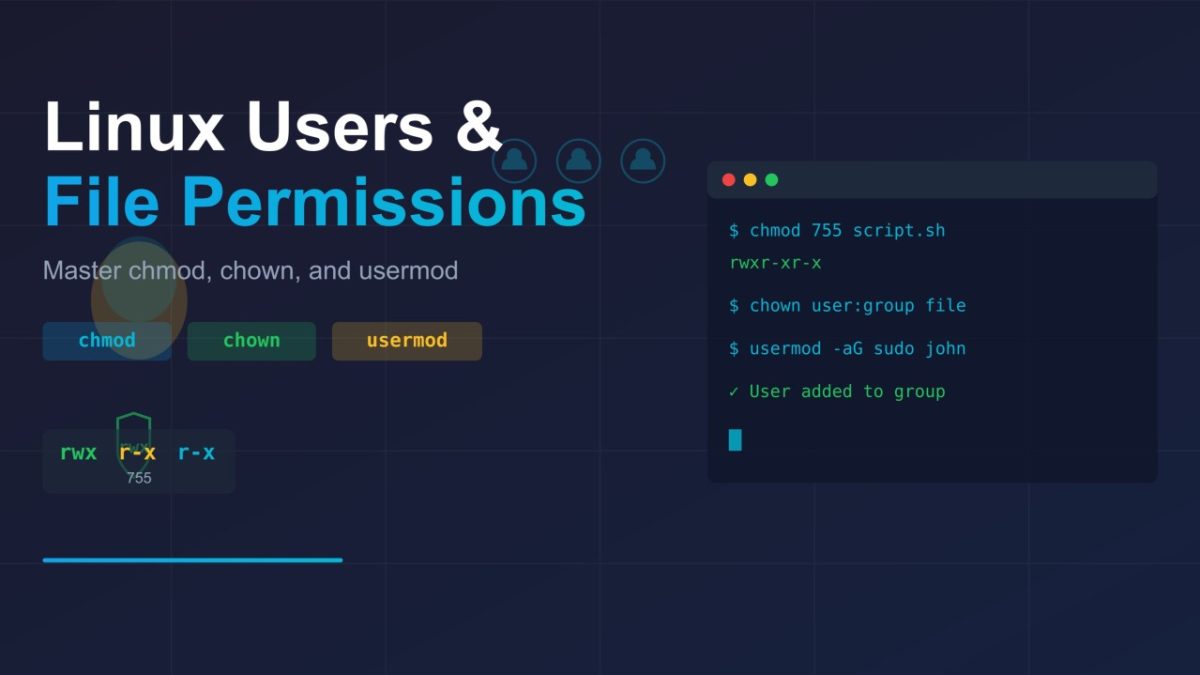
This post explains how users, groups, and file permissions work in Linux. It also shows how to manage access, ownership, and security with simple commands like chmod, chown, and usermod.
1. Understanding Users in Linux
Linux has three types of users:
- Root (superuser): Can do anything. Used for administration. Be careful when using it.
- System users: Used by services like Nginx or MySQL. They don’t log in directly.
- Regular users: People like me who use the system normally. Each one has a home directory.
To check users:
whoami     # shows my username
id         # shows UID, GID, and groups
2. User and Group Files
- /etc/passwd – list of all users
- /etc/shadow – stores encrypted passwords (only root can read)
- /etc/group – list of all groups on the system
You can see them with:
cat /etc/passwd
sudo cat /etc/shadow
cat /etc/group
3. Creating a User
Create a user with a home directory and shell:
sudo useradd -m -s /bin/bash john
sudo passwd john
Check the user:
id john
ls /home
4. Modifying Users
Change shell:
sudo usermod -s /bin/zsh johnAdd to a group:
sudo usermod -aG docker johnRemember: -aG adds the user to a group, but -G alone replaces all groups.
Lock and unlock users:
sudo usermod -L john    # lock
sudo usermod -U john    # unlock
5. Deleting Users
Remove a user and their home folder:
sudo userdel -r johnBe careful -> -r deletes all files in their home directory.
6. Understanding Groups
Groups help manage access for multiple users. Each user belongs to:
- One primary group
- Zero or more secondary groups
To check group info:
groups john
id john
7. Managing Groups
Create or remove groups:
sudo groupadd developers
sudo groupdel developers
Add or remove users from groups:
sudo usermod -aG developers john
sudo gpasswd -d john developers
8. Switching Users
Change user in terminal:
su - johnGo back:
exit9. Using sudo
sudo allows a normal user to run commands as root.
Examples:
sudo apt update
sudo systemctl restart nginx
To get a root shell:
sudo -iTo see what you can run:
sudo -l10. File Permissions (rwx)
Check file permissions:
ls -lExample:
-rw-r--r-- 1 reza reza 1234 Oct 19 file.txtHere:
- rw- = owner can read and write
- r– = group can read
- r– = others can read
11. Changing Permissions with chmod
Letters method:
chmod u+x script.sh    # add execute for user
chmod g-w file.txt     # remove write for group
Numeric Permissions in Linux
We can also set file permissions using numbers instead of letters.
Each number shows what kind of access is allowed:
- 7 means read, write, and execute (rwx)
- 6 means read and write (rw-)
- 5 means read and execute (r-x)
- 4 means read only (r–)
Examples:
chmod 755 script.sh   # rwxr-xr-x
chmod 644 file.txt    # rw-r--r--
chmod 600 secret.key  # rw-------
12. Changing File Owner with chown
Change file owner and group:
sudo chown john:developers file.txtFor a whole folder:
sudo chown -R john:developers /path/to/folder13. Common Examples
Create a New User for Development
sudo useradd -m -s /bin/bash -c "John Doe" john
sudo passwd john
sudo usermod -aG sudo john
sudo usermod -aG docker john
Set Up a Project Folder
sudo mkdir /var/www/myproject
sudo chown john:developers /var/www/myproject
sudo chmod 775 /var/www/myproject
14. Safety Tips
Never use dangerous commands like:
sudo chmod 777 /
rm -rf /
Always double-check before deleting or changing ownership.
What I Learned
- Each user and group has a unique ID (UID and GID).
- Use sudo instead of logging in as root.
- Understand r, w, x to manage access correctly.
- Use chmod for permissions and chown for ownership.
- Always use usermod -aG to add groups safely.