$ cat linux-fundamentals/part-04.md
Linux Processes and Signals
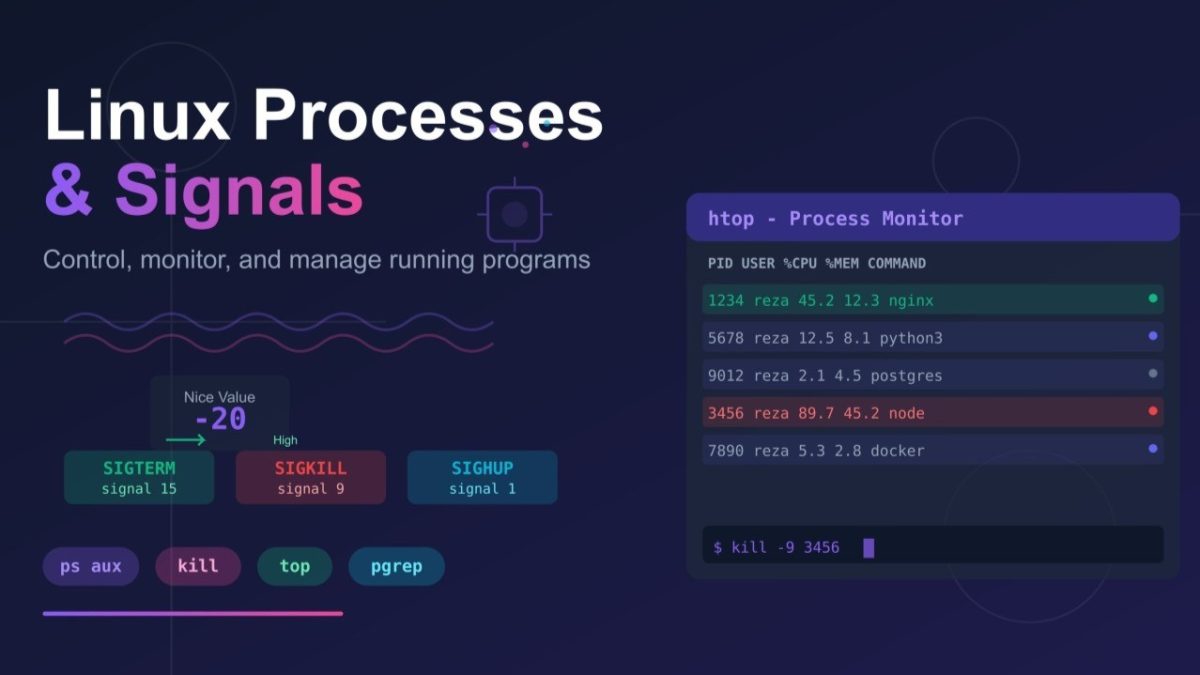
This post explains how Linux handles processes and signals. It shows how to view, stop, and control running programs, find process IDs, and use signals like SIGTERM and SIGKILL safely. It also explains process priority with the nice and renice commands.
1. What Are Processes?
A process is a program that is running. Every time you open an app or run a command, Linux creates a process. Each process has:
- PID (Process ID): unique number
- PPID (Parent Process ID): the process that started it
- Owner: the user who runs it
- State: running, sleeping, stopped, or zombie
Example:
sleep 100 &
# [1] 12345
# PID is 12345
2. Viewing Running Processes
To see running processes:
ps
ps aux
ps -ef
To see processes in real time:
topUseful keys in top:
- q = quit
- k = kill process
- P = sort by CPU
- M = sort by memory
Or use htop (easier to read):
sudo apt install htop
htop
3. Finding Specific Processes
To find processes by name:
ps aux | grep nginx
pgrep nginx
pgrep -a python
To find processes for a user:
pgrep -u reza4. Signals – Controlling Processes
A signal is a message that Linux sends to a process to tell it to do something for example, to stop, reload, or continue. When you press Ctrl + C in the terminal, it sends the SIGINT signal to stop that process.
Here are some common signals you will use often:
- SIGTERM (15): asks a process to stop nicely. The process can clean up before it ends.
- SIGKILL (9): forces a process to stop immediately. It cannot be ignored. Use this only if SIGTERM does not work.
- SIGHUP (1): tells a process to reload its configuration file without stopping.
- SIGINT (2): interrupt signal (same as pressing Ctrl + C).
- SIGSTOP (19): pauses a process.
- SIGCONT (18): continues a paused process.
To see all available signals:
kill -lExample:
kill 1234          # sends SIGTERM
kill -9 1234       # sends SIGKILL
kill -HUP 1234     # reloads configuration
kill -STOP 1234    # pauses process
kill -CONT 1234    # resumes process
5. Killing or Stopping Processes
Polite stop:
kill 1234Force stop:
kill -9 1234Kill by name instead of PID:
killall nginx
pkill python
Be careful -> these commands can stop many processes at once.
6. Process Priority (Nice Values)
Every process has a nice value that decides how much CPU time it gets.
- Range: -20 (high priority) to +19 (low priority)
- Default: 0
To check:
ps -el
top
Start with a different priority:
nice -n 10 command      # lower priority
sudo nice -n -5 command # higher priority
Change a running process:
renice -n 5 -p 12347. Background and Foreground Jobs
When you run commands in the terminal, they usually take control of the screen. But Linux lets you move them to the background so you can keep using the terminal.
Run a Process in the Background
Add an & at the end:
command &This means the process runs in the background, and the terminal is free for new commands.
Pause and Resume a Process
If a process is running in the foreground, press Ctrl + Z to pause it. You can then send it to the background with:
bgThis resumes the job in the background.
Bring a Job Back to the Foreground
To bring a background job back:
fgIf you have more than one job, you can choose one by its job number (for example, fg %1).
See All Background Jobs
To list all current jobs:
jobsExample:
sleep 100 &   # run in background
jobs          # show background tasks
fg %1         # bring job 1 to front
This system is very useful when you are testing scripts or running long tasks like backups while still using the same terminal.
8. Common Scenarios
Kill a frozen process:
ps aux | grep firefox
kill 1234
kill -9 1234
Restart a service:
pgrep nginx
kill -HUP $(pgrep nginx)
Stop all Python scripts:
pkill -u $USER python3Find high CPU or memory usage:
ps aux --sort=-%cpu | head
ps aux --sort=-%mem | head
9. Safety Tips
- Never kill system processes like init or systemd
- Always try kill before kill -9
- Be specific when using pkill or killall
What I Learned
- Processes are running programs with unique IDs
- ps aux and top show what’s running
- kill sends signals like stop or reload
- SIGTERM (15) is polite, SIGKILL (9) is force
- Nice values control process priority
- Background jobs use &, bg, and fg
- Always use signals carefully