$ cat prometheus/part-01.md
Building My First Monitoring Setup with Prometheus on Ubuntu
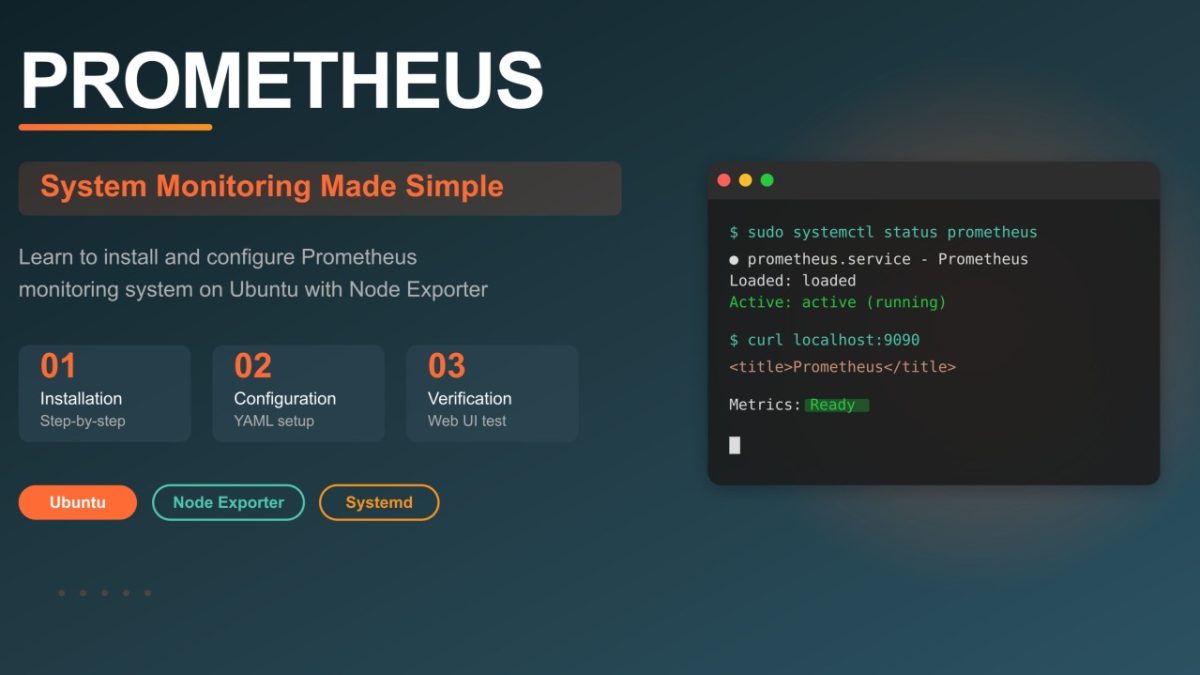
Today I want to share what I learned about Prometheus and how it helps monitor systems and applications in real environments.
Prometheus is a popular open-source system for monitoring and alerting. It collects metrics, stores them as time-series data, and provides powerful tools to analyze and visualize performance. In this article, I explain how to install Prometheus on Ubuntu step by step.
What is Prometheus
Prometheus is a monitoring tool that collects metrics from systems and applications. It saves data as time series and helps you check performance, create alerts, and find issues.
Main features:
- Stores data in its own time-series database
- Pulls metrics from defined targets
- Has a query language (PromQL)
- Includes alerting and a built-in web interface
You can use it to monitor:
- Linux servers (CPU, memory, disk)
- Containers and Kubernetes clusters
- Databases, web apps, and APIs
System Requirements
Before you start:
- Ubuntu or Debian server
- Internet connection
- Port 9090 open for the web UI
Prometheus runs well with:
- 1–2 CPU cores
- 1–2 GB of RAM
- 10 GB or more disk space
Installation Steps
1. Create a Prometheus user and directories
It’s better not to run Prometheus as root. So I created a system user and folders:
sudo groupadd --system prometheus
sudo useradd --system -g prometheus prometheus
sudo mkdir -p /etc/prometheus /var/lib/prometheus
2. Download and extract Prometheus
Get the Linux AMD64 version from the official site:
wget https://github.com/prometheus/prometheus/releases/download/v3.5.0/prometheus-3.5.0.linux-amd64.tar.gz
tar xvf prometheus-3.5.0.linux-amd64.tar.gz
cd prometheus-3.5.0.linux-amd64
Move binaries:
sudo mv prometheus promtool /usr/local/bin/3. Move configuration files
Prometheus comes with a default config file. Move it to the configuration folder:
sudo mv prometheus.yaml /etc/prometheus/You can also create /etc/prometheus/web.yml if you plan to add authentication or HTTPS later.
4. Set correct permissions
Prometheus should own its directories:
sudo chown -R prometheus:prometheus /etc/prometheus /var/lib/prometheus5. Create a systemd service file
This file lets Prometheus run in the background and start automatically on boot.
sudo vim /etc/systemd/system/prometheus.servicePaste this:
[Unit]
Description=Prometheus Service
Documentation=https://prometheus.io/docs/introduction/overview/
Wants=network-online.target
After=network-online.target

[Service]
Type=simple
User=prometheus
Group=prometheus
ExecReload=/bin/kill -HUP $MAINPID
ExecStart=/usr/local/bin/prometheus \
  --config.file=/etc/prometheus/prometheus.yaml \
  --storage.tsdb.path=/var/lib/prometheus \
  --web.config.file=/etc/prometheus/web.yml \
  --web.listen-address=0.0.0.0:9090
SyslogIdentifier=prometheus
Restart=on-failure
RestartSec=5s
LimitNOFILE=65536

[Install]
WantedBy=multi-user.target
Save and exit.
6. Start Prometheus
sudo systemctl daemon-reload
sudo systemctl enable --now prometheus
Check if it’s running:
sudo systemctl status prometheusYou should see active (running).
Verify the Installation
Open your browser and go to:
http://<your-server-ip>:9090You’ll see the Prometheus web UI. In the query box, type up and click Execute. If you see a result with value 1, Prometheus is running and monitoring itself.
Basic Troubleshooting
- If the page doesn’t open, check your firewall: sudo ufw allow 9090/tcp
- To read logs: journalctl -u prometheus -n 50
- To restart: sudo systemctl restart prometheus
What I Learned
Setting up Prometheus manually helped me understand:
- How Linux services run with systemd
- Why non-root users improve security
- How configuration and data folders are organized
- The first steps of monitoring with PromQL
Now that Prometheus is running, I plan to add Node Exporter next to collect CPU, RAM, and disk metrics.
Adding Node Exporter for System Metrics
Now that Prometheus is installed, I added Node Exporter to collect server metrics like CPU, memory, and disk usage.
Step 1 – Download and Install Node Exporter
cd /tmp
wget https://github.com/prometheus/node_exporter/releases/download/v1.10.2/node_exporter-1.10.2.linux-amd64.tar.gz
tar xvf node_exporter-1.10.2.linux-amd64.tar.gz
cd node_exporter-1.10.2.linux-amd64
sudo mv node_exporter /usr/local/bin/
Create a system user for it:
sudo useradd --system node_exporterCreate a systemd service:
sudo vim /etc/systemd/system/node_exporter.servicePaste this:
[Unit]
Description=Node Exporter
After=network.target

[Service]
User=node_exporter
Group=node_exporter
Type=simple
ExecStart=/usr/local/bin/node_exporter
Restart=on-failure

[Install]
WantedBy=multi-user.target
Save and start it:
sudo systemctl daemon-reload
sudo systemctl enable --now node_exporter
Check the status:
sudo systemctl status node_exporterIf it’s running, open your browser:
http://<server-ip>:9100/metricsYou should see text data with many system metrics.
Step 2 – Add Node Exporter to prometheus.yaml
Now tell Prometheus to scrape data from Node Exporter.
Edit the file:
sudo vim /etc/prometheus/prometheus.yamlAdd this under scrape_configs:
global:
  scrape_interval: 15s

scrape_configs:
  - job_name: 'prometheus'
    static_configs:
      - targets: ['localhost:9090']

  - job_name: 'node_exporter'
    static_configs:
      - targets: ['localhost:9100']
Save and reload Prometheus:
sudo systemctl restart prometheusStep 3 – Verify Node Exporter in Web UI
Go to:
http://<server-ip>:9090/targetsYou should see two targets:
- prometheus
- node_exporter
Both should be in UP state. Now Prometheus collects metrics from your system through Node Exporter.
What I Learned
Through this setup I learned:
- How to install Prometheus and Node Exporter manually
- How systemd services work
- How to edit prometheus.yaml to add scrape targets
- How to verify metrics through the web interface