$ cat azure-arm-templates/part-03.md
Azure Virtual Machines: Complete ARM Template Guide
Why VMs Are Complex
Hello everyone! Today I want to share my experience deploying Azure Virtual Machines with ARM templates. This was my biggest challenge because one VM needs many resources working together.
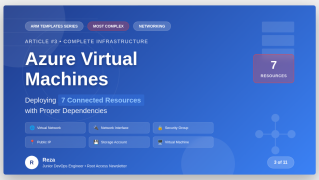
When I deployed my first VM, I thought “just create one resource”. But I was wrong! A VM needs:
- Virtual Network – Where the VM lives
- Subnet – A section inside the network
- Network Security Group – Firewall rules
- Public IP Address – To access from internet
- Network Interface – Like a network card
- Storage Account – For diagnostics
- The VM itself – The actual computer
Think of it like building a house. You need the neighborhood (VNet), the street (Subnet), security gate (NSG), address (Public IP), front door (Network Interface), mailbox (Storage), and the house itself (VM).
All these must be created in the correct order. Let me show you my code!
My Complete VM Template
Here is my full template:
{
    "$schema": "https://schema.management.azure.com/schemas/2019-04-01/deploymentTemplate.json#",
    "contentVersion": "1.0.0.0",
    "parameters": {},
    "functions": [],
    "variables": {},
    "resources": [
        {
            "name": "appnetwork",
            "type": "Microsoft.Network/virtualNetworks",
            "apiVersion": "2020-11-01",
            "location": "North Europe",
            "properties": {
                "addressSpace": {
                    "addressPrefixes": ["10.0.0.0/16"]
                },
                "subnets": [
                    {
                        "name": "SubnetA",
                        "properties": {
                            "addressPrefix": "10.0.0.0/24",
                            "networkSecurityGroup": {
                                "id": "[resourceId('Microsoft.Network/networkSecurityGroups', 'app-nsg')]"
                            }
                        }
                    },
                    {
                        "name": "SubnetB",
                        "properties": {
                            "addressPrefix": "10.0.1.0/24"
                        }
                    }
                ]
            }
        },
        {
            "name": "app-ip",
            "type": "Microsoft.Network/publicIPAddresses",
            "apiVersion": "2020-11-01",
            "location": "North Europe",
            "properties": {
                "publicIPAllocationMethod": "Dynamic"
            }
        },
        {
            "name": "app-interface",
            "type": "Microsoft.Network/networkInterfaces",
            "apiVersion": "2020-11-01",
            "location": "North Europe",
            "properties": {
                "ipConfigurations": [
                    {
                        "name": "ipConfig1",
                        "properties": {
                            "privateIPAllocationMethod": "Dynamic",
                            "publicIPAddress": {
                                "id": "[resourceId('Microsoft.Network/publicIPAddresses', 'app-ip')]"
                            },
                            "subnet": {
                                "id": "[resourceId('Microsoft.Network/virtualNetworks/subnets', 'appnetwork', 'SubnetA')]"
                            }
                        }
                    }
                ]
            },
            "dependsOn": [
                "[resourceId('Microsoft.Network/publicIPAddresses', 'app-ip')]",
                "[resourceId('Microsoft.Network/virtualNetworks', 'appnetwork')]"
            ]
        },
        {
            "name": "rezastore8677676",
            "type": "Microsoft.Storage/storageAccounts",
            "apiVersion": "2021-04-01",
            "location": "[resourceGroup().location]",
            "sku": {
                "name": "Standard_LRS"
            },
            "kind": "StorageV2"
        },
        {
            "name": "app-nsg",
            "type": "Microsoft.Network/networkSecurityGroups",
            "apiVersion": "2020-11-01",
            "location": "[resourceGroup().location]",
            "properties": {
                "securityRules": [
                    {
                        "name": "Allow-RDP",
                        "properties": {
                            "description": "Allow RDP",
                            "protocol": "Tcp",
                            "sourcePortRange": "*",
                            "destinationPortRange": "3389",
                            "sourceAddressPrefix": "*",
                            "destinationAddressPrefix": "*",
                            "access": "Allow",
                            "priority": 100,
                            "direction": "Inbound"
                        }
                    }
                ]
            }
        },
        {
            "name": "appvm",
            "type": "Microsoft.Compute/virtualMachines",
            "apiVersion": "2021-03-01",
            "location": "[resourceGroup().location]",
            "dependsOn": [
                "[resourceId('Microsoft.Storage/storageAccounts', toLower('rezastore8677676'))]",
                "[resourceId('Microsoft.Network/networkInterfaces', 'app-interface')]"
            ],
            "properties": {
                "hardwareProfile": {
                    "vmSize": "Standard_D2s_v3"
                },
                "osProfile": {
                    "computerName": "appvm",
                    "adminUsername": "demousr",
                    "adminPassword": "Azure@123"
                },
                "storageProfile": {
                    "imageReference": {
                        "publisher": "MicrosoftWindowsServer",
                        "offer": "WindowsServer",
                        "sku": "2019-Datacenter",
                        "version": "latest"
                    },
                    "osDisk": {
                        "name": "windowsVM1OSDisk",
                        "caching": "ReadWrite",
                        "createOption": "FromImage"
                    },
                    "dataDisks": [
                        {
                            "name":"vm-data-disk",
                            "diskSizeGB":16,
                            "createOption": "Empty",
                            "lun":0
                        }
                    ]
                },
                "networkProfile": {
                    "networkInterfaces": [
                        {
                            "id": "[resourceId('Microsoft.Network/networkInterfaces', 'app-interface')]"
                        }
                    ]
                },
                "diagnosticsProfile": {
                    "bootDiagnostics": {
                        "enabled": true,
                        "storageUri": "[reference(resourceId('Microsoft.Storage/storageAccounts/', toLower('rezastore8677676'))).primaryEndpoints.blob]"
                    }
                }
            }
        }
    ],
    "outputs": {}
}
This is a big template! Let me explain the important parts.
Understanding Virtual Network
{
    "name": "appnetwork",
    "type": "Microsoft.Network/virtualNetworks",
    "properties": {
        "addressSpace": {
            "addressPrefixes": ["10.0.0.0/16"]
        },
        "subnets": [
            {
                "name": "SubnetA",
                "properties": {
                    "addressPrefix": "10.0.0.0/24"
                }
            }
        ]
    }
}
Virtual Network (VNet) is like your private network in Azure.
IP addressing explained:
- 10.0.0.0/16 = 65,536 IP addresses available (the whole network)
- 10.0.0.0/24 = 256 IP addresses available (one subnet)
Why /16 and /24?
The number after / tells how many IP addresses you get:
- /16 = 65,536 addresses (10.0.0.0 to 10.0.255.255)
- /24 = 256 addresses (10.0.0.0 to 10.0.0.255)
Azure reserves 5 addresses:
- 10.0.0.0 – Network address
- 10.0.0.1 – Default gateway
- 10.0.0.2 – DNS server
- 10.0.0.3 – DNS server
- 10.0.0.255 – Broadcast address
So SubnetA actually has 251 usable IP addresses (256 – 5).
My VM will get IP like 10.0.0.4 or 10.0.0.5.
Why two subnets?
- SubnetA: For web servers
- SubnetB: For database servers (future use)
This separates different types of servers for security.
Understanding Public IP
{
    "name": "app-ip",
    "type": "Microsoft.Network/publicIPAddresses",
    "properties": {
        "publicIPAllocationMethod": "Dynamic"
    }
}
Public IP lets me connect to the VM from the internet.
Dynamic vs Static:
- Dynamic: IP changes when VM stops/starts – FREE
- Static: IP never changes – costs $3/month
I use Dynamic for learning to save money. For production, use Static.
Understanding Network Interface
{
    "name": "app-interface",
    "type": "Microsoft.Network/networkInterfaces",
    "properties": {
        "ipConfigurations": [
            {
                "name": "ipConfig1",
                "properties": {
                    "privateIPAllocationMethod": "Dynamic",
                    "publicIPAddress": {
                        "id": "[resourceId('Microsoft.Network/publicIPAddresses', 'app-ip')]"
                    },
                    "subnet": {
                        "id": "[resourceId('Microsoft.Network/virtualNetworks/subnets', 'appnetwork', 'SubnetA')]"
                    }
                }
            }
        ]
    },
    "dependsOn": [
        "[resourceId('Microsoft.Network/publicIPAddresses', 'app-ip')]",
        "[resourceId('Microsoft.Network/virtualNetworks', 'appnetwork')]"
    ]
}
Network Interface is like a network card. It connects VM to the network.
Important parts:
- privateIPAllocationMethod: Dynamic – Azure gives IP automatically
- publicIPAddress – Links to the public IP I created
- subnet – Connects to SubnetA
dependsOn is critical!
The Network Interface needs two things first:
- Public IP must exist
- Virtual Network must exist
Without dependsOn, deployment fails!
Understanding Storage Account
{
    "name": "rezastore8677676",
    "type": "Microsoft.Storage/storageAccounts",
    "sku": {
        "name": "Standard_LRS"
    },
    "kind": "StorageV2"
}
Why does VM need storage?
For boot diagnostics – screenshots and logs when VM has problems.
Standard_LRS means:
- Standard = Uses hard drives (cheaper than SSD)
- LRS = Locally Redundant Storage (3 copies in same datacenter)
This is the cheapest option, good for diagnostics.
Note: VM’s actual disk is separate! This storage is only for troubleshooting.
Understanding Network Security Group
{
    "name": "app-nsg",
    "type": "Microsoft.Network/networkSecurityGroups",
    "properties": {
        "securityRules": [
            {
                "name": "Allow-RDP",
                "properties": {
                    "protocol": "Tcp",
                    "sourcePortRange": "*",
                    "destinationPortRange": "3389",
                    "sourceAddressPrefix": "*",
                    "destinationAddressPrefix": "*",
                    "access": "Allow",
                    "priority": 100,
                    "direction": "Inbound"
                }
            }
        ]
    }
}
NSG is like a firewall. It controls what traffic can reach the VM.
Understanding the rule:
- protocol: Tcp – Rule for TCP traffic
- sourcePortRange: “*” – Allow from any port (client side)
- destinationPortRange: 3389 – Allow to port 3389 (RDP port)
- sourceAddressPrefix: “*” – Allow from any IP address
- access: Allow – Let the traffic through
- priority: 100 – Lower number = checked first
- direction: Inbound – Traffic coming TO the VM
Security Warning!
sourceAddressPrefix: “*” means anyone can try to connect! This is only OK for home lab testing.
For production, change to:
"sourceAddressPrefix": "1.2.3.4" // Your IP onlyUnderstanding the Virtual Machine
Now the main part – the VM itself!
Hardware Profile
"hardwareProfile": {
    "vmSize": "Standard_D2s_v3"
}
Standard_D2s_v3 means:
- 2 vCPUs
- 8 GB RAM
- Uses SSD (the ‘s’ means SSD)
- Costs ~$70/month if running 24/7
For cheaper option, use Standard_B2s (~$30/month).
OS Profile
"osProfile": {
    "computerName": "appvm",
    "adminUsername": "demousr",
    "adminPassword": "Azure@123"
}
computerName – VM hostname
adminUsername and adminPassword – Login credentials
My password is weak! Only for learning. Use strong passwords in production.
Storage Profile – OS Disk
"storageProfile": {
    "imageReference": {
        "publisher": "MicrosoftWindowsServer",
        "offer": "WindowsServer",
        "sku": "2019-Datacenter",
        "version": "latest"
    },
    "osDisk": {
        "name": "windowsVM1OSDisk",
        "caching": "ReadWrite",
        "createOption": "FromImage"
    }
}
imageReference tells Azure what OS to install:
- publisher: MicrosoftWindowsServer
- offer: WindowsServer
- sku: 2019-Datacenter
- version: latest
osDisk:
- caching: ReadWrite – Cache reads and writes for better performance
- createOption: FromImage – Create new disk from the Windows image
Azure automatically creates 127 GB disk for Windows Server.
Storage Profile – Data Disk
"dataDisks": [
    {
        "name":"vm-data-disk",
        "diskSizeGB":16,
        "createOption": "Empty",
        "lun":0
    }
]
This creates an extra 16 GB disk for data.
lun = Logical Unit Number (like drive letter in Windows)
- lun:0 = First data disk
- lun:1 = Second data disk (if you add more)
createOption: Empty means the disk is blank. After VM starts, I need to format it in Windows.
Network Profile
"networkProfile": {
    "networkInterfaces": [
        {
            "id": "[resourceId('Microsoft.Network/networkInterfaces', 'app-interface')]"
        }
    ]
}
This connects the VM to the Network Interface we created.
Boot Diagnostics
"diagnosticsProfile": {
    "bootDiagnostics": {
        "enabled": true,
        "storageUri": "[reference(resourceId('Microsoft.Storage/storageAccounts/', toLower('rezastore8677676'))).primaryEndpoints.blob]"
    }
}
What is this complex line?
"[reference(resourceId('Microsoft.Storage/storageAccounts/', toLower('rezastore8677676'))).primaryEndpoints.blob]"Let me break it down:
- resourceId(‘Microsoft.Storage/storageAccounts/’, toLower(‘rezastore8677676’)) – Get the storage account
- reference(…) – Get properties of the storage account
- .primaryEndpoints.blob – Get the blob URL
Result: https://rezastore8677676.blob.core.windows.net/
This is where Azure saves VM screenshots and logs.
How I Deployed This
# Create resource group
az group create \
  --name vm-test-grp \
  --location "North Europe"

# Deploy the template
az deployment group create \
  --resource-group vm-test-grp \
  --template-file 03-AzureVirtualMachines.json
Deployment took about 7 minutes.
What Happens During Deployment
Azure creates resources in this order:
- Network Security Group (no dependencies)
- Storage Account (no dependencies)
- Virtual Network (needs NSG)
- Public IP (no dependencies)
- Network Interface (needs VNet and Public IP)
- Virtual Machine (needs Network Interface and Storage)
ARM is smart – it figures out the order automatically based on dependsOn!
Testing My VM
After deployment:
- Get public IP from Azure portal
- Open Remote Desktop Connection
- Enter IP address
- Login: demousr / Azure@123
- Connected!
Inside the VM:
- C: drive = OS Disk (127 GB)
- D: drive = Temp disk (comes with VM)
- Data disk not visible yet
To use data disk, I opened Disk Management in Windows:
- Initialize disk
- Create partition
- Format as NTFS
- Assign drive letter E:
Now I have E: drive with 16 GB!
My Mistakes and Fixes
Mistake 1: Wrong subnet resourceId
"subnet": {
    "id": "[resourceId('Microsoft.Network/subnets', 'SubnetA')]"
}
Error: “Resource not found”
Fix: Use parent/child format:
"subnet": {
    "id": "[resourceId('Microsoft.Network/virtualNetworks/subnets', 'appnetwork', 'SubnetA')]"
}
Mistake 2: Storage account name uppercase
"name": "RezaStore8677676"Error: “Storage account name must be lowercase”
Fix: Use lowercase only: rezastore8677676
Mistake 3: Forgot VM dependency on NIC
"dependsOn": [
    "[resourceId('Microsoft.Storage/storageAccounts', 'rezastore8677676')]"
]
Error: “Network interface does not exist”
Fix: Add NIC to dependsOn:
"dependsOn": [
    "[resourceId('Microsoft.Storage/storageAccounts', 'rezastore8677676')]",
    "[resourceId('Microsoft.Network/networkInterfaces', 'app-interface')]"
]
Mistake 4: Forgot to format data disk
After deployment, I couldn’t see E: drive!
Issue: Empty disks need formatting.
Fix: Used Disk Management in Windows to initialize and format the disk.