$ cat azure-arm-templates/part-04.md
Understanding Linked Templates in ARM: Making Code Reusable
Why I Needed Linked Templates
Hello everyone! After I created my VM template (250+ lines!), I had a problem. Every time I wanted to deploy a VM with SQL Database, I copied the same code many times. This was bad:
- Same code everywhere – I copy-paste SQL code in every template
- Hard to fix bugs – If I find a bug, I must fix it in 10 different files
- Files too big – 500+ lines in one file is hard to read
- Cannot share – My team cannot use my SQL code easily
Then I learned about Linked Templates. This solved all my problems!
What Are Linked Templates?
Linked templates help you split one big template into small pieces. Each piece is a separate file. You can use the same piece many times.
Simple example:
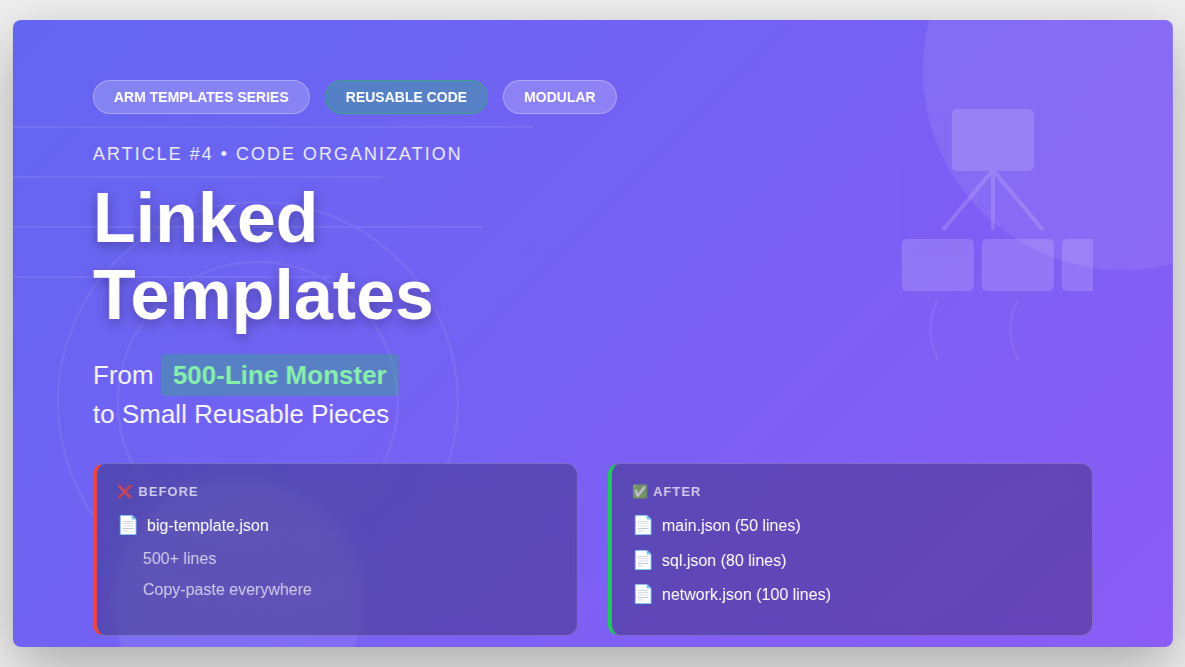
Before (one big file):
my-big-template.json (500 lines)
- Network code
- Storage code
- SQL code
- VM code
- Web App code
After (many small files):
main.json (50 lines)
- Links to sql.json (80 lines)
- Links to network.json (100 lines)
- Links to storage.json (30 lines)
It’s like Lego blocks! Each block is separate, but you connect them together.
My First Linked Template
I want to create:
- Web App – In main template
- SQL Database – In linked template (separate file)
Why? Because I can use the SQL template again in other projects!
Step 1: Create SQL Template File
This is my SQL template. It will be the “linked” file:
File name: 03-sqldatabase.json
{
    "$schema": "https://schema.management.azure.com/schemas/2019-04-01/deploymentTemplate.json#",
    "contentVersion": "1.0.0.0",
    "parameters": {
        "SQLLogin": {
            "type": "string",
            "metadata": {
              "description": "The administrator user name for the Azure SQL Server"
            }
        },
        "SQLPassword": {
            "type": "secureString",
            "metadata": {
              "description": "The administrator password for the Azure SQL Server"
            }
        }
    },
    "functions": [],
    "variables": { },
    "resources": [
        {
            "name": "sqlserver500505",
            "type": "Microsoft.Sql/servers",
            "apiVersion": "2021-08-01-preview",
            "location": "[resourceGroup().location]",
            "properties": {
                "administratorLogin": "[parameters('SQLLogin')]",
                "administratorLoginPassword": "[parameters('SQLPassword')]"
            }
        },
        {
            "name": "[format('{0}/{1}', 'sqlserver500505', 'appdb')]",
            "type": "Microsoft.Sql/servers/databases",
            "apiVersion": "2021-08-01-preview",
            "location": "[resourceGroup().location]",
            "dependsOn": [
                "[resourceId('Microsoft.Sql/servers', 'sqlserver500505')]"
            ],
            "sku": {
                "name": "Basic",
                "tier": "Basic"
            },
            "properties": {}
        }
    ],
    "outputs": {}
}
This is just a normal ARM template for SQL Server and Database. Nothing special yet!
Important: It uses parameters, not hardcoded values. This makes it reusable.
Step 2: Create Parameter File
I create a separate file for the parameter values:
File name: 02-sqldatabase-parameters.json
{
  "$schema": "https://schema.management.azure.com/schemas/2019-04-01/deploymentParameters.json#",
  "contentVersion": "1.0.0.0",
  "parameters": {
    "SQLLogin": {
      "value": "sqlusr"
    },
    "SQLPassword": {
      "value": "Azure@123"
    }
  }
}
This file has the actual username and password.
Why separate files?
- Template = What to create
- Parameters = The values to use
I can have different parameter files for dev, test, and production!
Step 3: Upload Files to Azure Blob Storage
Linked templates must be on the internet. Azure needs to download them. I use Azure Blob Storage.
Create Storage Account
# Create storage account
az storage account create \
  --name rezatemplate9473 \
  --resource-group template-grp \
  --location "North Europe" \
  --sku Standard_LRS

# Get the key
STORAGE_KEY=$(az storage account keys list \
  --resource-group template-grp \
  --account-name rezatemplate9473 \
  --query '[0].value' \
  --output tsv)

# Create container (like a folder)
az storage container create \
  --name template \
  --account-name rezatemplate9473 \
  --account-key $STORAGE_KEY \
  --public-access blob
Important: –public-access blob means anyone can read the files. This is OK for learning. For production, use better security!
Upload Files
# Upload SQL template
az storage blob upload \
  --account-name rezatemplate9473 \
  --account-key $STORAGE_KEY \
  --container-name template \
  --name 03-sqldatabase.json \
  --file 03-sqldatabase.json

# Upload parameter file
az storage blob upload \
  --account-name rezatemplate9473 \
  --account-key $STORAGE_KEY \
  --container-name template \
  --name 02-sqldatabase-parameters.json \
  --file 02-sqldatabase-parameters.json
Now my files are on the internet!
Get the URL
az storage blob url \
  --account-name rezatemplate9473 \
  --container-name template \
  --name 03-sqldatabase.json \
  --output tsv
This gives me:
https://rezatemplate9473.blob.core.windows.net/template/03-sqldatabase.jsonI will use this URL in my main template!
Step 4: Create Main Template
Now I create the main template. This template will “call” the SQL template:
File name: 01-main.json
{
    "$schema": "https://schema.management.azure.com/schemas/2019-04-01/deploymentTemplate.json#",
    "contentVersion": "1.0.0.0",
    "parameters": {},
    "functions": [],
    "variables": {},
    "resources": [
        {
            "name": "plan787878",
            "type": "Microsoft.Web/serverfarms",
            "apiVersion": "2020-12-01",
            "location": "[resourceGroup().location]",
            "sku": {
                "name": "S1",
                "capacity": 1
            },
            "properties": {
                "name": "plan787878"
            }
        },
        {
            "name": "newapp994848",
            "type": "Microsoft.Web/sites",
            "apiVersion": "2020-12-01",
            "location": "[resourceGroup().location]",
            "dependsOn": [
                "[resourceId('Microsoft.Web/serverfarms', 'plan787878')]"
            ],
            "properties": {
                "name": "newapp994848",
                "serverFarmId": "[resourceId('Microsoft.Web/serverfarms', 'plan787878')]"
            }
        },
        {
            "type": "Microsoft.Resources/deployments",
            "apiVersion": "2021-04-01",
            "name": "LinkedTemplate",
            "properties": {
                "mode": "Incremental",
                "templateLink": {
                  "uri": "https://rezatemplate9473.blob.core.windows.net/template/03-sqldatabase.json",
                  "contentVersion": "1.0.0.0"
                },
                "parametersLink": {
                    "uri": "https://rezatemplate9473.blob.core.windows.net/template/02-sqldatabase-parameters.json",
                    "contentVersion": "1.0.0.0"
                }
            }
        }
    ],
    "outputs": {}
}
The Important Part – Linked Deployment
Look at this section:
{
    "type": "Microsoft.Resources/deployments",
    "apiVersion": "2021-04-01",
    "name": "LinkedTemplate",
    "properties": {
        "mode": "Incremental",
        "templateLink": {
          "uri": "https://rezatemplate9473.blob.core.windows.net/template/03-sqldatabase.json",
          "contentVersion": "1.0.0.0"
        },
        "parametersLink": {
            "uri": "https://rezatemplate9473.blob.core.windows.net/template/02-sqldatabase-parameters.json",
            "contentVersion": "1.0.0.0"
        }
    }
}
What does this do?
- type: Microsoft.Resources/deployments – This is a special resource. It calls another template.
- name: LinkedTemplate – Just a name. I can use any name.
- mode: Incremental – This means “only create new resources, don’t delete existing ones”. Always use this!
- templateLink: uri – URL to my SQL template
- parametersLink: uri – URL to my parameter file
Simple explanation:
“Hey Azure, please download the SQL template from this URL, download the parameters from this URL, and deploy them!”
Step 5: Deploy Everything
Now I deploy the main template:
# Create resource group
az group create \
  --name linked-template-grp \
  --location "North Europe"

# Deploy main template
az deployment group create \
  --resource-group linked-template-grp \
  --template-file 01-main.json
What happens:
- Azure starts deploying main template
- Azure creates App Service Plan
- Azure creates Web App
- Azure sees the linked deployment resource
- Azure downloads SQL template from blob storage
- Azure downloads parameter file from blob storage
- Azure deploys SQL Server and Database
- Done!
Total time: about 8 minutes.
My Mistakes and Fixes
Mistake 1: Forgot to Make Container Public
I created the container but forgot –public-access blob.
Error:
Failed to download template
Status code: 404
Azure couldn’t download my template because it was private!
Fix:
az storage container set-permission \
  --name template \
  --account-name rezatemplate9473 \
  --public-access blob
Mistake 2: Wrong URL
I typed the URL wrong in my main template:
"uri": "https://rezatemplate9473.blob.core.windows.net/template/sqldatabase.json"
// I forgot the "03-" at the start!
Fix: Copy the exact URL from Azure CLI:
az storage blob url \
  --account-name rezatemplate9473 \
  --container-name template \
  --name 03-sqldatabase.json
Then paste it carefully!
Mistake 3: Used “Complete” Mode
First time I wrote:
"mode": "Complete"This is dangerous! “Complete” mode deletes resources that are NOT in the template.
I had a storage account in my resource group. When I deployed with “Complete” mode, Azure deleted my storage account!
Fix: Always use “Incremental” mode:
"mode": "Incremental"Mistake 4: Parameter Names Don’t Match
In my template:
"parameters": {
    "SQLLogin": {  // Capital L
In my parameter file:
"parameters": {
    "sqlLogin": {  // lowercase l
Error:
Template parameter 'SQLLogin' is not providedParameter names are case-sensitive! They must match exactly.
Fix: Use the same name everywhere.
Why Linked Templates Are Good
After I started using linked templates, I learned these benefits:
1. I Can Reuse Code
I created one SQL template. Now I use it in 5 projects:
- Project A: Web App + SQL
- Project B: VM + SQL
- Project C: Function App + SQL
Same SQL code everywhere! I don’t copy-paste anymore.
2. Easy to Fix Bugs
I found a bug in my SQL template. I only need to fix it once:
# Fix the template
vim 03-sqldatabase.json

# Upload new version
az storage blob upload \
  --account-name rezatemplate9473 \
  --container-name template \
  --name 03-sqldatabase.json \
  --file 03-sqldatabase.json \
  --overwrite
Done! All 5 projects get the fix on next deployment.
3. Smaller Files
Before: One file with 500 lines – hard to read!
After:
- Main file: 50 lines
- SQL file: 80 lines
- Network file: 100 lines
Each file is small and easy to understand.
4. Team Can Share
My team has different people:
- Network expert makes network templates
- Database expert makes SQL templates
- I make Web App templates
We share templates! I use their templates in my projects.
5. Easy to Test
I can test each template separately:
# Test only SQL template
az deployment group create \
  --resource-group test-rg \
  --template-uri "https://rezatemplate9473.blob.core.windows.net/template/03-sqldatabase.json" \
  --parameters SQLLogin=test SQLPassword='Test@123'
If SQL template works alone, then it will work in my main template too!
Two Ways to Pass Parameters
I showed you parametersLink (parameter file URL). But there’s another way!
Way 1: Use Parameter File (What I Showed)
{
    "type": "Microsoft.Resources/deployments",
    "name": "LinkedTemplate",
    "properties": {
        "mode": "Incremental",
        "templateLink": {
          "uri": "https://.../template.json"
        },
        "parametersLink": {
            "uri": "https://.../parameters.json"
        }
    }
}
Good for: Many parameters, reusing parameters
Way 2: Write Parameters Inline
{
    "type": "Microsoft.Resources/deployments",
    "name": "LinkedTemplate",
    "properties": {
        "mode": "Incremental",
        "templateLink": {
          "uri": "https://.../template.json"
        },
        "parameters": {
            "SQLLogin": {
                "value": "sqlusr"
            },
            "SQLPassword": {
                "value": "Azure@123"
            }
        }
    }
}
Good for: Few parameters, passing values from main template
Both ways work! Choose what you like.
Linked vs Nested Templates
Some people talk about “nested templates”. What’s the difference?
Linked Template (what I use):
- Template file is at a URL (like blob storage)
- You can use it many times
- Easy to share with team
"templateLink": {
  "uri": "https://.../template.json"  // External file
}
Nested Template:
- Template code is inside the main template
- All code in one file
- Cannot reuse easily
"template": {  // Code directly here
    "$schema": "...",
    "resources": [...]
}
I prefer Linked Templates because:
- Easier to read
- Can test separately
- Can reuse in many projects
- Team can share templates
Simple Security Tips
My setup uses public blob access. This is OK for learning. But for production (real work), do this:
1. Use SAS Token
SAS token = Special URL that expires after some time.
# Create token that works for 1 year
EXPIRY=$(date -u -d "1 year" '+%Y-%m-%dT%H:%MZ')

SAS_TOKEN=$(az storage container generate-sas \
  --account-name rezatemplate9473 \
  --name template \
  --permissions r \
  --expiry $EXPIRY \
  --output tsv)
Then use URL with token:
https://rezatemplate9473.blob.core.windows.net/template/03-sqldatabase.json?sp=r&st=...2. Don’t Put Passwords in Git
Bad:
// parameters.json in Git
{
  "SQLPassword": {
    "value": "Azure@123"  // Everyone can see this!
  }
}
Good: Pass password when deploying:
az deployment group create \
  --template-file main.json \
  --parameters SQLPassword='SecretPassword123!'
Or use Azure Key Vault for secrets.
What I Learned
- Linked templates help reuse code – Write once, use many times
- Blob storage is easy – Just upload files and use URL
- Always use Incremental mode – Complete mode is dangerous
- Public access is OK for learning – But use SAS tokens for production
- Parameter files are separate – Template has logic, parameters have values
- Test templates separately – Makes debugging easier
- Team can share templates – Everyone benefits