$ cat azure-arm-templates/part-06.md
From ARM to Bicep: Why I Made the Switch
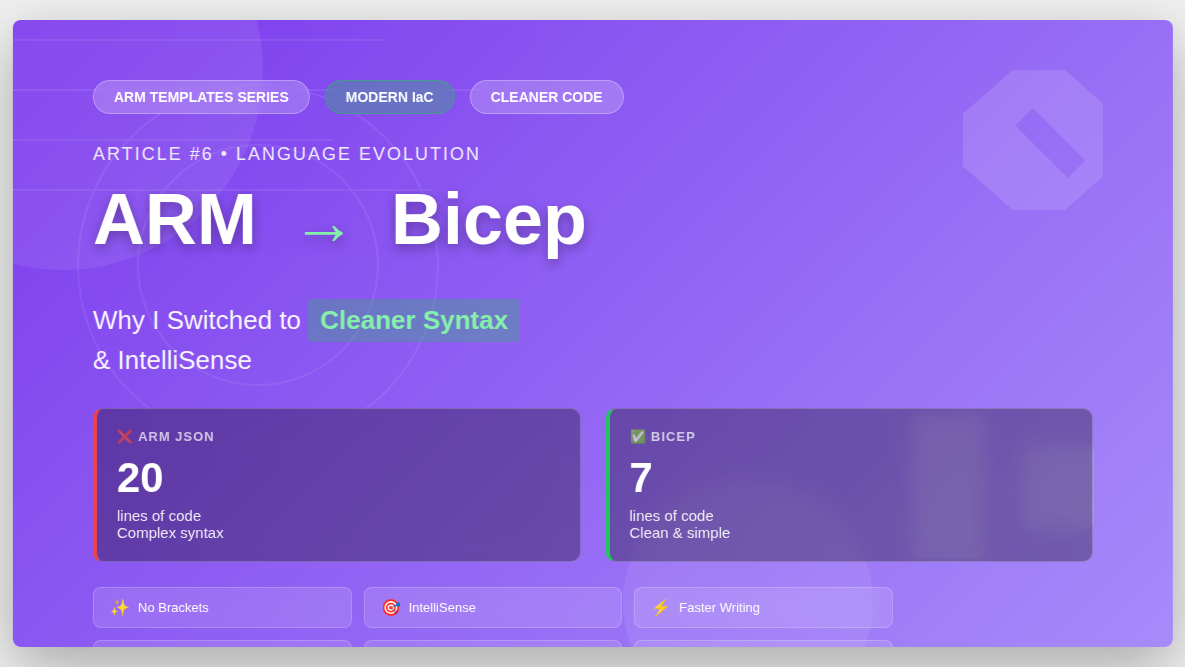
Hello everyone! After learning ARM templates, I started to learn Bicep. Let me show you why I made the switch from ARM JSON to Bicep.
While I was learning ARM templates, I heard people talking about Bicep. I was curious – what is Bicep? Why do people prefer it over ARM templates?
I tried it and immediately understood. Bicep is SO much easier to read and write!
What is Bicep?
Bicep is a new language for deploying Azure resources. It does the same thing as ARM templates, but with cleaner syntax.
Think of it like this:
- ARM templates = Writing in formal business language
- Bicep = Writing in normal, everyday language
Both get the job done, but Bicep is much easier!
My First Comparison: Creating a Storage Account
Let me show you the difference.
ARM Template (JSON):
{
  "$schema": "https://schema.management.azure.com/schemas/2019-04-01/deploymentTemplate.json#",
  "contentVersion": "1.0.0.0",
  "parameters": {},
  "functions": [],
  "variables": {},
  "resources": [
    {
      "name": "rezastore8677676",
      "type": "Microsoft.Storage/storageAccounts",
      "apiVersion": "2021-04-01",
      "location": "[resourceGroup().location]",
      "sku": {
        "name": "Standard_LRS"
      },
      "kind": "StorageV2"
    }
  ],
  "outputs": {}
}
Same thing in Bicep:
resource sa 'Microsoft.Storage/storageAccounts@2025-01-01' = {
  name : 'rezastorageaccount'
  location: 'eastus'
  sku: {
    name: 'Standard_LRS'
  }
  kind: 'StorageV2'
}
Look at the difference! Bicep is:
- 7 lines vs 20 lines
- No brackets everywhere
- No quotes around property names
- Much easier to read!
Why Bicep is Better: 5 Big Reasons
Reason 1: No More Schema and ContentVersion
ARM template must start with:
{
  "$schema": "https://schema.management.azure.com/schemas/2019-04-01/deploymentTemplate.json#",
  "contentVersion": "1.0.0.0",
  "parameters": {},
  "functions": [],
  "variables": {},
  "resources": [],
  "outputs": {}
}
Bicep: Just start writing! No schema needed.
resource sa 'Microsoft.Storage/storageAccounts@2025-01-01' = {
  name : 'rezastorageaccount'
  location: 'eastus'
  sku: {
    name: 'Standard_LRS'
  }
  kind: 'StorageV2'
}
Reason 2: Resource Type and API Version Together
ARM template separates type and apiVersion:
{
  "name": "rezastore8677676",
  "type": "Microsoft.Storage/storageAccounts",
  "apiVersion": "2021-04-01",
  ...
}
Bicep combines them in one line:
resource sa 'Microsoft.Storage/storageAccounts@2025-01-01' = {
  ...
}
This is cleaner! Type and version are together.
Reason 3: No Square Brackets for Functions
ARM template uses square brackets everywhere:
"location": "[resourceGroup().location]"Bicep: Just write it normally!
location: resourceGroup().locationNo brackets needed! It’s like writing normal code.
Reason 4: Resource Names Are Shorter
ARM template needs full resource path:
"[resourceId('Microsoft.Network/virtualNetworks/subnets', 'appnetwork', 'SubnetA')]"Bicep: Just use the resource name!
subnet.idMuch simpler!
Reason 5: IntelliSense and Validation
When I write Bicep in VS Code:
- IntelliSense shows me available properties
- I get autocomplete suggestions
- Errors show up immediately
- I can hover to see documentation
With ARM templates, I had to check documentation constantly!
My Real Examples: Side by Side Comparison
Example 1: Creating Resource Group
ARM template (you can’t create RG in template – need Azure CLI):
az group create --name reza-rg --location eastusBicep can create resource group!
targetScope = 'subscription'

resource rg 'Microsoft.Resources/resourceGroups@2025-04-01' ={
  name: 'reza-eus'
  location: 'eastus'
}
Deploy it:
az deployment sub create --location eastus --template-file 01-rg.bicepThis was my first “wow” moment with Bicep!
Example 2: Creating Multiple Storage Accounts
ARM template with copy loop (complicated!):
{
  "type": "Microsoft.Storage/storageAccounts",
  "apiVersion": "2021-04-01",
  "name": "[concat('storage', copyIndex())]",
  "location": "eastus",
  "sku": {
    "name": "Standard_LRS"
  },
  "kind": "StorageV2",
  "copy": {
    "name": "storagecopy",
    "count": 3
  }
}
Bicep with for loop (simple!):
resource sa 'Microsoft.Storage/storageAccounts@2025-01-01' = [for i in range(0,3):{
  name : '${i}rezastorageaccount'
  location: 'eastus'
  sku: {
    name: 'Standard_LRS'
  }
  kind: 'StorageV2'
}]
The Bicep for loop is much easier to understand!
Example 3: Creating Virtual Network
ARM template:
{
  "name": "appnetwork",
  "type": "Microsoft.Network/virtualNetworks",
  "apiVersion": "2020-11-01",
  "location": "North Europe",
  "properties": {
    "addressSpace": {
      "addressPrefixes": [
        "10.0.0.0/16"
      ]
    },
    "subnets": [
      {
        "name": "SubnetA",
        "properties": {
          "addressPrefix": "10.0.0.0/24"
        }
      },
      {
        "name": "SubnetB",
        "properties": {
          "addressPrefix": "10.0.1.0/24"
        }
      }
    ]
  }
}
Bicep:
resource vnet 'Microsoft.Network/virtualNetworks@2024-10-01' ={
  name: 'ezaeus'
  location: 'eastus'
  properties: {
    addressSpace: {addressPrefixes:['10.0.0.0/16']}
    subnets:[
      {
        name:'snet-dev-eus-web-01'
        properties:{addressPrefix:'10.0.0.0/24'}
      }
      {
        name:'snet-dev-eus-db-01'
        properties:{addressPrefix:'10.0.1.0/24'}
      }
    ]
  }
}
Bicep is cleaner – no quotes around property names!
Example 4: Creating Network Security Group
ARM template – lots of nesting:
{
  "name": "app-nsg",
  "type": "Microsoft.Network/networkSecurityGroups",
  "apiVersion": "2020-11-01",
  "location": "[resourceGroup().location]",
  "properties": {
    "securityRules": [
      {
        "name": "Allow-RDP",
        "properties": {
          "description": "description",
          "protocol": "Tcp",
          "sourcePortRange": "*",
          "destinationPortRange": "3389",
          "sourceAddressPrefix": "*",
          "destinationAddressPrefix": "*",
          "access": "Allow",
          "priority": 100,
          "direction": "Inbound"
        }
      }
    ]
  }
}
Bicep – using variables for clarity:
var nsgName           = 'nsg-az104-shared-eus-01'
var any               = '*'

var ruleSshName       = 'in-allow-rdp-admin'
var ruleSshPriority   = 400
var SshPort           = '22'

var svcTagInternet    = 'Internet'
var httpDestIp        = '10.0.0.4'
var httpPort          = '80'
var ruleHttpName      = 'in-allow-http-from-internet-to-10-0-0-4'
var ruleHttpPriority  = 410

resource nsg 'Microsoft.Network/networkSecurityGroups@2024-10-01'={
  name: nsgName
  location: resourceGroup().location
  properties: {
    securityRules: [
      {
        name: ruleSshName
        properties: {
          description: 'Allow SSH for admin access.'
          protocol: 'Tcp'
          sourcePortRange: any
          destinationPortRange: SshPort
          sourceAddressPrefix: any
          destinationAddressPrefix: any
          access: 'Allow'
          priority: ruleSshPriority
          direction: 'Inbound'
        }
      }
      {
        name: ruleHttpName
        properties: {
          description: 'Allow HTTP from the Internet service tag to 10.0.0.4.'
          protocol: 'Tcp'
          sourcePortRange: any
          destinationPortRange: httpPort
          sourceAddressPrefix: svcTagInternet
          destinationAddressPrefix: httpDestIp
          access: 'Allow'
          priority: ruleHttpPriority
          direction: 'Inbound'
        }
      }
    ]
  }
}
I love this! Variables at the top make the code self-documenting. I can see what each value means!
Example 5: Referencing Existing Resources
This is where Bicep really shines!
ARM template – checking if resource exists is hard:
{
  "type": "Microsoft.Network/networkInterfaces",
  "name": "app-interface",
  "properties": {
    "ipConfigurations": [
      {
        "properties": {
          "subnet": {
            "id": "[resourceId('Microsoft.Network/virtualNetworks/subnets', 'appnetwork', 'SubnetA')]"
          }
        }
      }
    ]
  }
}
Bicep – use existing keyword:
resource vnet 'Microsoft.Network/virtualNetworks@2024-07-01' existing = {
  name: 'vnet-dev-eus-01'
}

resource subnet 'Microsoft.Network/virtualNetworks/subnets@2024-07-01' existing = {
  name: 'snet-dev-eus-web-01'
  parent: vnet
}

resource pip 'Microsoft.Network/publicIPAddresses@2024-10-01' existing = {
    name: 'pip-web-dev-eus-01'
}

resource nic 'Microsoft.Network/networkInterfaces@2024-10-01' = {
    name:'nic-web-dev-eus-01'
    location: resourceGroup().location
    properties: {
       ipConfigurations:[
        {
          name:'ipconfig-web-01'
          properties: {
              privateIPAllocationMethod: 'Dynamic'
              subnet: {
                 id: subnet.id
              }
              publicIPAddress: {
                id: pip.id
              }
          }
        }
       ]
    }
}
See how clean this is! I declare existing resources at the top, then just use subnet.id and pip.id. So simple!
Example 6: Creating Virtual Machine
ARM template is very long. Let me show you Bicep version:
resource nic 'Microsoft.Network/networkInterfaces@2024-10-01' existing = {
  name: 'nic-web-dev-eus-01'
}

resource sa 'Microsoft.Storage/storageAccounts@2025-01-01' = {
  name : 'stcloudhubdev2000'
  location: 'eastus'
  sku: {
    name: 'Standard_LRS'
  }
  kind: 'StorageV2'
}

var bootDiagBlobEndpoint = sa.properties.primaryEndpoints.blob

resource vm 'Microsoft.Compute/virtualMachines@2024-11-01' = {
  name: 'vm-dev-eus-web-01'
  location: resourceGroup().location
  properties: {
    hardwareProfile: {
      vmSize: 'Standard_B1s'
    }

    osProfile: {
      computerName: 'vm-dev-eus-web-01'
      adminUsername: 'linuxadmin'
      adminPassword: 'Azure@123'
      linuxConfiguration: {
        disablePasswordAuthentication: false
      }
    }

    storageProfile: {
      imageReference: {
        publisher: 'Canonical'
        offer: 'ubuntu-24_04-lts'
        sku: 'server'
        version: 'latest'
      }

      osDisk: {
        name: 'osdisk-vm-dev-eus-web-01'
        caching: 'ReadWrite'
        createOption: 'FromImage'
        managedDisk: {
          storageAccountType: 'Standard_LRS'
        }
      }
    }

    networkProfile: {
       networkInterfaces: [ {
        id:nic.id
       }]
    }

    diagnosticsProfile: {
      bootDiagnostics: {
        enabled:true
        storageUri:bootDiagBlobEndpoint
      }
    }
  }
}
Look at this line:
var bootDiagBlobEndpoint = sa.properties.primaryEndpoints.blobIn ARM template, this would be:
"[reference(resourceId('Microsoft.Storage/storageAccounts/', toLower('rezastore8677676'))).primaryEndpoints.blob]"Bicep is SO much cleaner!
Example 7: Using Parameters
ARM template:
{
  "$schema": "https://schema.management.azure.com/schemas/2019-04-01/deploymentTemplate.json#",
  "contentVersion": "1.0.0.0",
  "parameters": {
    "vmName": {
      "type": "string",
      "metadata": {
        "description": "Virtual machine name"
      }
    },
    "adminUsername": {
      "type": "string",
      "metadata": {
        "description": "Admin username for the VM"
      }
    },
    "adminPassword": {
      "type": "secureString",
      "metadata": {
        "description": "Admin password for the VM"
      }
    }
  }
}
Bicep:
@description('Virtual machine name')
param vmName string

@description('Admin username for the VM')
param adminUsername string

@secure()
@description('Admin password for the VM')
param adminPassword string
Bicep parameters are cleaner! The @description decorator is right above the parameter.
Example 8: Availability Sets and Data Disks
Here’s a more complex Bicep example I created:
resource nic 'Microsoft.Network/networkInterfaces@2024-10-01' existing = {
  name: 'nic-web-dev-eus-01'
}

resource avset 'Microsoft.Compute/availabilitySets@2025-04-01' = {
 name: 'avset-web-dev-eus-01'
  location: resourceGroup().location
  sku: {
     name: 'Aligned'
  }
  properties: {
    platformFaultDomainCount:2
    platformUpdateDomainCount: 5
  }
}

resource dataDisk 'Microsoft.Compute/disks@2025-01-02' = {
   name: 'disk-web-data-dev-eus-01'
  location: resourceGroup().location
  sku : {
    name: 'Standard_LRS'
  }
  properties: {
    creationData: {createOption:'Empty'}
    diskSizeGB: 16
  }
}

resource sa 'Microsoft.Storage/storageAccounts@2025-01-01' = {
  name : 'stcloudhubdev2000'
  location: 'eastus'
  sku: {
    name: 'Standard_LRS'
  }
  kind: 'StorageV2'
}

var bootDiagBlobEndpoint = sa.properties.primaryEndpoints.blob

resource vm 'Microsoft.Compute/virtualMachines@2024-11-01' = {
  name: 'vm-dev-eus-web-01'
  location: resourceGroup().location
  properties: {
    hardwareProfile: {
      vmSize: 'Standard_B1s'
    }

    availabilitySet: {
      id: avset.id
    }

    osProfile: {
      computerName: 'vm-dev-eus-web-01'
      adminUsername: 'linuxadmin'
      adminPassword: 'Azure@123'
      linuxConfiguration: {
        disablePasswordAuthentication: false
      }
    }

    storageProfile: {
      imageReference: {
        publisher: 'Canonical'
        offer: 'ubuntu-24_04-lts'
        sku: 'server'
        version: 'latest'
      }

      osDisk: {
        name: 'osdisk-vm-dev-eus-web-01'
        caching: 'ReadWrite'
        createOption: 'FromImage'
        managedDisk: {
          storageAccountType: 'Standard_LRS'
        }
      }

      dataDisks:[ {
        createOption: 'Attach'
        lun: 0
        managedDisk: {
          id: dataDisk.id
        }
      }]
    }

    networkProfile: {
       networkInterfaces: [ {
        id:nic.id
       }]
    }

    diagnosticsProfile: {
      bootDiagnostics: {
        enabled:true
        storageUri:bootDiagBlobEndpoint
      }
    }
  }
}
I love how I can reference other resources easily: avset.id, dataDisk.id, nic.id. In ARM templates, these would be long resourceId() functions!
Example 9: Custom Script Extension
Here’s how I add Nginx to my VM automatically:
resource vm 'Microsoft.Compute/virtualMachines@2024-11-01' = {
  name: 'vm-dev-eus-web-01'
  location: resourceGroup().location
  properties: {
    // ... VM configuration
  }
}

resource cse 'Microsoft.Compute/virtualMachines/extensions@2021-04-01' = {
  name: 'ext-nginx-setup'
  parent: vm
  location: resourceGroup().location
  properties: {
    publisher: 'Microsoft.Azure.Extensions'
    type: 'CustomScript'
    typeHandlerVersion: '2.1'
    autoUpgradeMinorVersion: true

    settings: {
      fileUris: [
        'https://stcloudhubdev2000.blob.core.windows.net/scripts/setup-nginx.sh?sp=r&st=2025-10-07T12:56:23Z&se=2025-10-07T21:11:23Z&spr=https&sv=2024-11-04&sr=b&sig=wo8Ne%2BcjxCw1URCROg8%2BvF0pz%2FcvNgMh2yo9cyMlL1s%3D'
      ]
    }

    protectedSettings: {
      commandToExecute: 'bash setup-nginx.sh'
    }
  }
}
The parent: vm syntax is beautiful! It makes parent-child relationship clear.
Example 10: Web App with Linux
Here’s my Web App deployment in Bicep:
resource plan 'Microsoft.Web/serverfarms@2024-11-01' = {
  name: 'asp-web-dev-plan-01'
  location:'centralus'
  kind: 'linux'
  sku: {
      name: 'F1'
      capacity:1
  }
  properties: {
     name:'asp-web-dev-plan-01'
     reserved:true
  }
}

resource web 'Microsoft.Web/sites@2024-11-01' = {
    name: 'asp-web-dev-01'
  location:'centralus'
  kind: 'app,linux'
  properties: {
    name: 'asp-web-dev-01'
    serverFarmId: plan.id
    siteConfig: {
      linuxFxVersion: 'PHP|8.3'
    }
  }
}
Clean and simple! I reference the App Service Plan with just plan.id.
How to Install Bicep
Installing Bicep is easy:
Windows (PowerShell):
winget install -e --id Microsoft.BicepOr with Azure CLI (already included):
az bicep versionVS Code Extension:
Install “Bicep” extension in VS Code for IntelliSense!
How to Deploy Bicep Files
Deploy resource group:
az deployment sub create \
  --location eastus \
  --template-file 01-rg.bicep
Deploy resources:
az deployment group create \
  --resource-group reza-eus \
  --template-file 02-storage.bicep
That’s it! Same as ARM templates.
Bicep Converts to ARM Template
Here’s the cool part: Bicep converts to ARM template automatically!
When I run az deployment group create, Azure CLI:
- Converts my Bicep file to ARM JSON
- Sends ARM JSON to Azure
- Azure deploys resources
I can see the ARM template:
az bicep build --file 02-storage.bicepThis creates 02-storage.json file (ARM template).
So Bicep is just a better way to write ARM templates!
My Learning Journey
When I started:
- Week 1: Wrote ARM templates, struggled with syntax
- Week 2: Learned about Bicep
- Week 3: Converted my first ARM template to Bicep
- Week 4: Writing everything in Bicep now!
The learning curve is much easier with Bicep!
What I Like Most About Bicep
- Cleaner syntax – No extra brackets and quotes
- IntelliSense – VS Code helps me write code
- Error checking – Mistakes show immediately
- Existing resources – Easy to reference existing stuff
- Parent-child relationships – Clear with parent: keyword
- Variables are simple – No square brackets
- For loops – Much easier than ARM copy
What ARM Templates Do Better
Honestly? Nothing! Bicep is better in every way.
The only reason to use ARM templates is if:
- Your company already has many ARM templates
- You’re maintaining old code
- Your tools don’t support Bicep yet
But for new projects, always use Bicep!
My Mistakes with Bicep
I forgot to install VS Code extension:
First time I wrote Bicep without the extension. No IntelliSense, no autocomplete. It was hard!
Fix: Install Bicep extension in VS Code. Life became much easier!
I tried to use ARM template syntax:
I wrote:
location: [resourceGroup().location]Error! No square brackets in Bicep.
Fix:
location: resourceGroup().locationI forgot parent relationship:
I created subnet without parent:
resource subnet 'Microsoft.Network/virtualNetworks/subnets@2024-10-01' = {
  name: 'snet-dev-eus-web-01'
}
resource subnet 'Microsoft.Network/virtualNetworks/subnets@2024-10-01' = {
name: 'snet-dev-eus-web-01'
parent: vnet
}What I Learned
- Bicep is easier than ARM templates – Much cleaner syntax
- Same functionality – Bicep can do everything ARM can do
- Better tooling – IntelliSense and validation
- Existing keyword is powerful – Reference existing resources easily
- Parent-child is clear – Using parent: property
- Variables are simple – No functions needed
- For loops are intuitive – Easy to understand
- Converts to ARM – So it works everywhere