$ cat aws-with-terraform/part-01.md
Building Secure AWS Infrastructure: VPC, Bastion Hosts, and Private EC2 Instances with Terraform
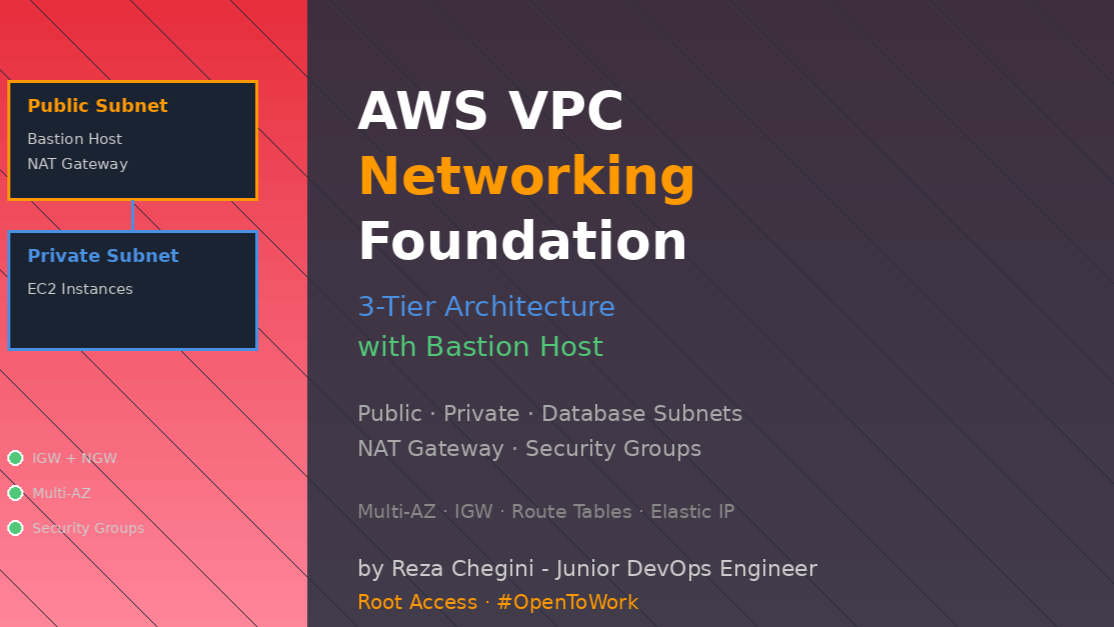
Why I Built This Project
When I started learning AWS, I struggled to understand how networking really works. Reading documentation wasn’t enough I needed to build something real. So I created a complete infrastructure from scratch using Terraform that shows how to properly isolate resources and secure SSH access.
This project taught me the foundation of AWS networking that every DevOps engineer needs to know.
What I Built
I deployed a three-tier network architecture with:
- VPC with public, private, and database subnets across 2 availability zones
- Bastion host in public subnet for secure SSH access
- 2 Private EC2 instances running Apache web servers
- Security groups with least-privilege rules
- NAT Gateway for private instances to access internet
- Elastic IP for stable bastion host connection
The Architecture
Internet
    ↓
Internet Gateway
    ↓
Public Subnets (10.0.101.0/24, 10.0.102.0/24)
    ↓
Bastion Host (with Elastic IP)
    ↓
Private Subnets (10.0.1.0/24, 10.0.2.0/24)
    ↓
Private EC2 Instances (running Apache)
Technical Implementation Details
1. Understanding VPC Module Configuration
Before writing any code, I needed to understand what a VPC actually does. A VPC (Virtual Private Cloud) is like your own private network inside AWS. Without VPC, you can’t launch EC2 instances or any other resources.
I used the official Terraform AWS VPC module (version 5.13.0). Here’s my actual configuration:
module "vpc" {
    source = "terraform-aws-modules/vpc/aws"
    version = "5.13.0"

    name = "${local.name}-${var.vpc_name}"
    cidr = var.vpc_cidr_block
    azs = var.vpc_availability_zones
    public_subnets = var.vpc_public_subnets
    private_subnets = var.vpc_private_subnets
    database_subnets = var.vpc_database_subnets

    create_database_subnet_group = var.vpc_create_database_subnet_group
    create_database_subnet_route_table = var.vpc_create_database_subnet_route_table

    enable_nat_gateway = var.vpc_enable_nat_gateway
    single_nat_gateway = var.vpc_single_nat_gateway

    enable_dns_support = true
    enable_dns_hostnames = true

    tags = local.common_tags
}
Why these settings matter:
- single_nat_gateway = true – I use only one NAT Gateway to save costs
- enable_dns_hostnames = true – EC2 instances get DNS names automatically
- create_database_subnet_route_table = true – Database subnets are isolated with their own route table
Deep dive into each parameter:
VPC Name with Local Values:
name = "${local.name}-${var.vpc_name}"
# Result: "sap-dev-myvpc"
I combine business division + environment + vpc name. This makes it easy to find resources in AWS console when I have multiple VPCs.
CIDR Block:
cidr = var.vpc_cidr_block # 10.0.0.0/16The /16 gives me 65,536 IP addresses (2^16). This is enough for hundreds of servers. I chose 10.0.0.0 because it’s private IP range (RFC 1918) and won’t conflict with internet.
Availability Zones:
azs = var.vpc_availability_zones # ["us-east-1a", "us-east-1b"]Using 2 AZs means if one datacenter fails, my app still works. AWS best practice says use at least 2 AZs for production.
Subnet Types Explained:
public_subnets = var.vpc_public_subnets    # Has route to Internet Gateway
private_subnets = var.vpc_private_subnets  # Has route to NAT Gateway
database_subnets = var.vpc_database_subnets # No internet route at all
The difference is in the route tables:
- Public subnet → Internet Gateway (can receive traffic from internet)
- Private subnet → NAT Gateway (can send to internet, cannot receive)
- Database subnet → No internet (completely isolated)
NAT Gateway Configuration:
enable_nat_gateway = true
single_nat_gateway = true
NAT Gateway allows private instances to download packages (yum update, yum install httpd) without exposing them to internet.
With single_nat_gateway = true, I create only ONE NAT Gateway in first AZ. This saves $32/month but means:
- If us-east-1a fails, private instances in us-east-1b lose internet
- For production, use single_nat_gateway = false to create NAT in each AZ
DNS Settings:
enable_dns_support = true
enable_dns_hostnames = true
Without these, EC2 instances don’t get DNS names like ec2-3-80-123-45.compute-1.amazonaws.com. Many applications need DNS to work properly.
2. Network Design
My CIDR allocation strategy:
| Subnet Type | Availability Zone | CIDR Block | Purpose |
|---|---|---|---|
| Public | us-east-1a | 10.0.101.0/24 | Bastion host |
| Public | us-east-1b | 10.0.102.0/24 | Future load balancer |
| Private | us-east-1a | 10.0.1.0/24 | Application servers |
| Private | us-east-1b | 10.0.2.0/24 | Application servers |
| Database | us-east-1a | 10.0.151.0/24 | Future RDS instances |
| Database | us-east-1b | 10.0.152.0/24 | Future RDS instances |
I chose this design because:
- Public subnets use 10.0.10X.0/24 range (easy to remember – anything with 10X is public)
- Private subnets use 10.0.X.0/24 range (lowest numbers = app servers)
- Database subnets use 10.0.15X.0/24 range (15X = database layer)
Why /24 subnet mask?
- /24 = 256 IP addresses per subnet
- AWS reserves 5 IPs in each subnet (network, gateway, DNS, future use, broadcast)
- Available IPs = 256 – 5 = 251 usable addresses
- This is enough for most applications
Subnet distribution across AZs: The module automatically distributes subnets across availability zones:
- public_subnets[0] → us-east-1a
- public_subnets[1] → us-east-1b
- private_subnets[0] → us-east-1a
- private_subnets[1] → us-east-1b
This is important for high availability. If I launch instances without specifying subnet, AWS picks randomly. But I specify exact subnet to control which AZ my instance runs in.
How Traffic Flows in This Architecture
Understanding traffic flow helped me debug many issues. Let me explain each scenario:
Scenario 1: SSH from Internet to Bastion Host
My Laptop (123.45.67.89)
    ↓ (SSH request to 54.123.45.67:22)
Internet Gateway
    ↓ (forwards to 10.0.101.45)
Bastion Host Security Group (checks: is source 0.0.0.0/0? YES, allow)
    ↓
Bastion Host (10.0.101.45)
    ↓ (response goes back same path - stateful!)
My Laptop
Scenario 2: SSH from Bastion to Private Instance
Bastion Host (10.0.101.45)
    ↓ (SSH to 10.0.1.23:22)
Private Instance Security Group (checks: is source from 10.0.0.0/16? YES, allow)
    ↓
Private Instance (10.0.1.23)
    ↓ (response)
Bastion Host
Scenario 3: Private Instance Downloads Package (yum install)
Private Instance (10.0.1.23)
    ↓ (request to yum.repo.com:80)
Private Subnet Route Table (check: destination not in VPC → use NAT Gateway)
    ↓
NAT Gateway (10.0.101.75 in public subnet)
    ↓ (NAT translates 10.0.1.23 → NAT's public IP)
Internet Gateway
    ↓
Internet (yum.repo.com)
    ↓ (response)
NAT Gateway (translates back to 10.0.1.23)
    ↓
Private Instance
Scenario 4: Internet User tries to access Private Instance (BLOCKED)
Internet User
    ↓ (tries to reach 10.0.1.23)
Internet Gateway (check: 10.0.1.23 is private IP, no route)
    ✗ BLOCKED - Private IPs not routable on internet
Even if someone knows my private instance IP, they cannot reach it from internet because:
- Private IP (10.0.0.0/8) is not routable on internet
- No public IP attached to private instance
- Security group only allows VPC CIDR
Route Table Configuration (what the VPC module creates):
Public Subnet Route Table:
Destination         Target
10.0.0.0/16        local (VPC)
0.0.0.0/0          igw-xxxxx (Internet Gateway)
Private Subnet Route Table:
Destination         Target
10.0.0.0/16        local (VPC)
0.0.0.0/0          nat-xxxxx (NAT Gateway)
Database Subnet Route Table:
Destination         Target
10.0.0.0/16        local (VPC)
(No internet route at all!)
3. Security Groups – The Firewall Rules
Bastion Host Security Group:
module "public_bastion_sg" {
  source  = "terraform-aws-modules/security-group/aws"
  version = "5.2.0"

  name = "public-bastion-sg"
  description = "Security group for public bastion hosts"
  vpc_id = module.vpc.vpc_id

  ingress_rules = ["ssh-tcp"]
  ingress_cidr_blocks = ["0.0.0.0/0"]

  egress_rules = ["all-all"]
  tags = local.common_tags
}
This allows SSH (port 22) from anywhere on the internet. The bastion is our entry point.
Private Instance Security Group:
module "private_sg" {
  source  = "terraform-aws-modules/security-group/aws"
  version = "5.2.0"

  name = "private-sg"
  description = "Security group for private instances"
  vpc_id = module.vpc.vpc_id

  ingress_rules = ["ssh-tcp", "http-80-tcp"]
  ingress_cidr_blocks = [module.vpc.vpc_cidr_block]

  egress_rules = ["all-all"]
  tags = local.common_tags
}
Important: Private instances only accept SSH and HTTP from VPC CIDR (10.0.0.0/16), not from internet. This is security best practice.
How Security Groups Actually Work:
Security groups are stateful firewalls. This means:
- If I allow incoming SSH (port 22), the response automatically goes back
- I don’t need separate rule for outbound response
- Security groups only have ALLOW rules, no DENY rules
Understanding the ingress_cidr_blocks:
Bastion host:
ingress_cidr_blocks = ["0.0.0.0/0"] # From anywhere on internetPrivate instances:
ingress_cidr_blocks = [module.vpc.vpc_cidr_block] # Only from 10.0.0.0/16This means:
- Internet user → Can SSH to bastion (allowed)
- Internet user → Cannot SSH to private instance (blocked)
- Bastion host → Can SSH to private instance (allowed, because bastion is in VPC)
- Private instance → Can SSH to another private instance (allowed, both in VPC)
The egress_rules Explained:
egress_rules = ["all-all"]This allows ALL outbound traffic. The instances can:
- Download packages from yum repositories
- Call AWS APIs
- Connect to internet via NAT Gateway
- Send responses back to connections
Security Group vs NACL (Network ACL):
- Security groups = instance-level firewall (what I’m using)
- NACLs = subnet-level firewall (not configured in this project)
- Security groups are stateful, NACLs are stateless
- For most cases, security groups are enough
4. EC2 Instance Deployment
Bastion Host Configuration:
module "ec2_public" {
  source  = "terraform-aws-modules/ec2-instance/aws"
  version = "5.7.0"

  name = "${var.environment}-BastionHost"
  ami = data.aws_ami.amzlinux2.id
  instance_type = var.instance_type
  key_name = var.instance_keypair
  subnet_id = module.vpc.public_subnets[0]
  vpc_security_group_ids = [module.public_bastion_sg.security_group_id]
  tags = local.common_tags
}
Private Instances with for_each:
module "ec2_private" {
    depends_on = [ module.vpc ]
    source  = "terraform-aws-modules/ec2-instance/aws"
    version = "5.7.0"

    name = "${var.environment}-vm"
    ami = data.aws_ami.amzlinux2.id
    instance_type = var.instance_type
    key_name = var.instance_keypair

    for_each = toset(["0", "1"])
    subnet_id = element(module.vpc.private_subnets, tonumber(each.key))
    vpc_security_group_ids = [module.private_sg.security_group_id]
    user_data = file("${path.module}/app1-install.sh")

    tags = local.common_tags
}
Why for_each instead of count?
- for_each creates instances with stable names
- If I destroy one instance, others keep their identity
- With count, destroying instance[0] would rename instance[1] to instance[0]
Let me explain this problem with count:
Using count (the old way):
count = 2
# Creates: vm[0] and vm[1]
If I destroy vm[0]:
- Terraform renames vm[1] → vm[0]
- This recreates the instance!
- All data lost
- New IP address assigned
Using for_each (the better way):
for_each = toset(["0", "1"])
# Creates: vm["0"] and vm["1"]
If I destroy vm[“0”]:
- vm[“1”] stays vm[“1”]
- No recreation
- Data and IP preserved
Understanding the subnet distribution:
subnet_id = element(module.vpc.private_subnets, tonumber(each.key))Let me break this down:
- module.vpc.private_subnets = [“subnet-aaa”, “subnet-bbb”]
- each.key = “0” or “1” (from for_each)
- tonumber(each.key) = converts “0” to 0, “1” to 1
- element(list, index) = picks subnet from list
Result:
- Instance “0” → private_subnets[0] → us-east-1a
- Instance “1” → private_subnets[1] → us-east-1b
The AMI Data Source:
data "aws_ami" "amzlinux2" {
  most_recent = true
  owners = [ "amazon" ]
  filter {
    name = "name"
    values = [ "amzn2-ami-hvm-*-gp2" ]
  }
  filter {
    name = "virtualization-type"
    values = [ "hvm" ]
  }
}
This automatically finds the latest Amazon Linux 2 AMI. I don’t need to hardcode AMI ID like ami-0c55b159cbfafe1f0 which changes every month. The data source always finds the newest version.
Why depends_on is critical:
depends_on = [ module.vpc ]Without this, Terraform might try to create EC2 instances before VPC exists. The terraform execution happens in parallel for speed, but some resources need others first. The depends_on forces correct order.
5. Elastic IP for Bastion Host
resource "aws_eip" "bastion_eip" {
    depends_on = [ module.vpc, module.ec2_public ]
    instance = module.ec2_public.id
    domain   = "vpc"
    tags = local.common_tags
}
Elastic IP gives bastion host a permanent public IP address. Even if I stop and start the instance, the IP stays the same. This is important for SSH access and security group rules.
Why Elastic IP is necessary:
Without Elastic IP:
- Instance gets random public IP when launched
- Public IP changes every stop/start
- I need to update SSH config every time
- Security group rules break
With Elastic IP:
- Same IP always: 54.123.45.67 (example)
- Can whitelist this IP in company firewall
- SSH config never changes
- Can create DNS record pointing to this IP
Understanding the resource block:
resource "aws_eip" "bastion_eip" {
    depends_on = [ module.vpc, module.ec2_public ]
    instance = module.ec2_public.id
    domain   = "vpc"
    tags = local.common_tags
}- depends_on – Wait for VPC and EC2 to exist first
- instance – Attach EIP to this specific instance
- domain = “vpc” – EIP for VPC (not EC2-Classic which is old)
EIP Lifecycle:
- Terraform creates EIP (gets public IP from AWS pool)
- Terraform attaches EIP to bastion instance
- Instance can now use this IP
- If instance stops → EIP stays allocated to my account
- If instance starts → EIP automatically reattaches
- If I run terraform destroy → EIP releases back to AWS
EIP is FREE when:
- Attached to a running instance
- Not allocated at all
So always run terraform destroy when done learning!
6. Automated SSH Key Distribution
This was the tricky part. Private instances need the SSH key to connect to each other, but the key file is on my laptop. I used Terraform provisioners:
resource "null_resource" "name" {
    depends_on = [ module.ec2_public ]

    connection {
        type = "ssh"
        host = aws_eip.bastion_eip.public_ip
        user = "ec2-user"
        password = ""
        private_key = file("private-key/terraform-key.pem")
    }

    provisioner "file" {
        source = "private-key/terraform-key.pem"
        destination = "/tmp/terraform-key.pem"
    }

    provisioner "remote-exec" {
        inline = [
            "sudo chmod 400 /tmp/terraform-key.pem",
            "echo VPC created on `date` and VPC ID: ${module.vpc.vpc_id} >> creation-time-vpc-id.txt"
         ]
    }
}
What this does:
- Waits for bastion host to be ready (depends_on)
- Connects via SSH to bastion host
- Copies my private key to /tmp/ directory
- Sets correct permissions (400 = read-only for owner)
- Creates a log file with VPC ID and creation time
Now from bastion, I can SSH to private instances:
ssh -i /tmp/terraform-key.pem ec2-user@10.0.1.XWhy null_resource is needed:
The problem:
- Private instances are in private subnet (no public IP)
- I cannot SSH directly from my laptop
- Private instances need SSH key to communicate with each other
- The key file is on my laptop, not on bastion
The solution:
- Use null_resource to run commands AFTER bastion is ready
- Copy private key from my laptop to bastion
- Now bastion can SSH to private instances
Understanding each provisioner:
Connection block:
connection {
    type = "ssh"
    host = aws_eip.bastion_eip.public_ip
    user = "ec2-user"
    password = ""
    private_key = file("private-key/terraform-key.pem")
}- type = “ssh” – Use SSH protocol
- host – Connect to Elastic IP (not random public IP)
- user = “ec2-user” – Default user for Amazon Linux 2
- private_key – Read key file from my laptop
File provisioner:
provisioner "file" {
    source = "private-key/terraform-key.pem"
    destination = "/tmp/terraform-key.pem"
}
This copies file from my laptop to bastion host. Like scp command but automated.
Remote-exec provisioner:
provisioner "remote-exec" {
    inline = [
        "sudo chmod 400 /tmp/terraform-key.pem",
        "echo VPC created on `date` and VPC ID: ${module.vpc.vpc_id} >> creation-time-vpc-id.txt"
    ]
}- sudo chmod 400 – Sets permissions to read-only for owner (required for SSH keys)
- echo … >> file.txt – Creates log file with timestamp and VPC ID
Why chmod 400 is critical: SSH refuses to use key files with wrong permissions:
chmod 777 terraform-key.pem → SSH ERROR: "permissions are too open"
chmod 400 terraform-key.pem → SSH works
400 means:
- Owner can read (4)
- Group cannot do anything (0)
- Others cannot do anything (0)
Alternative approaches I considered:
- AWS Systems Manager Session Manager – No SSH key needed, but costs money
- EC2 Instance Connect – Temporary SSH keys, but more complex
- This null_resource approach – Simple and free
For learning, null_resource is best. For production, use Systems Manager.
7. Web Server Installation Script
I used user data to install Apache automatically when instances launch:
#!/bin/bash
sudo yum update -y
sudo yum install -y httpd
sudo systemctl enable httpd
sudo service httpd start
sudo echo '<h1>Welcome to Root Access - APP-1</h1>' | sudo tee /var/www/html/index.html
sudo mkdir /var/www/html/app1
sudo echo '<!DOCTYPE html> <html> <body style="background-color:rgb(250, 210, 210);"> <h1>Welcome to Root Access - APP-1</h1> <p>Terraform Demo by Reza Chegini</p> <p>Application Version: V1</p> </body></html>' | sudo tee /var/www/html/app1/index.html

# Get instance metadata
TOKEN=`curl -X PUT "http://169.254.169.254/latest/api/token" -H "X-aws-ec2-metadata-token-ttl-seconds: 21600"`
sudo curl -H "X-aws-ec2-metadata-token: $TOKEN" http://169.254.169.254/latest/dynamic/instance-identity/document -o /var/www/html/app1/metadata.html
This script uses IMDSv2 (Instance Metadata Service version 2) for better security. The token-based approach prevents SSRF attacks.
Let me explain the script line by line:
#!/bin/bash
Shebang – tells Linux to run this with bash shell
sudo yum update -y
- yum update – Updates all installed packages
- -y – Automatically answers “yes” to all prompts
- sudo – Run with root privileges
sudo yum install -y httpd
sudo systemctl enable httpd
sudo service httpd start- Install Apache web server
- enable – Start Apache automatically on boot
- start – Start Apache now
sudo echo '<h1>Welcome to Root Access - APP-1</h1>' | sudo tee /var/www/html/index.html- tee – Writes to file AND shows on screen
- Creates homepage at root URL: http://INSTANCE_IP/
sudo mkdir /var/www/html/app1
sudo echo '<!DOCTYPE html>...' | sudo tee /var/www/html/app1/index.html- Creates /app1 directory
- Creates page at: http://INSTANCE_IP/app1/
The IMDSv2 Security:
Old way (IMDSv1 – insecure):
curl http://169.254.169.254/latest/dynamic/instance-identity/documentThis is vulnerable to SSRF (Server-Side Request Forgery) attacks.
New way (IMDSv2 – secure):
# Step 1: Get session token
TOKEN=`curl -X PUT "http://169.254.169.254/latest/api/token" -H "X-aws-ec2-metadata-token-ttl-seconds: 21600"`

# Step 2: Use token to get metadata
sudo curl -H "X-aws-ec2-metadata-token: $TOKEN" http://169.254.169.254/latest/dynamic/instance-identity/document -o /var/www/html/app1/metadata.html
Why IMDSv2 is more secure:
- Must use PUT request to get token (SSRF usually uses GET)
- Token expires after 6 hours (21600 seconds)
- Token must be in HTTP header (harder to exploit)
What metadata contains:
{
  "instanceId": "i-0abcd1234efgh5678",
  "region": "us-east-1",
  "availabilityZone": "us-east-1a",
  "privateIp": "10.0.1.45",
  "instanceType": "t2.micro"
}
This metadata is useful for:
- Application knows which AZ it’s running in
- Dynamic configuration based on instance type
- Monitoring and logging with instance ID
User Data Execution:
- Runs as root user (already has sudo privileges)
- Executes only on FIRST boot
- Logs saved in /var/log/cloud-init-output.log
- If script fails, instance still launches (no rollback)
Testing if script worked:
# SSH to instance
ssh -i key.pem ec2-user@INSTANCE_IP

# Check Apache status
sudo systemctl status httpd

# Check if files were created
ls -la /var/www/html/
ls -la /var/www/html/app1/

# View script output
sudo cat /var/log/cloud-init-output.log
8. Local Values for Resource Naming
I created consistent naming across all resources:
locals {
  owners = var.business_division
  environment = var.environment
  name = "${var.business_division}-${var.environment}"
  common_tags = {
    owners = local.owners
    environment = local.environment
  }
}
So my resources get names like: sap-dev-BastionHost, sap-dev-myvpc
This makes it easy to identify resources in AWS console and track costs by environment.
Variables Organization
I organized variables in separate files:
ec2instance.auto.tfvars:
instance_type = "t2.micro"
instance_keypair = "terraform-key"
private_instance_count = 2
c2-generic-variables.tf:
variable "aws_region" {
  default = "us-east-1"
}

variable "environment" {
  default = "dev"
}

variable "business_division" {
  default = "sap"
}
Terraform automatically loads *.auto.tfvars files. This keeps configuration clean and organized.
How to Deploy This Infrastructure
Clone the repository and navigate to directory:
cd AWS-EC2Instance-and-SecurityGroups/terraform-manifestsCreate directory for SSH key:
mkdir -p private-key
# Copy your terraform-key.pem here
chmod 400 private-key/terraform-key.pem
Initialize Terraform:
terraform initReview the plan:
terraform planApply configuration:
terraform applyAccess bastion host:
ssh -i private-key/terraform-key.pem ec2-user@<ELASTIC_IP>From bastion, access private instances:
ssh -i /tmp/terraform-key.pem ec2-user@<PRIVATE_IP>
curl http://<PRIVATE_IP>/app1/
Lessons I Learned
1. Security Group Direction Matters
I made mistake thinking “if I allow SSH in security group A, I can connect to security group B”. Wrong! Both source and destination security groups need rules. That’s why private security group allows traffic from VPC CIDR.
My mistake: I thought bastion security group allowing SSH is enough. Then I couldn’t connect to private instances!
What I learned: Traffic must be allowed in BOTH places:
- Source: Bastion security group must allow outbound SSH (egress)
- Destination: Private security group must allow inbound SSH from VPC (ingress)
My config works because:
- Bastion SG: egress_rules = [“all-all”] ✓
- Private SG: ingress_cidr_blocks = [module.vpc.vpc_cidr_block] ✓
Common mistake many people make:
# WRONG - too restrictive
ingress_cidr_blocks = [module.public_bastion_sg.security_group_id]
This doesn’t work! ingress_cidr_blocks needs IP addresses, not security group IDs.
Correct way to reference security groups:
# Method 1: Use CIDR blocks (what I use)
ingress_cidr_blocks = ["10.0.0.0/16"]

# Method 2: Use security group source
ingress_with_source_security_group_id = [
  {
    rule                     = "ssh-tcp"
    source_security_group_id = module.public_bastion_sg.security_group_id
  }
]
Method 1 is simpler for learning. Method 2 is more secure for production.
2. Depends_on Is Important
Without depends_on in private EC2 module, Terraform might try to create instances before VPC exists. This causes errors. Always think about resource dependencies.
The error I got:
Error: Error launching source instance: InvalidSubnetID.NotFoundWhy it happened: Terraform executes resources in parallel by default. It tried to create EC2 instances while VPC module was still creating subnets.
The fix:
module "ec2_private" {
    depends_on = [ module.vpc ]  # Wait for VPC first
    ...
}
Other dependencies in this project:
# Elastic IP depends on VPC and EC2
resource "aws_eip" "bastion_eip" {
    depends_on = [ module.vpc, module.ec2_public ]
    ...
}

# Null resource depends on EC2
resource "null_resource" "name" {
    depends_on = [ module.ec2_public ]
    ...
}
When Terraform figures out dependencies automatically:
- When you reference resource attribute: module.vpc.vpc_id
- Terraform knows VPC must exist first
When you need explicit depends_on:
- Connection timing (SSH to just-created instance)
- Resource recreation order
- External dependencies
3. User Data Runs Only Once
The app1-install.sh script runs only when instance launches first time. If you modify the script and run terraform apply, it won’t update existing instances. You need to recreate them with terraform taint or destroy/apply.
What happened to me:
- Deployed instances with basic user data
- Updated user data script to add more features
- Ran terraform apply
- Expected: Script runs again
- Reality: Nothing changed!
Why: User data executes during instance initialization only. Terraform sees:
- user_data changed
- But AWS doesn’t support updating user data on running instance
- Terraform shows “no changes needed”
Solutions:
Option 1: Recreate instance (destroys data)
terraform taint module.ec2_private["0"]
terraform apply
Option 2: Use remote-exec provisioner
provisioner "remote-exec" {
    inline = [
        "bash /path/to/script.sh"
    ]
}
This runs every terraform apply but is less reliable.
Option 3: Configuration management
- Use Ansible, Chef, Puppet
- Updates without instance recreation
- But more complex to setup
For learning, I recreate instances, use proper config management.
4. File Provisioner Path Issues
I spent 2 hours debugging why file provisioner failed!
The error:
Error: file: open private-key/terraform-key.pem: no such file or directoryWhat I learned:
- Terraform runs from where you execute terraform apply
- Path is relative to current directory
- Not relative to .tf file location
My directory structure:
project/
├── terraform-manifests/
│   ├── c9-nullresource-provisioners.tf
│   └── private-key/
│       └── terraform-key.pem
Wrong (what I tried first):
private_key = file("terraform-key.pem") # Not found!Correct:
private_key = file("private-key/terraform-key.pem") # Works when running from terraform-manifests/Better way using path variables:
private_key = file("${path.module}/private-key/terraform-key.pem")This works regardless of where you run terraform from!
5. SSH Connection Timeout During Provisioning
Sometimes null_resource provisioner times out:
Error: timeout - last error: ssh: handshake failedReasons I discovered:
- Security group not yet active (AWS eventual consistency)
- Instance not fully booted
- SSH daemon not started
The fix – add wait time:
resource "null_resource" "name" {
    depends_on = [ module.ec2_public ]

    # Wait for instance to be ready
    provisioner "local-exec" {
        command = "sleep 30"
    }

    connection {
        type = "ssh"
        host = aws_eip.bastion_eip.public_ip
        ...
    }
}
6. Tagging Saved My Budget
Without proper tags, I couldn’t track which resources belong to which project.
What happened:
- Created resources in multiple projects
- AWS bill showed $150/month
- Couldn’t figure out which project costs what!
My tagging strategy:
locals {
  common_tags = {
    owners = local.owners           # "sap"
    environment = local.environment  # "dev"
    Project = "terraform-learning"
    ManagedBy = "Terraform"
  }
}
Pro tip: Add terraform = true tag to all Terraform-managed resources. Makes cleanup easier!
Project Files Structure
terraform-manifests/
├── c1-versions.tf                    # Terraform & provider versions
├── c2-generic-variables.tf           # Region, environment variables
├── c3-local-values.tf               # Local values for naming
├── c4-01-vpc-variables.tf           # VPC input variables
├── c4-02-vpc-module.tf              # VPC module configuration
├── c4-03-vpc-outputs.tf             # VPC outputs
├── c5-03-securitygroup-bastionsg.tf # Bastion security group
├── c5-04-securitygroup-privatesg.tf # Private security group
├── c6-01-datasource-ami.tf          # Amazon Linux 2 AMI
├── c7-03-ec2instance-bastion.tf     # Bastion host config
├── c7-04-ec2instance-private.tf     # Private instances config
├── c8-elasticip.tf                  # Elastic IP resource
├── c9-nullresource-provisioners.tf  # SSH key provisioner
├── app1-install.sh                  # Web server setup script
└── ec2instance.auto.tfvars          # EC2 variable values
Outputs After Deployment
Terraform shows important information:
vpc_id = "vpc-xxxxx"
vpc_cidr_block = "10.0.0.0/16"
public_subnets = ["subnet-xxxxx", "subnet-yyyyy"]
private_subnets = ["subnet-aaaaa", "subnet-bbbbb"]
nat_public_ips = ["x.x.x.x"]
ec2_bastion_public_id = "y.y.y.y"
ec2_private_private_ips = ["10.0.1.x", "10.0.2.y"]
Save these values! You’ll need them for connecting and troubleshooting.
To save money during learning:
vpc_enable_nat_gateway = false # Private instances lose internetOr destroy infrastructure when not using:
terraform destroyTroubleshooting Tips
Problem: Can’t SSH to bastion host
- Check security group allows your IP
- Verify key permissions: chmod 400 terraform-key.pem
- Check Elastic IP is attached
Problem: Can’t reach private instances from bastion
- Verify you’re using correct private IP
- Check private security group allows SSH from VPC CIDR
- Make sure NAT Gateway is running (for yum updates)
Problem: Terraform apply fails with “subnet not found”
- Run terraform refresh
- Check VPC module created subnets successfully
- Verify availability zones are correct for your region