$ cat aws-with-terraform/part-05.md
AWS Full-Stack Infrastructure: DNS to Database with Terraform
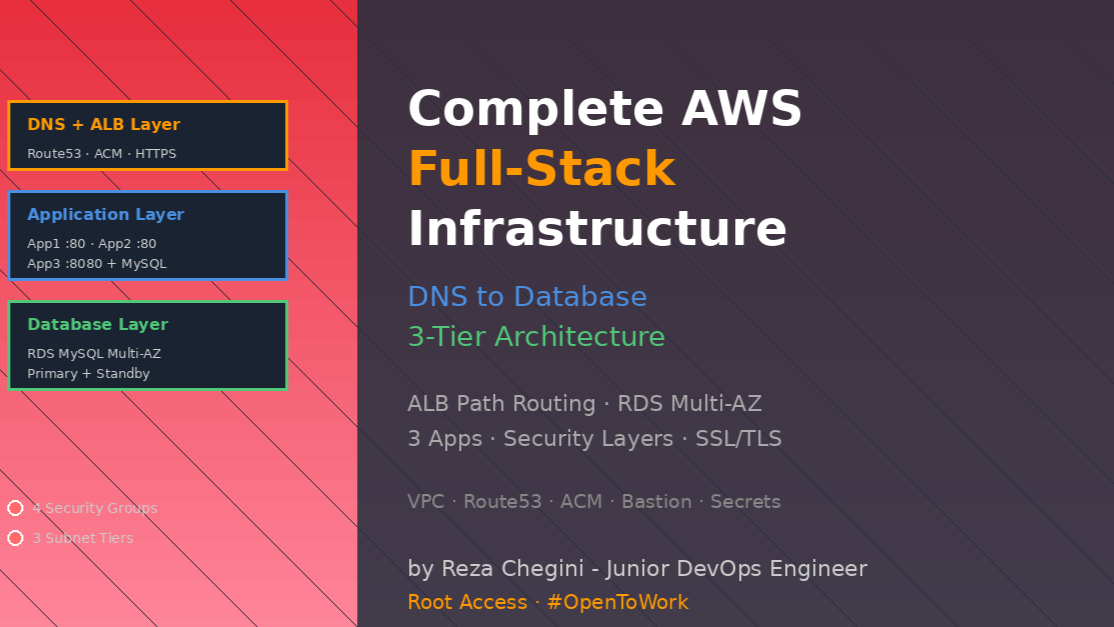
After deploying load balancers, auto scaling, and monitoring separately, I wanted to build something real a complete production-ready three-tier application with:
- Custom domain DNS
- SSL certificates
- Load balancing with path-based routing
- Multiple applications (static HTML + Java Spring Boot)
- Multi-AZ RDS MySQL database
- Proper security layers
- Bastion host for secure access
This is the project that ties everything together DNS to Database, fully automated with Terraform.
What I Built
A complete three-tier architecture running three different applications:
 Internet
                       │
                       ▼
            [Route53: dns-to-db.rezaops.com]
                       │
                       ▼
              [ACM SSL Certificate]
                       │
                       ▼
         [Application Load Balancer - HTTPS]
                       │
          ┌────────────┼────────────┐
          │            │            │
     /app1/*       /app2/*        /*
          │            │            │
          ▼            ▼            ▼
    [App1 TG]    [App2 TG]    [App3 TG]
    Port 80      Port 80      Port 8080
          │            │            │
    ┌─────┴────┐ ┌─────┴────┐ ┌─────┴────┐
    │ App1-AZ1 │ │ App2-AZ1 │ │ App3-AZ1 │
    │ App1-AZ2 │ │ App2-AZ2 │ │ App3-AZ2 │
    └──────────┘ └──────────┘ └─────┬────┘
                                     │
                                     ▼
                    [RDS MySQL Multi-AZ Database]
                         Primary: us-east-1a
                         Standby: us-east-1b
Three Applications Explained
App1 – Static HTML Application (Pink Theme)
Simple static website on port 80:
- Background: Pink (rgb(250, 210, 210))
- Displays instance metadata
- Health check: /app1/index.html
- URL: https://dns-to-db.rezaops.com/app1/
App2 – Static HTML Application (Teal Theme)
Another static website on port 80:
- Background: Teal (rgb(15, 232, 192))
- Displays instance metadata
- Health check: /app2/index.html
- URL: https://dns-to-db.rezaops.com/app2/
App3 – Java Spring Boot User Management System
Real application with database on port 8080:
- User registration and login
- MySQL database backend
- CRUD operations (Create, Read, Update, Delete users)
- Health check: /login
- URL: https://dns-to-db.rezaops.com/ (default route)
Complete Technical Architecture
Network Layer (3-Tier Subnets)
# VPC: 10.0.0.0/16
module "vpc" {
  source = "terraform-aws-modules/vpc/aws"
  version = "5.13.0"

  name = "${local.name}-${var.vpc_name}"
  cidr = "10.0.0.0/16"
  azs = ["us-east-1a", "us-east-1b"]

  # Public Subnets (for ALB and Bastion)
  public_subnets = ["10.0.101.0/24", "10.0.102.0/24"]

  # Private Subnets (for applications)
  private_subnets = ["10.0.1.0/24", "10.0.2.0/24"]

  # Database Subnets (for RDS)
  database_subnets = ["10.0.151.0/24", "10.0.152.0/24"]

  create_database_subnet_group = true
  create_database_subnet_route_table = true

  enable_nat_gateway = true
  single_nat_gateway = true

  enable_dns_hostnames = true
  enable_dns_support = true
}
Subnet architecture explained:
Public Subnets (10.0.101.0/24, 10.0.102.0/24):
- Resources: ALB, Bastion Host
- Internet Gateway attached
- Public IP addresses assigned
- Route: 0.0.0.0/0 → Internet Gateway
Private Subnets (10.0.1.0/24, 10.0.2.0/24):
- Resources: App1, App2, App3 EC2 instances
- No public IP addresses
- Route: 0.0.0.0/0 → NAT Gateway
- Can access internet for updates
- Not directly accessible from internet
Database Subnets (10.0.151.0/24, 10.0.152.0/24):
- Resources: RDS MySQL instances
- No internet access (no NAT Gateway route)
- Complete isolation from internet
- Only accessible from private subnets
Why separate database subnets?
Without separate subnets:
Private subnet: Apps + Database mixed
Risk: If app compromised, database directly accessible
With separate subnets:
Private: Apps only
Database: Database only + separate security group
Result: Additional security layer, database completely isolated
create_database_subnet_route_table = true:
This creates a separate route table for database subnets:
Without this:
Database subnets use private subnet route table:
  0.0.0.0/0 → NAT Gateway
Result: Database has internet access (not ideal)
With this:
Database subnets get own route table:
  10.0.0.0/16 → local (VPC only)
Result: Database completely isolated from internet
ALB Path-Based Routing
This is the core routing logic:
listeners = {
  # HTTP → HTTPS Redirect
  my-http-https-redirect = {
    port = 80
    protocol = "HTTP"
    redirect = {
      port = "443"
      protocol = "HTTPS"
      status_code = "HTTP_301"
    }
  }

  # HTTPS Listener with Path Routing
  my-https-listener = {
    port = 443
    protocol = "HTTPS"
    ssl_policy = "ELBSecurityPolicy-TLS13-1-2-Res-2021-06"
    certificate_arn = module.acm.acm_certificate_arn

    # Default fixed response
    fixed_response = {
      content_type = "text/plain"
      message_body = "Fixed Static message - for Root Context"
      status_code = "200"
    }

    rules = {
      # Rule 1: App1 routing
      myapp1-rule = {
        priority = 10
        actions = [{
          type = "weighted-forward"
          target_groups = [{
            target_group_key = "mytg1"
            weight = 1
          }]
          stickiness = {
            enabled = true
            duration = 3600
          }
        }]
        conditions = [{
          path_pattern = {
            values = ["/app1*"]
          }
        }]
      }

      # Rule 2: App2 routing
      myapp2-rule = {
        priority = 20
        actions = [{
          type = "weighted-forward"
          target_groups = [{
            target_group_key = "mytg2"
            weight = 1
          }]
          stickiness = {
            enabled = true
            duration = 3600
          }
        }]
        conditions = [{
          path_pattern = {
            values = ["/app2*"]
          }
        }]
      }

      # Rule 3: App3 routing (default catch-all)
      myapp3-rule = {
        priority = 30
        actions = [{
          type = "weighted-forward"
          target_groups = [{
            target_group_key = "mytg3"
            weight = 1
          }]
          stickiness = {
            enabled = true
            duration = 3600
          }
        }]
        conditions = [{
          path_pattern = {
            values = ["/*"]
          }
        }]
      }
    }
  }
}
Rule priority explained:
myapp1-rule: priority = 10
myapp2-rule: priority = 20
myapp3-rule: priority = 30
ALB evaluates rules in priority order (lowest number first):
Request: GET /app1/users

Priority 10: /app1* → MATCH! Forward to mytg1
(Rules 20, 30 never evaluated)

Request: GET /app2/products

Priority 10: /app1* → No match
Priority 20: /app2* → MATCH! Forward to mytg2
(Rule 30 never evaluated)

Request: GET /login

Priority 10: /app1* → No match
Priority 20: /app2* → No match
Priority 30: /* → MATCH! Forward to mytg3 (catches everything)
Why App3 uses /* pattern:
This makes App3 the default application:
- Any path not matching /app1* or /app2* goes to App3
- Perfect for main application or landing page
- Ensures no 404 errors for unmapped paths
Path pattern wildcards:
"/app1*"  # Matches:
  /app1
  /app1/
  /app1/users
  /app1/users/123
  /app1/anything/else

"/*"  # Matches:
  /
  /login
  /dashboard
  /any/path/at/all
Target Groups for Different Ports
Notice App3 uses port 8080, not 80:
target_groups = {
  # App1 & App2: HTTP on port 80
  mytg1 = {
    protocol = "HTTP"
    port = 80
    health_check = {
      path = "/app1/index.html"
    }
  }

  mytg2 = {
    protocol = "HTTP"
    port = 80
    health_check = {
      path = "/app2/index.html"
    }
  }

  # App3: HTTP on port 8080 (Java app)
  mytg3 = {
    protocol = "HTTP"
    port = 8080  # Different port!
    health_check = {
      path = "/login"  # Java endpoint
    }
  }
}
Why App3 uses port 8080:
Java Spring Boot defaults to 8080:
# App1/App2 (Apache):
curl http://instance-ip:80/app1/  # Works

# App3 (Spring Boot):
curl http://instance-ip:8080/login  # Works
curl http://instance-ip:80/login    # Connection refused!
ALB handles port translation:
User request:
https://dns-to-db.rezaops.com/loginALB receives on port 443:
- Matches rule priority 30 (/*)
- Forwards to mytg3
- Translates to port 8080
- Sends to instance: http://10.0.1.5:8080/login
User never knows about port 8080!
Target Group Attachments
This is critical – we attach instances to target groups manually:
# App1 Attachment
resource "aws_lb_target_group_attachment" "mytg1" {
  for_each = {for k,v in module.ec2_private_app1: k => v}
  target_group_arn = module.alb.target_groups["mytg1"].arn
  target_id = each.value.id
  port = 80
}

# App2 Attachment
resource "aws_lb_target_group_attachment" "mytg2" {
  for_each = {for k,v in module.ec2_private_app2: k => v}
  target_group_arn = module.alb.target_groups["mytg2"].arn
  target_id = each.value.id
  port = 80
}

# App3 Attachment
resource "aws_lb_target_group_attachment" "mytg3" {
  for_each = {for k,v in module.ec2_private_app3: k => v}
  target_group_arn = module.alb.target_groups["mytg3"].arn
  target_id = each.value.id
  port = 8080  # Java app port
}
Why manual attachment?
# In target group definition:
create_attachment = false
Reason: We use for_each to create 2 instances per app:
module "ec2_private_app1" {
  for_each = toset(["0", "1"])  # Creates 2 instances
  # ...
}
If we don’t use manual attachment:
- Module tries to attach instances automatically
- Conflicts with our for_each pattern
- Results in errors
With manual attachment:
for_each = {for k,v in module.ec2_private_app1: k => v}This loops through:
k="0", v=instance_object_1 → Attach instance 1
k="1", v=instance_object_2 → Attach instance 2
Perfect! Both instances attached correctly.
RDS MySQL Multi-AZ Database
RDS Module Configuration
module "db" {
  source = "terraform-aws-modules/rds/aws"
  version = "6.5.2"

  identifier = "${local.name}-database"

  engine = "mysql"
  engine_version = "8.0"
  family = "mysql8.0"
  major_engine_version = "8.0"
  instance_class = "db.t3.micro"

  allocated_storage = 20
  max_allocated_storage = 100
  storage_type = "gp2"
  storage_encrypted = true

  db_name = "mydb"
  username = var.db_username
  password = var.db_password
  manage_master_user_password = false

  multi_az = true
  db_subnet_group_name = module.vpc.database_subnet_group_name
  vpc_security_group_ids = [module.db_security_group.security_group_id]

  backup_retention_period = 7
  backup_window = "03:00-06:00"
  maintenance_window = "Mon:00:00-Mon:03:00"

  performance_insights_enabled = true
  performance_insights_retention_period = 7

  monitoring_interval = 60
  monitoring_role_name = "rds-monitoring-role"
  create_monitoring_role = true

  deletion_protection = false
  skip_final_snapshot = true
  delete_automated_backups = true
}
multi_az = true explained:
Without Multi-AZ:
Single RDS instance in us-east-1a

Failure: AZ outage → Database DOWN
Downtime: Until AZ recovers (hours)
With Multi-AZ:
Primary instance: us-east-1a
Standby instance: us-east-1b (synchronous replication)

Failure: Primary fails → Automatic failover (60-120 seconds)
Downtime: Minimal (DNS endpoint updates automatically)
How Multi-AZ works:
Write operation:
App writes to primary (us-east-1a)
Primary synchronously replicates to standby (us-east-1b)
Write confirmed only after standby acknowledges
Read operation:
All reads go to primary (standby not readable in Multi-AZ)
Failover:
AWS automatically switches endpoint to standby instance
max_allocated_storage = 100:
Initial: 20 GB
Auto-scaling enabled up to: 100 GB
What happens:
Storage reaches 90% full (18 GB used)
AWS automatically increases storage by 10%
Storage: 20 GB → 22 GB
No downtime during scaling!
Performance Insights:
performance_insights_enabled = true
performance_insights_retention_period = 7
This gives you:
- Query performance analysis
- Top SQL statements by load
- Wait event analysis
- Database load visualization
Free tier: 7 days retention Paid: Up to 2 years retention ($0.01/vCPU/hour)
Enhanced Monitoring:
monitoring_interval = 60Monitors:
- CPU utilization (process-level)
- Memory usage
- File system usage
- Disk I/O
- Network throughput
More detailed than CloudWatch standard metrics!
RDS Security Group
module "db_security_group" {
  source = "terraform-aws-modules/security-group/aws"
  version = "5.1.0"

  name = "${local.name}-db-sg"
  vpc_id = module.vpc.vpc_id

  ingress_with_cidr_blocks = [
    {
      from_port = 3306
      to_port = 3306
      protocol = "tcp"
      cidr_blocks = module.vpc.vpc_cidr_block
      description = "MySQL access from VPC"
    }
  ]

  egress_rules = ["all-all"]
}
Why allow entire VPC CIDR?
cidr_blocks = module.vpc.vpc_cidr_block # 10.0.0.0/16This allows:
- App3 instances (private subnets) → Database
- Bastion host (public subnet) → Database
- Any resource in VPC → Database on port 3306
Alternative (more restrictive):
# Only allow specific security groups:
ingress_with_source_security_group_id = [
  {
    from_port = 3306
    to_port = 3306
    protocol = "tcp"
    source_security_group_id = module.app3_security_group.security_group_id
    description = "MySQL from App3 only"
  }
]
Result:
- More secure (only App3 can connect)
- Less convenient (bastion can’t connect for debugging)
Trade-off: Security vs convenience for debugging.
For production: Restrict to private subnets only!
Secrets Management
Database credentials are managed securely:
# secrets.tfvars (NOT committed to git)
db_username = "admin"
db_password = "dbpassword11"
# variables.tf
variable "db_username" {
description = "Database username"
type = string
sensitive = true
}
variable "db_password" {
description = "Database password"
type = string
sensitive = true
}Why separate file?
# .gitignore
*.tfvars
!example.tfvars
Result:
- Credentials never committed to version control
- Different passwords per environment
- Team members use their own secrets.tfvars
Variable marked as sensitive:
variable "db_password" {
  sensitive = true
}
Effect:
# Terraform output:
password = <sensitive>
Terraform never shows the actual value in:
- Plan output
- Apply output
- State file display
- Logs
App3 Template File with RDS Endpoint
App3 needs the database endpoint at launch time. We use Terraform’s templatefile function:
module "ec2_private_app3" {
  source = "terraform-aws-modules/ec2-instance/aws"
  version = "5.6.0"

  for_each = toset(["0", "1"])
  name = "${local.name}-app3-${each.key}"
  ami = data.aws_ami.amzn2.id
  instance_type = "t2.micro"
  subnet_id = element(module.vpc.private_subnets, tonumber(each.key))
  vpc_security_group_ids = [module.app3_security_group.security_group_id]
  iam_instance_profile = aws_iam_instance_profile.ssm_profile.name

  user_data = base64encode(templatefile("${path.module}/app3-ums-install.tmpl", {
    rds_endpoint = module.db.db_instance_endpoint
    rds_username = var.db_username
    rds_password = var.db_password
    rds_dbname = "mydb"
  }))

  depends_on = [module.db]
}
Template file (app3-ums-install.tmpl):
#!/bin/bash
yum update -y

yum install -y java-17-amazon-corretto

yum install -y mysql

mkdir -p /home/ec2-user/app3
cd /home/ec2-user/app3

cat > application.properties << 'EOF'
spring.datasource.url=jdbc:mysql://${rds_endpoint}/${rds_dbname}
spring.datasource.username=${rds_username}
spring.datasource.password=${rds_password}
spring.jpa.hibernate.ddl-auto=update
EOF

java -jar app3-ums.jar && echo "App3 started successfully"
How templatefile works:
Before rendering:
spring.datasource.url=jdbc:mysql://${rds_endpoint}/${rds_dbname}After rendering (Terraform substitutes):
spring.datasource.url=jdbc:mysql://dns-db-database.c9xyz.us-east-1.rds.amazonaws.com:3306/mydbWhy this is necessary:
Database endpoint is not known until RDS is created:
Phase 1: Terraform creates RDS
  → Endpoint generated: dns-db-database.c9xyz.us-east-1.rds.amazonaws.com:3306

Phase 2: Terraform renders template with endpoint
  → User data contains real endpoint

Phase 3: Terraform creates App3 instances
  → Instances boot with correct database connection
Depends_on ensures correct order:
depends_on = [module.db]Resource creation order:
1. VPC created
2. RDS created (takes 15-20 minutes)
3. App3 instances created (after RDS ready)
4. App3 connects to database successfully
Bastion Host Setup
Public EC2 instance for secure access to private resources:
module "ec2_public" {
  source = "terraform-aws-modules/ec2-instance/aws"
  version = "5.6.0"

  name = "${local.name}-bastion"
  ami = data.aws_ami.amzn2.id
  instance_type = "t2.micro"
  key_name = var.key_name
  subnet_id = module.vpc.public_subnets[0]
  vpc_security_group_ids = [module.bastion_security_group.security_group_id]
  associate_public_ip_address = true
  iam_instance_profile = aws_iam_instance_profile.ssm_profile.name

  user_data = file("${path.module}/jumpbox-install.sh")
}

# Elastic IP for stable address
resource "aws_eip" "bastion_eip" {
  instance = module.ec2_public.id
  domain = "vpc"
}
Bastion user data (jumpbox-install.sh):
#!/bin/bash
yum update -y

yum install -y mysql

# Tools for debugging
yum install -y telnet nc

echo "Bastion host ready" > /tmp/bastion-ready.txt
Why install MySQL client?
Connect to RDS from bastion:
ssh -i private-key.pem ec2-user@<bastion-eip>

# From bastion:
mysql -h <rds-endpoint> -u admin -p

Enter password: dbpassword11

mysql> SHOW DATABASES;
+--------------------+
| Database           |
+--------------------+
| information_schema |
| mydb               |
| mysql              |
+--------------------+
SSH Key Provisioning
Copy private key to bastion for accessing private instances:
resource "null_resource" "copy_key_to_bastion" {
  depends_on = [module.ec2_public]

  connection {
    type = "ssh"
    host = aws_eip.bastion_eip.public_ip
    user = "ec2-user"
    private_key = file("private-key/${var.key_name}.pem")
  }

  provisioner "file" {
    source = "private-key/${var.key_name}.pem"
    destination = "/tmp/${var.key_name}.pem"
  }

  provisioner "remote-exec" {
    inline = [
      "sudo chmod 400 /tmp/${var.key_name}.pem",
      "sudo cp /tmp/${var.key_name}.pem /home/ec2-user/",
      "sudo chown ec2-user:ec2-user /home/ec2-user/${var.key_name}.pem",
      "echo 'Key copied successfully' > /tmp/key-copy.log"
    ]
  }
}
What this does:
- Waits for bastion: depends_on = [module.ec2_public]
- Connects via SSH: Using Elastic IP
- Uploads private key: From local private-key/ to bastion
- Sets permissions: chmod 400 (read-only for owner)
- Creates log file: Documents VPC creation
Why copy key to bastion?
Access flow:
Your Laptop
  → SSH to Bastion (with key)
  → SSH to Private Instance (with key on bastion)
  → Private instance accessible!
Without copied key:
Your Laptop
  → SSH to Bastion ✓
  → SSH to Private Instance ✗ (no key on bastion!)
Security consideration:
Copying private keys to bastion is convenient but risky. Better alternatives:
- SSH agent forwarding
- AWS Systems Manager Session Manager
- Temporary keys via AWS IAM
For production: Use Session Manager, not key copying!
Complete Security Group Architecture
Four security groups create defense-in-depth:
1. Bastion Security Group
module "bastion_security_group" {
  source = "terraform-aws-modules/security-group/aws"
  version = "5.1.0"

  name = "${local.name}-bastion-sg"
  vpc_id = module.vpc.vpc_id

  ingress_rules = ["ssh-tcp"]
  ingress_cidr_blocks = ["0.0.0.0/0"]

  egress_rules = ["all-all"]
}
2. Private Instance Security Group
module "app_security_group" {
  source = "terraform-aws-modules/security-group/aws"
  version = "5.1.0"

  name = "${local.name}-app-sg"
  vpc_id = module.vpc.vpc_id

  ingress_with_source_security_group_id = [
    {
      from_port = 80
      to_port = 80
      protocol = "tcp"
      source_security_group_id = module.alb_security_group.security_group_id
      description = "HTTP from ALB"
    },
    {
      from_port = 8080
      to_port = 8080
      protocol = "tcp"
      source_security_group_id = module.alb_security_group.security_group_id
      description = "App3 from ALB"
    },
    {
      from_port = 22
      to_port = 22
      protocol = "tcp"
      source_security_group_id = module.bastion_security_group.security_group_id
      description = "SSH from Bastion"
    }
  ]

  egress_rules = ["all-all"]
}
3. Load Balancer Security Group
module "alb_security_group" {
  source = "terraform-aws-modules/security-group/aws"
  version = "5.1.0"

  name = "${local.name}-alb-sg"
  vpc_id = module.vpc.vpc_id

  ingress_rules = ["http-80-tcp", "https-443-tcp"]
  ingress_cidr_blocks = ["0.0.0.0/0"]

  egress_rules = ["all-all"]
}
4. RDS Database Security Group
module "db_security_group" {
  source = "terraform-aws-modules/security-group/aws"
  version = "5.1.0"

  name = "${local.name}-db-sg"
  vpc_id = module.vpc.vpc_id

  ingress_with_cidr_blocks = [
    {
      from_port = 3306
      to_port = 3306
      protocol = "tcp"
      cidr_blocks = module.vpc.vpc_cidr_block
      description = "MySQL from VPC"
    }
  ]

  egress_rules = ["all-all"]
}
Security group matrix:
Source Destination Ports Purpose Internet ALB 80, 443 Public web traffic ALB App Instances 80, 8080 Application traffic Internet Bastion 22 SSH access (restrict in prod!) Bastion App Instances 22 SSH for debugging App Instances RDS 3306 Database queries Internet RDS BLOCKED No direct access
Defense in depth demonstrated:
Attacker wants to access database:
Layer 1: Internet → Database
Result: BLOCKED (database in isolated subnet, no internet route)Layer 2: Internet → Bastion → Database
Requires: SSH key + bastion access
Result: BLOCKED (unless attacker has SSH key)
Layer 3: ALB → App → Database
Requires: Compromise app instance first
Result: BLOCKED (security group allows only VPC CIDR on 3306)
Layer 4: Compromised App → Database
Result: Possible, but requires app compromise + database credentialsThis is why:
- Bastion should have MFA
- Log all commands
- Minimal tools
Deployment Process
Step 1: Pre-deployment Checklist
# Check AWS credentials
aws sts get-caller-identity

# Check Terraform version
terraform version

# Check domain in Route53
aws route53 list-hosted-zones

# Generate SSH key
ssh-keygen -t rsa -b 4096 -f private-key/dns-db-key.pem
Step 2: Initialize Terraform
terraform initExpected output:
Initializing modules...
- vpc in .terraform/modules/vpc
- alb in .terraform/modules/alb
- db in .terraform/modules/db

Terraform has been successfully initialized!
Step 3: Plan Deployment
terraform plan -var-file="secrets.tfvars"Review resources to be created:
Plan: 85 to add, 0 to change, 0 to destroy.Step 4: Apply Configuration
terraform apply -var-file="secrets.tfvars"Step 5: Verify Deployment
# Check ALB DNS
terraform output alb_dns_name

# Check target group health
aws elbv2 describe-target-health \
  --target-group-arn <arn>

# Check RDS endpoint
terraform output db_instance_endpoint
Step 6: Access Applications
# App1 (Pink)
https://dns-to-db.rezaops.com/app1/

# App2 (Teal)
https://dns-to-db.rezaops.com/app2/

# App3 (Java UMS)
https://dns-to-db.rezaops.com/

# Bastion SSH
ssh -i private-key/dns-db-key.pem ec2-user@<bastion-eip>

# RDS from Bastion
mysql -h <rds-endpoint> -u admin -p
Real-World Testing Scenarios
Scenario 1: Test Path-Based Routing
# Test App1
curl https://dns-to-db.rezaops.com/app1/
# Expected: Pink background page

# Test App2
curl https://dns-to-db.rezaops.com/app2/
# Expected: Teal background page

# Test App3 (default)
curl https://dns-to-db.rezaops.com/
# Expected: Java login page
Scenario 2: Test Load Balancing
for i in {1..10}; do
  curl -s https://dns-to-db.rezaops.com/app1/ | grep "Instance ID"
done
Expected output alternates between instances:
Instance ID: i-0123456789abcdef0 (AZ1)
Instance ID: i-0fedcba9876543210 (AZ2)
Instance ID: i-0123456789abcdef0 (AZ1)
Instance ID: i-0fedcba9876543210 (AZ2)
Scenario 3: Test Multi-AZ Failover
# Simulate primary failure
aws rds reboot-db-instance \
  --db-instance-identifier dns-db-database \
  --force-failover

# Monitor failover
aws rds describe-db-instances \
  --db-instance-identifier dns-db-database \
  --query 'DBInstances[0].DBInstanceStatus'

# Expected: Brief connection interruption (60-120 seconds)
# Then: Automatic recovery, no manual intervention
Scenario 4: Test Database Connection from App3
# SSH to App3 via bastion
ssh -i private-key/dns-db-key.pem ec2-user@<bastion-eip>
ssh -i dns-db-key.pem ec2-user@<app3-private-ip>

# Test database connection
mysql -h <rds-endpoint> -u admin -p mydb

mysql> USE mydb;
mysql> SHOW TABLES;
+----------------+
| Tables_in_mydb |
+----------------+
| users          |
+----------------+
Lessons Learned
1. RDS Takes Forever to Create
Problem:
module.db.aws_db_instance.this: Still creating... [10m00s elapsed]Reality: Multi-AZ RDS creation takes 15-20 minutes:
- Primary instance creation: 10 minutes
- Standby instance creation: 5 minutes
- Replication setup: 3 minutes
- Backup configuration: 2 minutes
- Total: ~20 minutes
Solution:
Be patient! This is normal.
For faster testing:
multi_az = false # Single AZ for testing (5 minutes)2. App3 Wouldn’t Start – Java Not Found
Problem:
App3 instance running but application not responding:
curl http://localhost:8080/login
curl: (7) Failed to connect to localhost port 8080: Connection refused
Cause:
# User data script failed:
yum install -y java-17-amazon-corretto
# Error: Package not found (wrong AMI)
Solution:
Use Amazon Linux 2 AMI (not Amazon Linux 2023):
data "aws_ami" "amzn2" {
  most_recent = true
  owners = ["amazon"]
  filter {
    name = "name"
    values = ["amzn2-ami-hvm-*-x86_64-gp2"]
  }
}
3. App3 Couldn’t Connect to Database
Problem:
App3 starts but database connection fails:
Debug process:
From App3 instance:
mysql -h <rds-endpoint> -u admin -p
ERROR 2003 (HY000): Can't connect to MySQL server
Cause:
Security group allows only VPC CIDR, but App3 instance in private subnet with NAT Gateway – source IP is NAT Gateway IP, not instance IP!
Wrong:
# Security group allows instance security group only
source_security_group_id = module.app3_security_group.security_group_id
Correct:
# Security group allows entire VPC CIDR
cidr_blocks = module.vpc.vpc_cidr_block
4. ACM Certificate Validation Stuck
Problem:
module.acm.aws_acm_certificate.this: Still creating... [20m00s elapsed]Cause:
DNS validation records not created – Route53 zone not configured correctly.
Debug:
aws acm describe-certificate --certificate-arn <arn>
# Check DomainValidationOptions
Solution:
module "acm" {
  source = "terraform-aws-modules/acm/aws"
  version = "4.3.2"

  domain_name = "dns-to-db.rezaops.com"
  zone_id = data.aws_route53_zone.main.zone_id

  validation_method = "DNS"
  wait_for_validation = true
}
Module automatically creates validation CNAME records.
5. Target Group Health Checks Failing
Problem:
ALB shows targets as unhealthy:
Debug:
aws elbv2 describe-target-health --target-group-arn <arn>
# Output: State: unhealthy, Reason: Timeout
Cause:
Health check path wrong – App1 health check was /index.html but actual file is /app1/index.html:
health_check = {
  path = "/app1/index.html"  # Correct
  # path = "/index.html"  # Wrong!
}
File exists at /var/www/html/app1/index.html, not /var/www/html/index.html.
6. Bastion Can’t Connect to RDS – Wrong Subnet
Problem:
From bastion:
mysql -h <rds-endpoint> -u admin -p
ERROR 2003: Can't connect (timeout)
Debug:
# Check bastion security group
aws ec2 describe-security-groups --group-ids <sg-id>

# Check RDS security group
aws ec2 describe-security-groups --group-ids <db-sg-id>
Cause:
RDS security group allows only private subnets, bastion is in public subnet!
# Wrong:
ingress_cidr_blocks = ["10.0.1.0/24", "10.0.2.0/24"]  # Private only
Solution:
Allow entire VPC CIDR:
ingress_cidr_blocks = ["10.0.0.0/16"] # Entire VPC7. ALB Returns 503 Service Temporarily Unavailable
Problem:
<html>
<body>
<h1>503 Service Temporarily Unavailable</h1>
</body>
</html>
Cause:
No healthy targets in target group – instances still initializing or health checks failing.
Debug process:
Check target group health:
aws elbv2 describe-target-health --target-group-arn <arn>Check security groups:
# ALB SG must allow egress to instances
# Instance SG must allow ingress from ALB SG
SSH to instance:
ssh -i key.pem ec2-user@<bastion-eip>
ssh -i key.pem ec2-user@<private-ip>
curl http://localhost:80/app1/
Check ALB to instance:
curl http://<private-ip>:80/app1/Solution:
- 30 seconds health check interval
- 3 consecutive successes needed
- Total: 90 seconds minimum
After 2 minutes: All targets healthy, ALB works!
What I Learned
- Path-based routing enables multiple applications on one ALB, saving costs
- Multi-AZ RDS provides automatic failover but takes time to create
- Security groups + subnet isolation create defense-in-depth
- Template files solve the chicken-and-egg problem of database endpoints
- Bastion hosts are essential for private subnet debugging
- Health check paths must match actual file locations exactly
- Security group rules must consider NAT Gateway IP translation
- ACM DNS validation requires correct Route53 zone configuration
- Terraform depends_on ensures correct resource creation order
- Full-stack infrastructure is complex but manageable with modules