$ cat aws-with-terraform/part-04.md
AWS Monitoring and Auto Scaling with Terraform
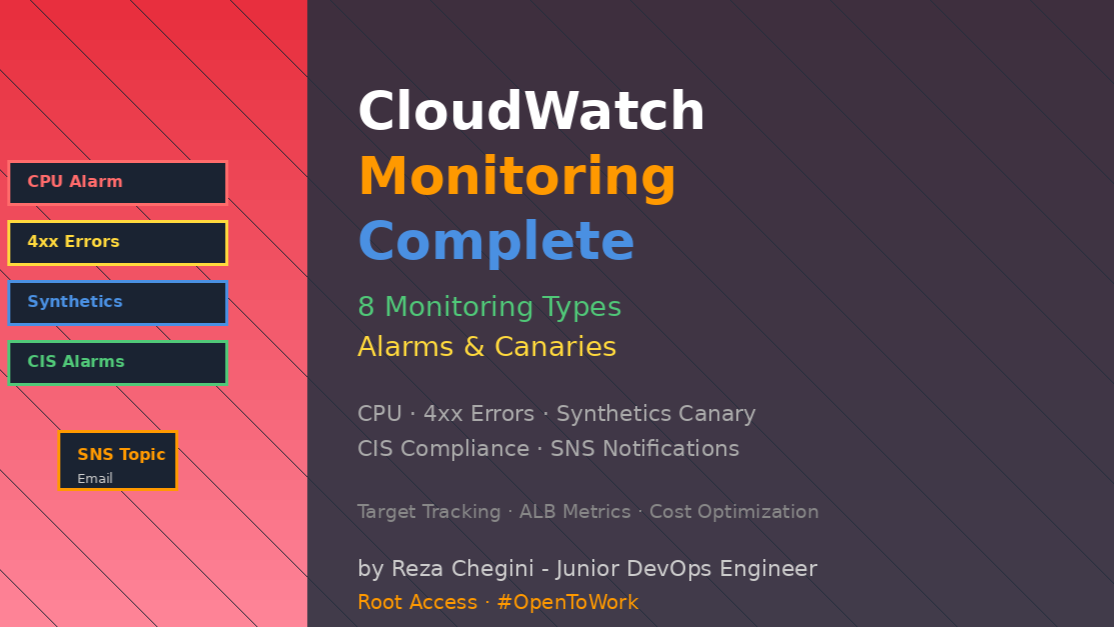
Why we need Monitoring
I deployed several auto scaling setups before realizing: I had no idea when things went wrong! Instances could be failing, applications crashing, and I wouldn’t know until I manually checked.
That’s when I built this comprehensive CloudWatch monitoring system. Now I get email alerts before users notice problems.
What I Built
A complete monitoring solution with:
- CloudWatch Alarms – CPU, ALB errors, ASG metrics
- CloudWatch Synthetics – Website availability monitoring with screenshots
- CIS Compliance Alarms – Security best practices monitoring
- Auto Scaling Integration – Alarms trigger scaling actions
- SNS Notifications – Email alerts for everything
- Request-Based Scaling – Scale based on traffic, not just CPU
Complete Monitoring Architecture
CloudWatch Monitoring Stack
│
├── ASG Metrics
│   ├── CPU Utilization Alarm (>80% = scale out + alert)
│   ├── Target Tracking (50% CPU target)
│   └── Target Tracking (10 requests/instance target)
│
├── ALB Metrics
│   ├── HTTP 4xx Errors (>5 in 6 min = alert)
│   ├── Target Response Time
│   └── Healthy/Unhealthy Host Count
│
├── Synthetics Canary
│   ├── Website availability check (every 1 minute)
│   ├── Success threshold (90%)
│   ├── Screenshots on failure
│   └── Alerts when down
│
├── CIS Compliance Alarms
│   ├── Unauthorized API Calls
│   ├── Root Account Usage
│   ├── IAM Policy Changes
│   ├── CloudTrail Configuration Changes
│   ├── Security Group Changes
│   ├── Network ACL Changes
│   ├── Internet Gateway Changes
│   ├── Route Table Changes
│   └── (many more security checks)
│
└── SNS Topic → Email Notifications
    ├── Scaling events
    ├── Alarm triggers
    ├── Canary failures
    └── Compliance violations
Technical Deep Dive
1. CloudWatch ASG High CPU Alarm with Scaling
This is different from target tracking – this alarm triggers IMMEDIATE scale-out when CPU spikes:
# Simple Scaling Policy - immediate scale out
resource "aws_autoscaling_policy" "high_cpu" {
  name                   = "high-cpu"
  scaling_adjustment     = 4        # Add 4 instances immediately
  adjustment_type        = "ChangeInCapacity"
  cooldown               = 300      # Wait 5 minutes before next scale
  autoscaling_group_name = aws_autoscaling_group.my_asg.name
}

# CloudWatch Alarm that triggers the policy
resource "aws_cloudwatch_metric_alarm" "app1_asg_cwa_cpu" {
  alarm_name          = "App1-ASG-CWA-CPUUtilization"
  comparison_operator = "GreaterThanOrEqualToThreshold"
  evaluation_periods  = "2"      # Check 2 times
  metric_name         = "CPUUtilization"
  namespace           = "AWS/EC2"
  period              = "120"    # Each period is 2 minutes
  statistic           = "Average"
  threshold           = "80"     # Trigger if above 80%

  dimensions = {
    AutoScalingGroupName = aws_autoscaling_group.my_asg.name
  }

  alarm_description = "Triggers ASG scale-out if CPU above 80%"

  ok_actions = [aws_sns_topic.myasg_sns_topic.arn]
  alarm_actions = [
    aws_autoscaling_policy.high_cpu.arn,  # Execute scaling policy
    aws_sns_topic.myasg_sns_topic.arn      # Send email
  ]
}
How this alarm works:
Period 1 (minute 0-2):
Samples: 75%, 82%, 79%, 85%, 80%, 77%
Average: 79.7% → BELOW threshold (evaluation 1 = false)
Period 2 (minute 2-4):
Samples: 85%, 88%, 90%, 87%, 92%, 89%
Average: 88.5% → ABOVE threshold (evaluation 2 = true)
After 2 consecutive periods above 80%:
- Alarm state changes to “ALARM”
- Triggers scaling policy → Adds 4 instances
- Sends SNS notification → Email sent
- Enters cooldown for 300 seconds (prevents thrashing)
evaluation_periods = “2”:
evaluation_periods = "2"Requires 2 consecutive high-CPU periods before alarming. This prevents false alarms from temporary spikes:
# With evaluation_periods = 1 (too sensitive)
CPU spike to 85% for 30 seconds → ALARM!
CPU returns to 40% → Too late, already scaled

# With evaluation_periods = 2 (better)
CPU spike to 85% for 30 seconds → Wait...
CPU stays high for another 2 minutes → Real problem, ALARM!
CPU returns to 40% after spike → No alarm triggered
period = “120”:
Each evaluation period is 120 seconds (2 minutes). CloudWatch collects all CPU samples during this time and calculates average.
alarm_actions vs ok_actions:
alarm_actions = [...]  # What to do when alarm fires
ok_actions = [...]     # What to do when alarm recovers
Example notification flow:
t=0: CPU high → Alarm fires → alarm_actions execute
t=5: Still high → No action (already alarmed)
t=10: CPU normal → ok_actions execute → "All clear" email
2. Simple Scaling vs Target Tracking
I use BOTH in my setup because they serve different purposes:
Simple Scaling (immediate response):
resource "aws_autoscaling_policy" "high_cpu" {
  scaling_adjustment = 4
  adjustment_type = "ChangeInCapacity"
  cooldown = 300
}
Behavior:
- Alarm fires → Add exactly 4 instances immediately
- Fixed response (always 4, never more, never less)
- Cooldown prevents rapid scaling
- Used for: Sudden traffic spikes, urgent situations
Target Tracking (gradual optimization):
resource "aws_autoscaling_policy" "avg_cpu_policy_greater_than_xx" {
  policy_type = "TargetTrackingScaling"
  estimated_instance_warmup = 180

  target_tracking_configuration {
    predefined_metric_specification {
      predefined_metric_type = "ASGAverageCPUUtilization"
    }
    target_value = 50.0
  }
}
Behavior:
- ASG continuously adjusts capacity to maintain 50% CPU
- Smart calculations: if CPU is 70%, adds just enough instances to reach 50%
- No cooldown, uses warmup instead
- Used for: Normal operations, cost optimization
Why use both?
Normal traffic (CPU 40-60%):
→ Target tracking handles this (adds/removes 1-2 instances)
Sudden spike (CPU jumps to 90%):
→ Simple scaling alarm fires (adds 4 instances immediately)
→ Target tracking continues adjusting after cooldown
Result: Fast response to emergencies + efficient long-term scaling
3. ALB Request Count Target Tracking
This is my favorite scaling metric – scale based on actual traffic!
resource "aws_autoscaling_policy" "alb_target_requests_greater_than_yy" {
  name = "alb-target-requests-greater-than-yy"
  policy_type = "TargetTrackingScaling"
  autoscaling_group_name = aws_autoscaling_group.my_asg.id
  estimated_instance_warmup = 120

  target_tracking_configuration {
    predefined_metric_specification {
      predefined_metric_type = "ALBRequestCountPerTarget"
      resource_label = "${module.alb.arn_suffix}/${module.alb.target_groups["mytg1"].arn_suffix}"
    }
    target_value = 10.0  # 10 requests per instance
  }
}
resource_label explained:
This is the tricky part! You need to identify your specific target group:
resource_label = "${module.alb.arn_suffix}/${module.alb.target_groups["mytg1"].arn_suffix}"What this looks like:
app/sap-dev-alb/1234567890abcdef/targetgroup/mytg1-/0987654321fedcba
     └── ALB ARN suffix ───┘        └─ Target Group ARN suffix ──┘
Why this metric is better than CPU for web apps:
CPU-based scaling:
Light requests (static pages) → Low CPU → Doesn’t scale
Heavy requests (database queries) → High CPU → Scales
Problem: Number of concurrent users doesn’t match CPU!
Request-based scaling:
100 requests/sec with 5 instances = 20 req/instance → Scale out!
100 requests/sec with 10 instances = 10 req/instance → Perfect!
100 requests/sec with 15 instances = 6.7 req/instance → Scale in!
Result: Scales with actual traffic volume
Calculating target_value:
target_value = 10.0How I chose 10:
- Load test my application: 1 instance handles 30 requests/sec comfortably
- My application serves 3 requests/sec on average
- Target: 30 / 3 = 10 requests per instance
- This keeps instances at ~33% capacity (room for bursts)
For your application:
Max requests per instance = 50
Average response time = 100ms
Concurrent requests capacity = 50 * (1 / 0.1) = 500

Safe target = 500 * 0.7 = 350 requests per instance (70% capacity)
How ASG calculates scale decisions:
Current state:
- 3 instances
- 45 total requests/sec
- 45 / 3 = 15 requests per instance
Target: 10 requests per instance
ASG math:
Needed instances = 45 / 10 = 4.5 → Round up to 5
Add instances = 5 - 3 = 2

Action: Scale out by 2 instances
4. ALB 4xx Error Monitoring
Monitor application errors reported by the load balancer:
resource "aws_cloudwatch_metric_alarm" "alb_4xx_errors" {
  alarm_name          = "App1-ALB-HTTP-4xx-errors"
  comparison_operator = "GreaterThanThreshold"
  datapoints_to_alarm = "2"      # 2 out of 3 periods must breach
  evaluation_periods  = "3"      # Check 3 periods
  metric_name         = "HTTPCode_Target_4XX_Count"
  namespace           = "AWS/ApplicationELB"
  period              = "120"    # Each period is 2 minutes
  statistic           = "Sum"
  threshold           = "5"      # More than 5 errors
  treat_missing_data  = "missing"

  dimensions = {
    LoadBalancer = module.alb.arn_suffix
  }

  alarm_description = "ALB 4xx errors above threshold"
  ok_actions = [aws_sns_topic.myasg_sns_topic.arn]
  alarm_actions = [aws_sns_topic.myasg_sns_topic.arn]
}
datapoints_to_alarm = “2” with evaluation_periods = “3”:
This means “2 out of last 3 periods must exceed threshold”:
Period 1: 3 errors (< 5) ✗
Period 2: 7 errors (> 5) ✓
Period 3: 8 errors (> 5) ✓
Result: 2 out of 3 exceeded → ALARM
Vs just evaluation_periods = “2”:
Period 1: 7 errors (> 5) ✓
Period 2: 3 errors (< 5) ✗
Result: Only 1 exceeded → No alarm
This prevents single-period anomalies from causing false alarms.
statistic = “Sum” not “Average”:
statistic = "Sum"For error counts, we want total errors, not average:
Sum:
Samples: 2, 0, 3, 1, 0, 2
Total: 8 errors in period → Compare to threshold
Average:
Samples: 2, 0, 3, 1, 0, 2
Average: 1.33 errors → Meaningless for threshold!
treat_missing_data = “missing”:
treat_missing_data = "missing"Options:
- “missing” – Don’t count missing data (use for error counts)
- “notBreaching” – Treat as not exceeding threshold (use for availability)
- “breaching” – Treat as exceeding threshold (use for critical metrics)
- “ignore” – Maintain current state
Example with error monitoring:
Period 1: 10 errors → ALARM
Period 2: No data (app down?) → "missing" keeps ALARM state
Period 3: 12 errors → Still ALARM
vs “notBreaching”:
Period 1: 10 errors → ALARM
Period 2: No data → Treated as 0 errors → OK
Period 3: 12 errors → ALARM
Missing = app might be down, keep alarming!
NotBreaching = assumes no errors, false OK!
5. CloudWatch Synthetics Canary – Website Monitoring
This is like having a robot continuously visit your website:
# IAM Policy for Canary
resource "aws_iam_policy" "cw_canary_iam_policy" {
  name = "cw-canary-iam-policy"
  policy = jsonencode({
    "Version": "2012-10-17",
    "Statement": [
      {
        "Effect": "Allow",
        "Action": "cloudwatch:PutMetricData",
        "Resource": "*",
        "Condition": {
          "StringEquals": {
            "cloudwatch:namespace": "CloudWatchSynthetics"
          }
        }
      },
      {
        "Effect": "Allow",
        "Action": [
          "s3:PutObject",
          "logs:CreateLogStream",
          "logs:CreateLogGroup",
          "logs:PutLogEvents",
          "xray:PutTraceSegments"
        ],
        "Resource": "*"
      }
    ]
  })
}
# IAM Role
resource "aws_iam_role" "cw_canary_iam_role" {
name = "cw-canary-iam-role"
assume_role_policy = jsonencode({
"Version": "2012-10-17",
"Statement": [{
"Effect": "Allow",
"Principal": {"Service": "lambda.amazonaws.com"},
"Action": "sts:AssumeRole"
}]
})
managed_policy_arns = [aws_iam_policy.cw_canary_iam_policy.arn]
}# S3 Bucket for Screenshots
resource "aws_s3_bucket" "cw_canary_bucket" {
bucket = "cw-canary-bucket-${random_pet.this.id}"
force_destroy = true
}# Canary
resource "aws_synthetics_canary" "sswebsite2" {
name = "sswebsite2"
artifact_s3_location = "s3://${aws_s3_bucket.cw_canary_bucket.id}/sswebsite2"
execution_role_arn = aws_iam_role.cw_canary_iam_role.arn
handler = "sswebsite2.handler"
zip_file = "sswebsite2/sswebsite2v1.zip"
runtime_version = "syn-nodejs-puppeteer-6.0"
start_canary = true
run_config {
active_tracing = true
memory_in_mb = 960
timeout_in_seconds = 60
}
schedule {
expression = "rate(1 minute)"
}
}What the canary does:
Every minute:
- Launches headless Chrome browser (Puppeteer)
- Navigates to website (e.g., https://stacksimplify.com)
- Waits for page to load
- Takes screenshot
- Uploads screenshot to S3
- Reports success/failure metric to CloudWatch
- If failure, keeps screenshot for debugging
Canary script breakdown:
const urls = ['https://stacksimplify.com'];

// Navigate to URL
const response = await page.goto(url, {
  waitUntil: ['domcontentloaded'],
  timeout: 30000
});

// Check response
if (response.status() < 200 || response.status() > 299) {
  throw `Failed to load url: ${url} ${response.status()}`;
}

// Wait for page to render
await page.waitFor(15000);

// Take screenshot
await synthetics.takeScreenshot(stepName, 'loaded');
runtime_version = “syn-nodejs-puppeteer-6.0”:
This is the Node.js + Puppeteer runtime. Versions:
- syn-nodejs-puppeteer-3.1 (deprecated)
- syn-nodejs-puppeteer-6.0 (current)
- syn-python-selenium-1.0 (Python alternative)
schedule.expression = “rate(1 minute)”:
Options:
rate(1 minute)  # Every minute
rate(5 minutes) # Every 5 minutes
rate(1 hour)    # Hourly
rate(1 day)     # Daily

cron(0 9 * * ? *) # Every day at 9 AM UTC
cron(0/15 * * * ? *) # Every 15 minutes
Cost calculation:
rate(1 minute) = 60 checks/hour * 24 hours * 30 days = 43,200 checks/month
Price: $0.0012 per check
Cost: 43,200 * $0.0012 = $51.84/month

rate(5 minutes) = 8,640 checks/month = $10.37/month
rate(15 minutes) = 2,880 checks/month = $3.46/month
6. Synthetics Canary Alarm
Monitor canary success rate:
resource "aws_cloudwatch_metric_alarm" "synthetics_alarm_app1" {
  alarm_name          = "Synthetics-Alarm-App1"
  comparison_operator = "LessThanThreshold"
  datapoints_to_alarm = "1"
  evaluation_periods  = "1"
  metric_name         = "SuccessPercent"
  namespace           = "CloudWatchSynthetics"
  period              = "300"
  statistic           = "Average"
  threshold           = "90"
  treat_missing_data  = "breaching"

  dimensions = {
    CanaryName = aws_synthetics_canary.sswebsite2.id
  }

  alarm_description = "Website availability below 90%"
  ok_actions = [aws_sns_topic.myasg_sns_topic.arn]
  alarm_actions = [aws_sns_topic.myasg_sns_topic.arn]
}
threshold = “90” with period = “300”:
In 5-minute window (300 seconds):
- Canary runs every 1 minute = 5 checks
- Threshold = 90% = At least 4.5 successes required
- 5 out of 5 successes = 100% ✓
- 4 out of 5 successes = 80% → ALARM!
treat_missing_data = “breaching”:
If canary fails to run (Lambda issue, IAM problem):
- Treat as failure
- Trigger alarm
- Send notification
This is correct for availability monitoring – not running = not available!
7. CIS Compliance Alarms
This monitors AWS security best practices automatically:
# Create Log Group for CIS
resource "aws_cloudwatch_log_group" "cis_log_group" {
  name = "cis-log-group-${random_pet.this.id}"
}

# CIS Alarms Module
module "all_cis_alarms" {
  source  = "terraform-aws-modules/cloudwatch/aws//modules/cis-alarms"
  version = "5.6.0"

  disabled_controls = ["DisableOrDeleteCMK", "VPCChanges"]

  log_group_name = aws_cloudwatch_log_group.cis_log_group.name
  alarm_actions  = [aws_sns_topic.myasg_sns_topic.arn]
  tags = local.common_tags
}
What CIS alarms monitor:
The module creates alarms for:
- UnauthorizedAPICalls – Detects failed API calls (might be attack)
- NoMFARootAccountLogin – Root user without MFA
- RootAccountUsage – Any root account activity
- IAMPolicyChanges – Changes to IAM policies
- CloudTrailConfigChanges – CloudTrail modifications
- ConsoleSignInFailures – Failed console logins
- DisableOrDeleteCMK – KMS key deletion
- S3BucketPolicyChanges – S3 security changes
- AWSConfigChanges – Config rule changes
- SecurityGroupChanges – Security group modifications
- NetworkACLChanges – NACL modifications
- NetworkGatewayChanges – IGW/VGW changes
- RouteTableChanges – Route modifications
- VPCChanges – VPC configuration changes
disabled_controls:
disabled_controls = ["DisableOrDeleteCMK", "VPCChanges"]I disabled these because:
- DisableOrDeleteCMK – I’m not using KMS in this demo
- VPCChanges – Terraform makes frequent VPC changes during testing
For production, enable everything!
How CIS alarms work:
They use metric filters on CloudTrail logs:
CloudTrail logs → CloudWatch Logs → Metric Filter → CloudWatch AlarmExample: Root Account Usage
Filter pattern: {$.userIdentity.type="Root" && $.userIdentity.invokedBy NOT EXISTS}
When matched: Increment metric
If metric > 0: Alarm fires
You get email like:
Subject: ALARM: RootAccountUsage

AlarmName: RootAccountUsage
NewStateValue: ALARM
StateChangeTime: 2025-01-15T14:30:00.000Z

Root account was used for API call:
- Event: ConsoleLogin
- Source IP: 203.0.113.10
- Time: 2025-01-15T14:29:45Z

Action required: Investigate root account usage
8. SNS Topic for All Notifications
Central SNS topic receives all alerts:
# Create SNS Topic
resource "aws_sns_topic" "myasg_sns_topic" {
  name = "myasg-sns-topic-${random_pet.this.id}"
}

# Subscribe Email
resource "aws_sns_topic_subscription" "myasg_sns_topic_subscription" {
  topic_arn = aws_sns_topic.myasg_sns_topic.arn
  protocol  = "email"
  endpoint  = "rezachegini1994@gmail.com"
}

# ASG Notifications
resource "aws_autoscaling_notification" "myasg_notifications" {
  group_names = [aws_autoscaling_group.my_asg.id]
  notifications = [
    "autoscaling:EC2_INSTANCE_LAUNCH",
    "autoscaling:EC2_INSTANCE_TERMINATE",
    "autoscaling:EC2_INSTANCE_LAUNCH_ERROR",
    "autoscaling:EC2_INSTANCE_TERMINATE_ERROR",
  ]
  topic_arn = aws_sns_topic.myasg_sns_topic.arn
}
What sends to this SNS topic:
- Auto Scaling Group:
- CloudWatch Alarms:
- Recovery Actions:
Email notification examples:
ASG Launch:
Subject: AUTO SCALING: Launch Successful

Group: myasg_12345
Cause: Target tracking increased desired capacity
Time: 2025-01-15 10:30:00
Instance: i-0abcd1234
CPU Alarm:
Subject: ALARM: App1-ASG-CWA-CPUUtilization

State: ALARM
Threshold: 80%
Value: 87.5%
Time: 2025-01-15 14:22:00

Scaling policy executed: Added 4 instances
Canary Failure:
Subject: ALARM: Synthetics-Alarm-App1

State: ALARM
Success Rate: 60% (below 90% threshold)
Failed Checks: 2 out of 5

Screenshots available in S3:
s3://cw-canary-bucket-123/sswebsite2/2025-01-15T14-45-00/
Real-World Monitoring Scenarios
Scenario 1: Traffic Spike Handling
What happens:
14:00 - Normal traffic: 20 requests/sec, CPU 45%
14:05 - Marketing sends email blast
14:06 - Traffic: 100 requests/sec
14:07 - Request-based scaling triggers: 20 req/instance (target: 10)
14:08 - ASG adds 5 instances (warmup 180s)
14:11 - New instances healthy, traffic distributed
14:12 - Requests/instance back to 10 ✓
BUT:
14:07 - CPU spikes to 92% (old instances overloaded)
14:09 - High CPU alarm fires (>80% for 2 periods)
14:10 - Simple scaling adds 4 more instances immediately
14:13 - Total: 14 instances (2 initial + 5 tracking + 4 alarm)
14:15 - CPU drops to 35%
14:30 - Traffic decreases, target tracking scales in to 8 instances
15:00 - Traffic normal, scaled back to 2 instances
Email notifications received:
14:09 - ALARM: High CPU
14:10 - ASG Launch (4 instances)
14:13 - OK: High CPU recovered
14:30 - ASG Terminate (6 instances)
Scenario 2: Application Error Detection
What happens:
09:00 - Deploy new code version
09:05 - ALB starts seeing 404 errors (broken endpoint)
09:06 - Period 1: 8x 404 errors (> 5 threshold) ✓
09:08 - Period 2: 12x 404 errors (> 5 threshold) ✓
09:09 - Alarm fires (2 out of 3 periods breached)
09:09 - Email sent with error count
09:15 - I rollback deployment
09:18 - Errors stop
09:20 - Period 1: 0 errors ✗
09:22 - Period 2: 0 errors ✗
09:24 - Alarm OK, recovery email sent
Scenario 3: Website Down Detection
What happens:
11:00 - Canary check #1: Success (100%)
11:01 - Canary check #2: Success (100%)
11:02 - DNS misconfiguration breaks website
11:02 - Canary check #3: FAILURE (timeout)
11:03 - Canary check #4: FAILURE
11:04 - Canary check #5: FAILURE
11:05 - Success rate: 40% (2 success / 5 checks)
11:05 - Alarm fires (below 90% threshold)
11:05 - Email sent: "Website down - 60% failure rate"
11:05 - Screenshots saved to S3 showing error page
11:10 - I fix DNS
11:12 - Canary check succeeds
11:16 - Success rate back to 100%
11:17 - Alarm OK, recovery email sent
Scenario 4: Security Incident
What happens:
16:30 - Attacker tries to delete security group
16:30 - CloudTrail logs API call
16:30 - CIS alarm "SecurityGroupChanges" metric filter matches
16:30 - Metric incremented
16:31 - Alarm evaluates, finds metric > 0
16:31 - Alarm fires
16:31 - Email sent:
        "Security Group change detected
         User: unknown-user
         Action: DeleteSecurityGroup
         Security Group: sg-12345
         Source IP: 203.0.113.50
         Result: AccessDenied"
16:35 - I verify attacker was blocked by IAM
16:35 - I add IP to blacklist
What I Learned
- Monitoring is not optional – Without CloudWatch, I was flying blind
- Multiple scaling methods work together – Target tracking + simple scaling + scheduled
- Request count is better than CPU – For web applications
- CIS alarms are essential – Security monitoring automated
- Synthetics catch problems early – Before users complain
- SNS centralizes alerts – One topic, many sources
- Alarm tuning is critical – Too sensitive = alert fatigue, too loose = miss issues