$ cat understanding-kubernetes/part-01.md
Understanding Kubernetes Pods
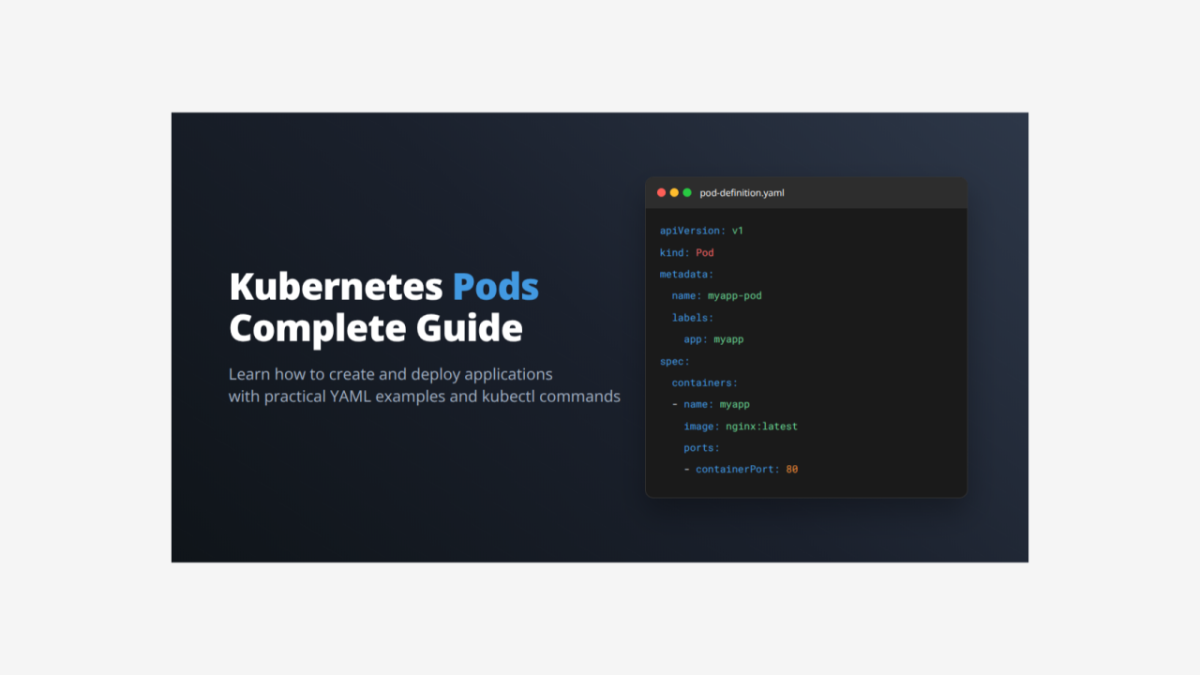
Learning Kubernetes Pods – A Complete Application Setup
Today I want to share what I learned about creating a complete Kubernetes application with both a Pod and Service in one file.
What is a Pod?
A Pod is the smallest unit you can create in Kubernetes. Think of it like a wrapper that holds one or more containers. Most of the time, one Pod contains just one container. The containers in a Pod share the same network and storage, so they can talk to each other easily.
Complete Application YAML File
Here is the complete file that creates both a Pod and Service together:
# Pod Definition
apiVersion: v1
kind: Pod
metadata:
  name: myapp-pod
  labels:
    app: myapp
spec:
  containers:
    - name: myapp
      image: nginx
      ports:
      - containerPort: 80

---

# Service Definition
apiVersion: v1
kind: Service
metadata:
  name: myapp-pod-nodeport-service
spec:
  type: NodePort
  selector:
    app: myapp
  ports:
  - name: http
    port: 80
    targetPort: 80
    nodePort: 31231
Breaking Down the Complete File
The Pod Section – Detailed Explanation:
apiVersion: v1          # Uses stable Kubernetes API version
kind: Pod              # Tells Kubernetes we want to create a Pod
metadata:
  name: myapp-pod      # Unique name for this Pod in the namespace
  labels:
    app: myapp         # Label used to identify and group this Pod
spec:                  # Specification of what the Pod should do
  containers:          # List of containers (usually just one)
    - name: myapp      # Name of the container inside the Pod
      image: nginx  # Docker image to run
      ports:
      - containerPort: 80  # Port the container listens on
What each part does:
- apiVersion: v1 – Uses the stable Pod API that works in all Kubernetes versions
- name: myapp-pod – This is how we reference the Pod in other commands
- labels: app: myapp – Like a tag that helps Services find this Pod
- image – Downloads and runs this specific nginx container
- containerPort: 80 – Tells Kubernetes the container accepts traffic on port 80
The Service Section – Detailed Explanation:
apiVersion: v1                    # Uses stable Service API
kind: Service                     # Creates a Service resource
metadata:
  name: myapp-pod-nodeport-service  # Service name for reference
spec:
  type: NodePort                  # Makes service accessible from outside
  selector:
    app: myapp                    # Finds Pods with this label
  ports:
  - name: http                    # Name for this port mapping
    port: 80                      # Port inside the cluster
    targetPort: 80               # Port on the Pod container
    nodePort: 31231              # External port on the node
What each part does:
- type: NodePort – Opens a port on every cluster node for external access
- selector: app: myapp – Connects to Pods that have label “app: myapp”
- port: 80 – Port that other services inside cluster use to reach this service
- targetPort: 80 – Port on the actual Pod where traffic gets sent
- nodePort: 31231 – External port users can access from outside the cluster
How They Work Together: The Service acts like a bridge between external users and internal Pods. Here is the traffic flow:
- User accesses http://NODE_IP:31231
- Service receives traffic on nodePort 31231
- Service looks for Pods with label “app: myapp”
- Service forwards traffic to Pod on targetPort 80
- Pod container receives request on containerPort 80
- Nginx serves the web page back to user
Why We Need Both:
- Pod alone – Application runs but nobody can reach it from outside
- Service alone – Nothing to connect to, no running application
- Together – Complete working web application that users can access
How to Deploy and Manage This Application
Step 1: Deploy the Application
kubectl apply -f myapp-complete.yaml
Step 2: Check if Pod is Running
kubectl get pods
kubectl get pod myapp-pod
Step 3: See Detailed Pod Information
kubectl describe pod myapp-pod
Step 4: Check the Service
kubectl get services
kubectl get svc myapp-pod-nodeport-service
Step 5: See Service Details
kubectl describe service myapp-pod-nodeport-service
Step 6: Check Pod Logs
kubectl logs myapp-pod
Step 7: Access Your Application
# Get node IP first
kubectl get nodes -o wide

# Then access your app at: http://NODE_IP:31231
# For example: http://192.168.1.100:31231
Step 8: Test Network Connection
# Check if pod can be reached internally
kubectl exec -it myapp-pod -- curl localhost:80

# Check service endpoints
kubectl get endpoints myapp-pod-nodeport-service
Step 9: Clean Up Resources
kubectl delete -f myapp-complete.yaml
# Or delete individually:
# kubectl delete pod myapp-pod
# kubectl delete service myapp-pod-nodeport-service
As a junior DevOps engineer, understanding Pods is important because:
- They are the foundation of how applications run in Kubernetes
- You need to know how to create and connect them
- Services help make your applications available to users
- YAML files are the standard way to define infrastructure as code
- kubectl commands help you manage and troubleshoot your applications