$ cat understanding-kubernetes/part-05.md
Putting Everything Together: My First Kubernetes Deployment
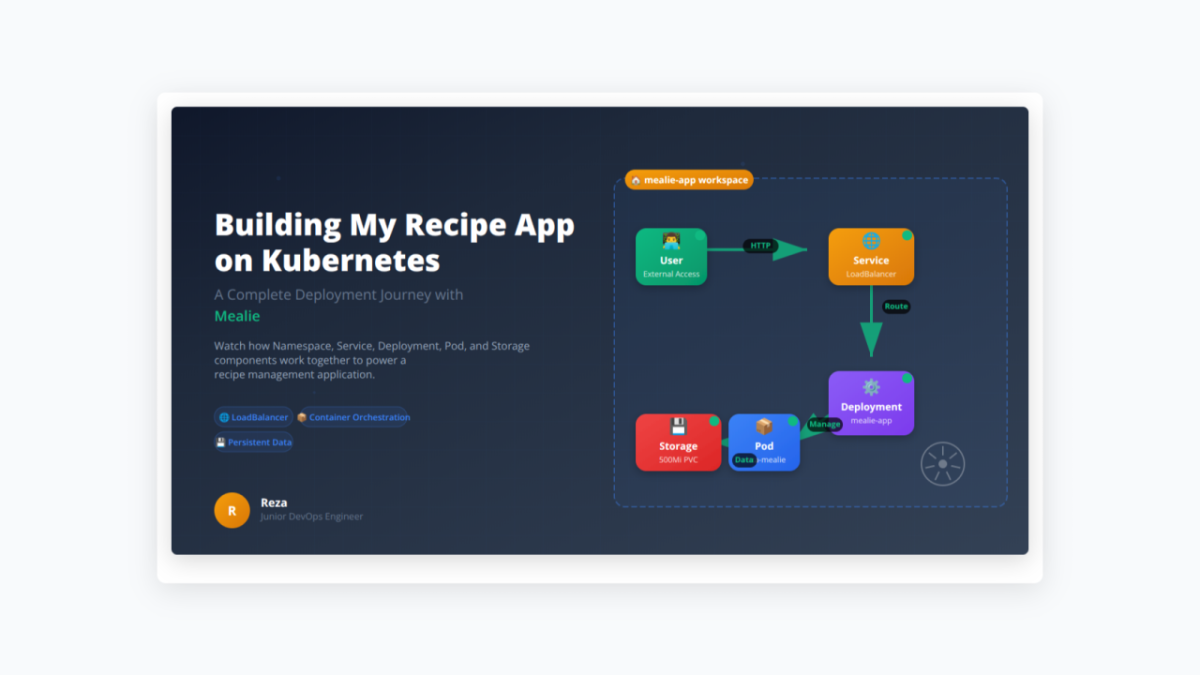
After learning about pods, deployments, and services, I thought I finally understood Kubernetes. But to be honest, I was mostly just following tutorials and copying code. I wanted to build something real to see if I truly understood how everything worked together.
You know that moment when you realize theory is easier than practice? That was me. I could explain what a pod was, but deploying a real app with all the pieces connected was a whole new challenge.
The Challenge
- I needed to figure out how to make three things work together:
- The application itself (deployment)
- Storage for my recipes (persistent volume)
The Four Files I Created
To deploy Mealie properly, I needed four configuration files. Let me explain each one:
0. Namespace File (mealie-namespace.yaml)
First, I learned I should create the namespace properly instead of just using kubectl commands.
apiVersion: v1
kind: Namespace
metadata:
  name: mealie
  labels:
    name: mealie
This is simple but important:
apiVersion: v1 – Namespaces use the basic v1 API.
kind: Namespace – Creates a namespace to organize everything.
metadata:
- name: mealie – The namespace name that I reference in all other files
- labels: name: mealie – Good practice to label namespaces for organization
I could have just run kubectl create namespace mealie but having it as a file means I can track it in git and recreate everything easily. Plus it looks more professional when everything is documented.
1. Storage File (mealie-storage.yaml)
This file creates storage space for recipe data.
apiVersion: v1
kind: PersistentVolumeClaim
metadata:
  name: mealie-data
  namespace: mealie
spec:
  accessModes:
    - ReadWriteOnce
  resources:
    requests:
      storage: 500Mi
Let me break this down line by line because I wish someone had explained it this way when I started:
apiVersion: v1 – This tells Kubernetes which API version to use. For storage, it’s always v1. Different resources use different API versions, which confused me at first.
kind: PersistentVolumeClaim – This is like asking Kubernetes “hey, I need some storage space”. It’s not creating storage directly, but requesting it from available storage in the cluster.
metadata section:
- name: mealie-data – I can call this whatever I want. This name is what I will reference later in my deployment file.
- namespace: mealie – Keeps everything organized in its own space. Without this, it goes to the default namespace.
spec section:
- accessModes: ReadWriteOnce – This means only one pod can mount this storage at a time. I tried ReadWriteMany first but my cluster doesn’t support it, so I learned this.
- storage: 500Mi – I started with 100Mi but realized recipe photos take up space, so I increased it. You can always request more later if needed.
2. Deployment File (mealie-deployment.yaml)
This file tells Kubernetes how to run the Mealie application.
apiVersion: apps/v1
kind: Deployment
metadata:
  labels:
    app: mealie
  name: mealie
  namespace: mealie
spec:
  replicas: 1
  selector:
    matchLabels:
      app: mealie
  template:
    metadata:
      labels:
        app: mealie
    spec:
      containers:
      - image: ghcr.io/mealie-recipes/mealie:nightly
        name: reza-mealie
        ports:
          - containerPort: 9000
        volumeMounts:
          - mountPath: /app/data
            name: mealie-data
      volumes:
        - name: mealie-data
          persistentVolumeClaim:
            claimName: mealie-data
This file is where the magic happens. Let me explain each part because this one took me the longest to understand:
apiVersion: apps/v1 – Deployments use the “apps/v1” API, different from storage which uses “v1”.
kind: Deployment – This creates a deployment, which manages pods for me. Much better than creating pods manually.
metadata section:
- labels: app: mealie – These labels are super important. They help other resources find this deployment.
- name: mealie – The deployment name. I keep it simple and consistent.
- namespace: mealie – Same namespace as my storage.
spec section (the main configuration):
replicas: 1 – I am just testing with one copy..
selector – This is how the deployment finds its pods. The matchLabels must match the labels in the template below. I messed this up the first time and wondered why nothing worked.
template – This is the blueprint for creating pods:
Container configuration:
- image: ghcr.io/mealie-recipes/mealie:nightly – I use the nightly version to get latest features. You might prefer stable versions in production.
- name: reza-mealie – Just the container name, can be anything.
- containerPort: 9000 – The port inside the container where Mealie runs.
Storage connection (the tricky part):
- volumeMounts – This connects storage to the container at /app/data path
- volumes – This references the storage I created earlier by name “mealie-data”
The tricky part was connecting the storage I created earlier. See the “volumeMounts” section? That links the storage to the app at the /app/data folder. Without this connection, my recipes would disappear every time the pod restarted.
The volume name in volumeMounts must match the volume name in the volumes section. And the claimName must match the storage I created in the first file. It’s like a chain, everything has to connect properly.
3. Service File (service.yaml)
This file makes the application available to users on the internet.
apiVersion: v1
kind: Service
metadata:
  labels:
    app: mealie
  name: mealie
  namespace: mealie
spec:
  ports:
  - port: 9000
    protocol: TCP
    targetPort: 9000
  selector:
    app: mealie
  type: LoadBalancer
This was the part that finally made everything accessible. Let me explain each piece:
apiVersion: v1 – Services use the basic v1 API, same as storage.
kind: Service – This creates a network service to expose my app.
metadata section:
- labels and name – Same pattern as before, keeping everything consistent.
- namespace: mealie – Must be in the same namespace as my deployment.
spec section:
ports configuration:
- port: 9000 – This is the port users connect to from outside
- targetPort: 9000 – This is the port on my container (must match containerPort in deployment)
- protocol: TCP – Most web apps use TCP protocol
selector: app: mealie – This is crucial! It tells the service which pods to send traffic to. It matches the labels in my deployment. If this doesn’t match, nothing works.
type: LoadBalancer – This gives me an external IP address. Other options are:
- ClusterIP (internal only)
- NodePort (exposes on node IP)
- LoadBalancer (external access)
The LoadBalancer type gives me an external IP address. In my home lab setup, this means I can access the recipes from any device on my network. Pretty cool!
How They Work Together
Here is how all four files work as a team:
- Namespace creates an organized space for everything
- Storage creates a safe place to keep recipe data
- Deployment runs the Mealie application and connects it to storage
- Service provides network access so users can reach the app
How to Deploy Everything
Here are the commands I used to deploy everything:
# Create the namespace first
kubectl apply -f mealie-namespace.yaml

# Apply the storage configuration
kubectl apply -f mealie-storage.yaml

# Deploy the application
kubectl apply -f mealie-deployment.yaml

# Create the service for network access
kubectl apply -f service.yaml

# Check everything is working
kubectl get all -n mealie
The order is important. I create the namespace first, then storage, then the application, then the network service. Having the namespace as a file means I can track everything in git and recreate it easily.
What Actually Happened
My first attempt failed completely. I forgot to create the storage first, so when I added recipes and restarted the pod, everything disappeared. That was frustrating but taught me about the importance of doing things in the right order.
The second time went much better. Now I have my recipes organized and accessible from anywhere in my home network.
What I Learned
This project connected all the concepts from my previous posts. Those pods I learned about? They run inside deployments. Those services? They actually route traffic to real applications. Everything clicked together.
Next Steps
I want to try adding multiple replicas next time and maybe set up ingress for proper domain access. Also thinking about monitoring.
It would be nice to know if something goes wrong.