$ cat home-lab/part-04.md
Part 04 – Networking & K3s Cluster
Overview
In Part 3 I walked through the Ansible roles line by line. In this article I focus on what happens after the control plane is up – how thor joins the cluster as a worker node, how Kubernetes networking works between the two nodes, and how pod scheduling is controlled with labels and taints.
By the end of this article the cluster is fully operational with two nodes communicating over WiFi.
How K3s Cluster Networking Works
Before jumping into the YAML, it helps to understand how two K3s nodes communicate.
jarvis (10.0.0.148)          thor (10.0.0.149)
┌────────────────────┐       ┌────────────────────┐
│  K3s API server    │       │  K3s agent         │
│  :6443             │◄─────►│                    │
│                    │       │                    │
│  Pod CIDR:         │       │  Pod CIDR:         │
│  10.42.0.0/24      │       │  10.42.1.0/24      │
│                    │       │                    │
│  Flannel VXLAN     │◄─────►│  Flannel VXLAN     │
│  :8472 (UDP)       │       │  :8472 (UDP)       │
└────────────────────┘       └────────────────────┘
         ▲                            ▲
         │         WiFi LAN          │
         └────────────────────────────┘
              10.0.0.0/24
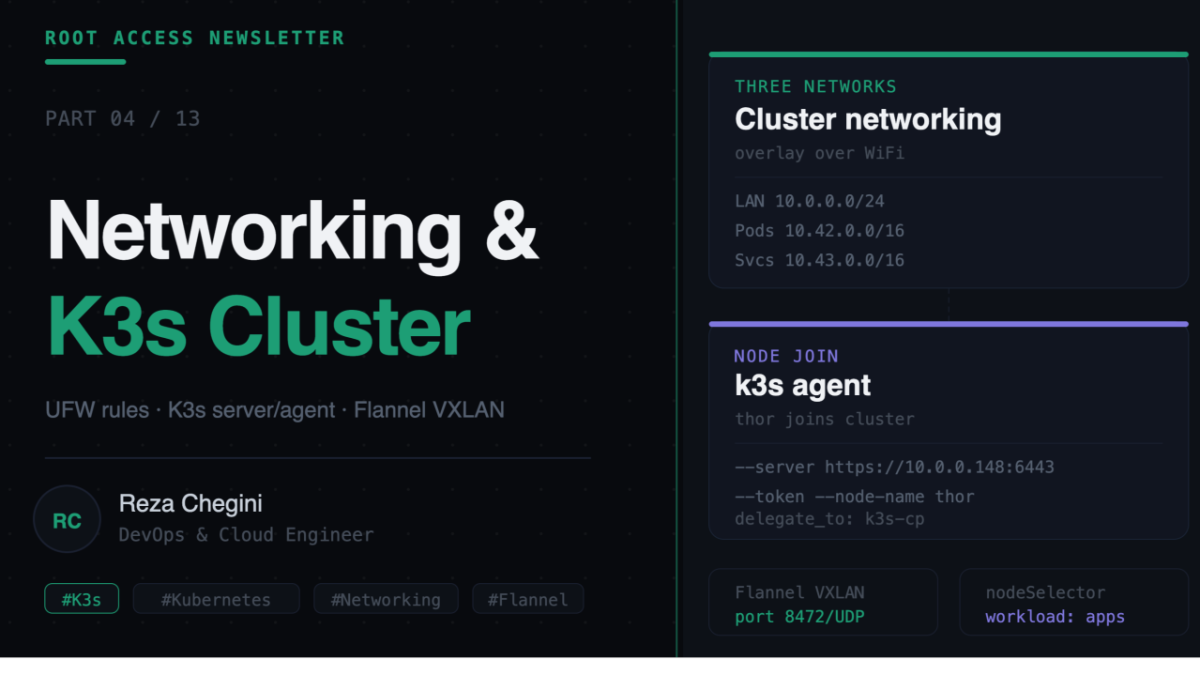
Three networks exist simultaneously:
| Network | Range | Purpose |
|---|---|---|
| Home LAN | 10.0.0.0/24 | Node-to-node communication |
| Pod network | 10.42.0.0/16 | Pod-to-pod communication (virtual) |
| Service network | 10.43.0.0/16 | ClusterIP services (virtual) |
Flannel is K3s’s default CNI (Container Network Interface) plugin. It creates a virtual overlay network (VXLAN) on top of the physical WiFi network. When a pod on thor wants to talk to a pod on jarvis, Flannel wraps the packet in a UDP envelope and sends it over port 8472. The receiving node unwraps it and delivers it to the right pod.
This is why 8472/UDP must be open in UFW on both nodes – it is the tunnel that makes cross-node pod communication possible.
Role: k3s_agent
The k3s_agent role runs on thor and joins it to the cluster as a worker node.
Full tasks/main.yml
---
- name: Check if K3s agent is already installed
  stat:
    path: /usr/local/bin/k3s
  register: k3s_binary
Same pattern as the server role – check if K3s binary exists before trying to install. The binary is the same for both server and agent. The mode (server vs agent) is determined by how it is started.
- name: Install K3s agent
  shell: |
    curl -sfL https://get.k3s.io | sh -s - agent \
      --server https://{{ k3s_server_ip }}:{{ k3s_server_port }} \
      --token {{ hostvars['k3s_token_holder']['k3s_token'] }} \
      --node-name {{ node_name }}
  when: not k3s_binary.stat.exists
Flags explained:
- agent – Run as a worker node, not a server
- –server – Address of the control plane API server (https://10.0.0.148:6443)
- –token – Secret used to authenticate the join request
- –node-name – This node’s name in the cluster (thor)
hostvars[‘k3s_token_holder’][‘k3s_token’] – this is how we access the token saved in the k3s_server role using add_host. hostvars is a special Ansible variable containing all variables for all hosts. k3s_token_holder is the dummy host we created, and k3s_token is the variable stored on it.
This is the bridge between the two plays – the control plane play runs first, saves the token, then the worker play picks it up.
- name: Ensure K3s agent service is enabled and running
  systemd:
    name: k3s-agent
    enabled: yes
    state: started
Note: the service name is k3s-agent on worker nodes, not k3s. This is different from the server. Always use the correct service name when restarting or checking status.
# On jarvis (control plane)
sudo systemctl status k3s

# On thor (worker)
sudo systemctl status k3s-agent
- name: Wait for worker node to join cluster
shell: |
kubectl get node {{ node_name }} --no-headers
delegate_to: k3s-cp
environment:
KUBECONFIG: /etc/rancher/k3s/k3s.yaml
register: node_status
until: "'Ready' in node_status.stdout"
retries: 15
delay: 10Three important concepts in this task:
- delegate_to: k3s-cp – this task is in the workers play (targeting thor), but it runs on jarvis. Why? Because kubectl is only installed on the control plane. We cannot run kubectl on thor – it does not have a kubeconfig. delegate_to redirects execution to a different host.
- until: + retries: + delay: – this is Ansible’s retry loop. It runs the task, checks if Ready is in the output, and if not, waits 10 seconds and tries again. It retries up to 15 times (2.5 minutes total).
- –no-headers – removes the column headers from kubectl get node output, making the string match simpler.
- name: Label worker node
  shell: |
    kubectl label node {{ node_name }} \
      node-role=worker \
      workload={{ workload_label }} \
      --overwrite
  delegate_to: k3s-cp
  environment:
    KUBECONFIG: /etc/rancher/k3s/k3s.yaml
Again using delegate_to: k3s-cp – the label command runs on jarvis against the cluster, but the label applies to thor.
workload=apps on thor means we can pin app workloads to the worker node:
# In any Deployment spec
nodeSelector:
  workload: apps    # runs on thor only
Verifying the Cluster
After both roles complete, run from your MacBook:
kubectl get nodes -o wide
NAME     STATUS   ROLES                  AGE   VERSION        INTERNAL-IP
jarvis   Ready    control-plane,master   10m   v1.29.4+k3s1   10.0.0.148
thor     Ready    <none>                 5m    v1.29.4+k3s1   10.0.0.149
Both nodes Ready means the cluster is healthy. If thor shows NotReady, check:
# On thor
sudo systemctl status k3s-agent
sudo journalctl -u k3s-agent -f
Common causes of NotReady:
- Wrong token in the install command
- Port 6443 blocked by UFW on jarvis
- Port 8472 blocked on either node (Flannel cannot establish the overlay)
Understanding Pod Scheduling
Kubernetes decides which node to run a pod on based on several factors. For our home lab the two most important are nodeSelector and taints/tolerations.
nodeSelector – Pinning Pods to Specific Nodes
# Monitoring pod - runs on jarvis
apiVersion: apps/v1
kind: Deployment
metadata:
  name: prometheus
spec:
  template:
    spec:
      nodeSelector:
        workload: monitoring    # jarvis has this label
      containers:
      - name: prometheus
        image: prom/prometheus
# App pod - runs on thor
apiVersion: apps/v1
kind: Deployment
metadata:
  name: django-app
spec:
  template:
    spec:
      nodeSelector:
        workload: apps    # thor has this label
      containers:
      - name: django-app
        image: registry.rezaops.com/django-app:latest
Without nodeSelector, Kubernetes distributes pods across both nodes based on available resources. With it, we control exactly where things land.
Checking Node Labels
kubectl get nodes --show-labels
NAME     STATUS   LABELS
jarvis   Ready    node-role=control-plane,workload=monitoring,...
thor     Ready    node-role=worker,workload=apps,...
How MetalLB Assigns IPs
After K3s and MetalLB are installed, every Service of type LoadBalancer gets a real IP from the pool (10.0.0.200-10.0.0.220).
kubectl get svc -A | grep LoadBalancer
NAMESPACE    NAME                            TYPE           EXTERNAL-IP
monitoring   kube-prometheus-stack-grafana   LoadBalancer   10.0.0.202
cicd         jenkins                         LoadBalancer   10.0.0.205
ingress-nginx ingress-nginx-controller       LoadBalancer   10.0.0.200
MetalLB assigns IPs sequentially from the pool. The first service gets .200, the second .201, and so on. The actual IP assigned depends on the order services are created – do not assume a specific service gets a specific IP. Always check with kubectl get svc.
This is a lesson I learned the hard way – I assumed the registry would get 10.0.0.200 but MetalLB gave it 10.0.0.206. Always verify:
kubectl get svc -n registry
# Check EXTERNAL-IP column
How NGINX Ingress Routes Traffic
MetalLB gives the NGINX Ingress controller a real IP (10.0.0.200). All HTTP traffic to the cluster goes through this single IP – NGINX then routes it to the right service based on the hostname.
Browser: http://grafana.rezaops.com
         |
         v
DNS resolves to 10.0.0.200 (ingress IP)
         |
         v
NGINX Ingress Controller (10.0.0.200:80)
         |
         | checks Host header: grafana.rezaops.com
         |
         v
Ingress resource matches - routes to Grafana Service
         |
         v
Grafana pod (on jarvis)
The Ingress resource is the routing rule:
apiVersion: networking.k8s.io/v1
kind: Ingress
metadata:
  name: monitoring-ingress
  namespace: monitoring
spec:
  ingressClassName: nginx
  rules:
  - host: grafana.rezaops.com
    http:
      paths:
      - path: /
        pathType: Prefix
        backend:
          service:
            name: kube-prometheus-stack-grafana
            port:
              number: 80
Key insight: You only need one LoadBalancer IP (the ingress IP) for all your services. Every additional service just needs an Ingress resource with a different hostname – not a new LoadBalancer IP.
Checking Cluster Health
# All nodes ready
kubectl get nodes

# All system pods running
kubectl get pods -A

# All services with their IPs
kubectl get svc -A | grep -v ClusterIP

# Events - useful for debugging scheduling issues
kubectl get events -A --sort-by='.lastTimestamp' | tail -20

# Resource usage per node
kubectl top nodes

# Which node is each pod running on
kubectl get pods -A -o wide | grep -v Completed
What’s Next
In Part 5 I will cover Longhorn – how distributed block storage works on bare metal Kubernetes, what the Helm values mean, and how to verify your volumes are being replicated correctly across jarvis and thor.