$ cat home-lab/part-01.md
Part 01 – Why I Built a Home Lab + OS Setup & System Hardening
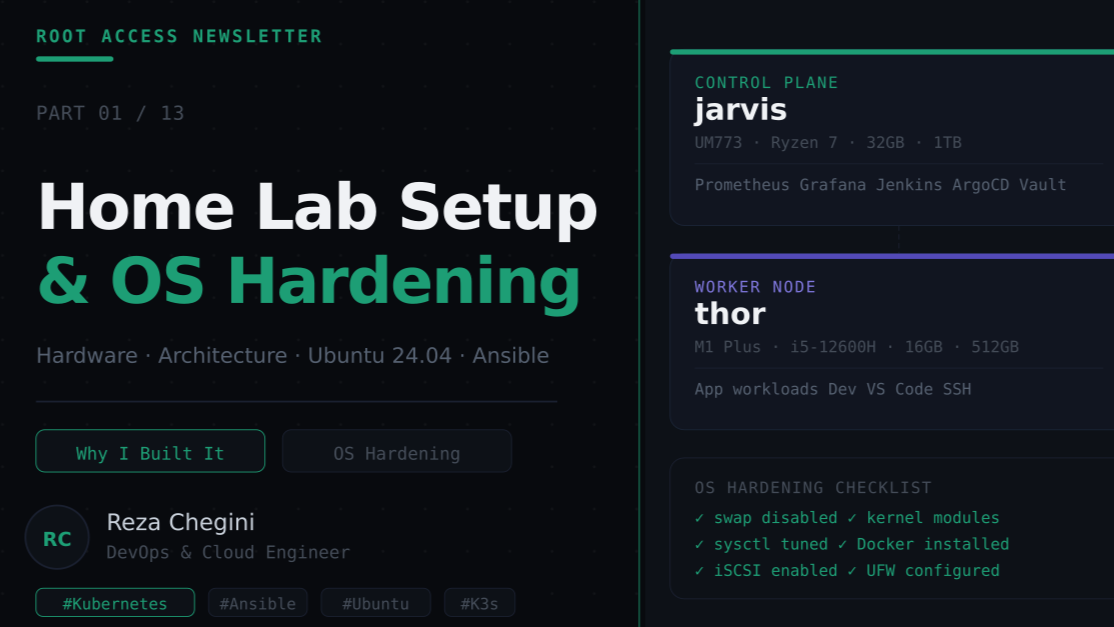
Why I Built a Home Lab
I’m a Junior DevOps and Cloud Engineer , actively building my skills across Kubernetes, CI/CD, observability, and infrastructure automation.
Like many engineers, I had certifications, AWS, GCP, but I kept running into the same problem during interviews and job applications: I could talk about the tools, but I didn’t have enough hands-on depth with real infrastructure.
Spinning up a managed EKS or GKE cluster is easy. But what happens when a node goes down? When DNS breaks? When a pod can’t pull an image? When your storage class isn’t the default? These are the things that happen in production every day. and you only learn to handle them by actually breaking things and fixing them yourself.
So I decided to build a real home lab. Not a VM on my laptop. Not a single-node cluster. A proper two-node bare metal Kubernetes cluster running a full DevOps stack. the same tools used in production environments at real companies.
This article is Part 1 of a 13-part series documenting everything I built, every YAML file I wrote, and every error I hit along the way.
Hardware Choices
I wanted real machines, not cloud VMs, because bare metal forces you to deal with things that managed services abstract away: networking, storage, DNS, node failures.
After researching mini PCs (low power, quiet, affordable), I settled on two machines:
Node 1 – jarvis (Control Plane)
MINISFORUM UM773 Lite
- CPU → AMD Ryzen 7 7735HS (8C/16T, 4.75GHz)
- RAM → 32GB DDR5
- Storage → 1TB PCIe 4.0 NVMe SSD
- GPU → AMD Radeon 680M (integrated)
- Network → WiFi 6 · Bluetooth 5.2
- Ports → 2x HDMI · 1x USB4 · 5x USB
Why this machine for control plane? The 32GB RAM is the key factor. Running Prometheus, Grafana, Loki, Jenkins, ArgoCD, and Vault simultaneously requires serious memory headroom. The control plane stack alone can consume 8–12GB under normal load.
Node 2: thor (Worker Node + Dev Machine)
MINISFORUM M1 Plus
- CPU → AMD Ryzen 7 7735HS (8C/16T, 4.75GHz)
- RAM → 32GB DDR5
- Storage → 1TB PCIe 4.0 NVMe SSD
- GPU → AMD Radeon 680M (integrated)
- Network → WiFi 6 · Bluetooth 5.2
- Ports → 2x HDMI · 1x USB4 · 5x USB
Why this machine for worker? The i5-12600H has 4 performance cores + 8 efficiency cores, perfect for bursty CI/CD workloads and running multiple app containers concurrently. I also use thor as my development environment via VS Code SSH Remote. so I develop, test, and deploy all from the same machine.
Why Not Use Cloud VMs Instead?
- Cost: Running 2 equivalent VMs 24/7 on AWS would cost $100–200/month. These mini PCs were a one-time purchase.
- Real networking: On bare metal I deal with real DNS, real firewall rules, real network interfaces. Cloud abstracts all of this.
- Learning: Every error on bare metal teaches you something. MetalLB, CoreDNS, Longhorn, none of these exist in managed Kubernetes because the cloud handles it for you.
Architecture Overview
┌─────────────────────────────────────────────────────────┐
│                    HOME NETWORK (WiFi)                   │
│                     10.0.0.0/24                         │
│                                                         │
│  ┌──────────────────────┐  ┌──────────────────────────┐ │
│  │  jarvis (10.0.0.148) │  │   thor (10.0.0.149)      │ │
│  │  UM773 · 32GB        │  │   M1 Plus · 16GB         │ │
│  │                      │  │                          │ │
│  │  K3s Control Plane   │  │   K3s Worker Node        │ │
│  │  Prometheus · Grafana│  │   App workloads          │ │
│  │  Loki · Jaeger       │  │   Dev environment        │ │
│  │  Jenkins · ArgoCD    │  │   Longhorn replica       │ │
│  │  Vault · CoreDNS     │  │                          │ │
│  │  Registry · Homepage │  │                          │ │
│  └──────────────────────┘  └──────────────────────────┘ │
│                                                         │
│  MetalLB IP Pool: 10.0.0.200 – 10.0.0.220              │
│  Ingress IP:      10.0.0.200                            │
│  CoreDNS IP:      10.0.0.209                            │
│  Registry IP:     10.0.0.206                            │
└─────────────────────────────────────────────────────────┘
         │
         │ SSH / kubectl / browser
         │
┌────────────────────┐
│  MacBook M2 Pro    │
│  kubectl, Helm,    │
│  Terraform, SSH    │
└────────────────────┘
Full Stack: What’s Running and Why
- Infrastructure K3s · Lightweight Kubernetes distribution MetalLB · Assigns real LAN IPs to LoadBalancer services NGINX Ingress · Routes HTTP traffic to pods by hostname Longhorn · Distributed block storage across both nodes
- Observability Prometheus · Scrapes metrics from all pods and nodes Grafana · Dashboards and visualization Loki · Log aggregation Promtail · Ships pod logs to Loki Jaeger · Distributed tracing
- CI/CD Jenkins · Builds Docker images and runs pipelines Registry · Self-hosted container image registry
- GitOps & Secrets ArgoCD · Syncs K8s manifests from GitHub automatically Vault · Secrets management External Secrets · Syncs Vault secrets into Kubernetes
- Networking CoreDNS · DNS resolver for all home network devices Homepage · Dashboard linking to all services
Domain Setup: rezaops.com
All services are accessible via subdomains on my own domain:
http://grafana.rezaops.com      → Grafana dashboards
http://prometheus.rezaops.com   → Prometheus metrics
http://jenkins.rezaops.com      → Jenkins pipelines
http://argocd.rezaops.com       → ArgoCD deployments
http://vault.rezaops.com        → Vault UI
http://longhorn.rezaops.com     → Longhorn storage UI
http://home.rezaops.com         → Homepage dashboard
These resolve to private IPs (10.0.0.x) : only reachable on my home network. AWS Route 53 stores the records, CoreDNS running inside K3s resolves them for every device on my WiFi.
OS Setup: Ubuntu 24.04 LTS
Before installing Kubernetes, both machines need a solid OS foundation. Kubernetes is strict about the environment it runs in — swap must be off, specific kernel modules must be loaded, and network parameters must be tuned. Get any of these wrong and K3s either refuses to start or behaves unpredictably.
I chose Ubuntu 24.04 LTS for both nodes:
- LTS: 5 years of security updates
- Wide support: every tool in the stack has Ubuntu 24.04 support
- Consistency: same OS on both nodes means identical behaviour
All OS setup is handled by the common Ansible role, running on both jarvis and thor simultaneously.
Step 1 : Set Hostname
- name: Set hostname
  hostname:
    name: "{{ node_name }}"
Sets the machine’s hostname permanently using hostnamectl. K3s uses the hostname as the node name in the cluster, if wrong, your node shows up with a confusing name in kubectl get nodes.
- UM773 → jarvis
- M1 Plus → thor
Step 2: Update /etc/hosts
- name: Update /etc/hosts with cluster nodes
  blockinfile:
    path: /etc/hosts
    marker: "# {mark} HOMELAB CLUSTER NODES"
    block: |
      10.0.0.148  jarvis
      10.0.0.149  thor
K3s nodes need to resolve each other by hostname for cluster communication. Without this, if DNS is unavailable during boot, the nodes can’t find each other.
blockinfile adds text between markers, making it idempotent. Running the playbook again updates the block instead of duplicating it.
Step 3: System Update + Essential Packages
- name: Update and upgrade apt packages
  apt:
    update_cache: yes
    upgrade: dist
    cache_valid_time: 3600

- name: Install essential packages
  apt:
    name:
      - curl
      - wget
      - git
      - vim
      - htop
      - net-tools
      - iptables
      - open-iscsi       # required by Longhorn
      - nfs-common       # required by Longhorn
      - ca-certificates
      - gnupg
      - lsb-release
      - unattended-upgrades
    state: present
Two packages here are not optional, open-iscsi and nfs-common are required by Longhorn (distributed storage). Without them, Longhorn volumes never mount and any pod needing persistent storage fails to start.
Step 4: Disable Swap
- name: Disable swap immediately
  command: swapoff -a
  when: ansible_swaptotal_mb > 0

- name: Disable swap in fstab permanently
  replace:
    path: /etc/fstab
    regexp: '^([^#].*?\sswap\s+.*)$'
    replace: '# \1'
Why Kubernetes requires swap to be disabled: Kubernetes assumes full control over memory allocation on a node. When swap is enabled, the kernel can silently move memory pages to disk, Kubernetes doesn’t know about this, pod memory limits become unreliable, and the scheduler makes decisions based on incorrect memory availability.
This is one of the most common reasons K3s fails to start on a fresh Ubuntu install — Ubuntu enables swap by default.
when: ansible_swaptotal_mb > 0, skips the task if swap is already off. Pure idempotency using an automatically gathered Ansible fact.
Step 5: Load Kernel Modules
- name: Load required kernel modules
  modprobe:
    name: "{{ item }}"
    state: present
  loop:
    - overlay
    - br_netfilter

- name: Persist kernel modules on boot
  copy:
    dest: /etc/modules-load.d/k3s.conf
    content: |
      overlay
      br_netfilter
overlay, the overlay filesystem driver. Container images are built in layers. This module lets the kernel merge those layers into a unified filesystem that a container sees. Without it, containerd can’t run containers.
br_netfilter, bridge netfilter. Kubernetes creates virtual network bridges to connect pods. This module allows iptables rules to inspect traffic crossing those bridges. Without it, Kubernetes network policies and pod-to-pod networking don’t work.
Two steps because modprobe loads modules for the current boot only. Writing to /etc/modules-load.d/k3s.conf makes systemd load them on every subsequent boot.
Step 6: Tune Sysctl Parameters
- name: Set sysctl parameters for Kubernetes networking
  sysctl:
    name: "{{ item.key }}"
    value: "{{ item.value }}"
    state: present
    reload: yes
    sysctl_file: /etc/sysctl.d/99-k3s.conf
  loop:
    - { key: "net.bridge.bridge-nf-call-iptables",  value: "1" }
    - { key: "net.bridge.bridge-nf-call-ip6tables", value: "1" }
    - { key: "net.ipv4.ip_forward",                 value: "1" }
net.bridge.bridge-nf-call-iptables = 1, tells the kernel to pass bridged IPv4 traffic through iptables. When pods communicate across nodes, traffic flows over network bridges. This ensures iptables rules apply to that bridged traffic. Without it, pod networking is broken.
net.ipv4.ip_forward = 1, enables IP forwarding. Allows the Linux kernel to forward packets from one interface to another. Essential for pod-to-pod communication across nodes.
sysctl_file: /etc/sysctl.d/99-k3s.conf writes to a dedicated file instead of /etc/sysctl.conf ,keeps our changes isolated and easy to remove later.
Step 7: Install Docker (Modern Method)
- name: Create apt keyrings directory
  file:
    path: /etc/apt/keyrings
    state: directory
    mode: "0755"

- name: Download Docker GPG key
  shell: |
    curl -fsSL https://download.docker.com/linux/ubuntu/gpg \
      | gpg --dearmor -o /etc/apt/keyrings/docker.gpg
    chmod a+r /etc/apt/keyrings/docker.gpg
  args:
    creates: /etc/apt/keyrings/docker.gpg

- name: Add Docker apt repository
  apt_repository:
    repo: "deb [arch=amd64 signed-by=/etc/apt/keyrings/docker.gpg]
           https://download.docker.com/linux/ubuntu
           {{ ansible_distribution_release }} stable"
    state: present
    filename: docker

- name: Install Docker packages
  apt:
    name:
      - docker-ce
      - docker-ce-cli
      - containerd.io
      - docker-buildx-plugin
      - docker-compose-plugin
    state: present
    update_cache: yes

- name: Enable and start Docker
  systemd:
    name: docker
    enabled: yes
    state: started
Why not apt-key? Ubuntu 24.04 removed apt-key entirely, it was deprecated in 22.04. The modern approach stores GPG keys in /etc/apt/keyrings/ and references them in the repo definition with signed-by=. This is also more secure, each repo’s key is isolated.
args: creates: /etc/apt/keyrings/docker.gpg – makes the shell task idempotent. If the file already exists, the download is skipped.
{{ ansible_distribution_release }}, automatically resolves to noble on Ubuntu 24.04. No hardcoding needed.
Step 8: Dev Toolchains on thor Only
- name: Install dev toolchains on worker node
  block:
    - name: Install Python
      apt:
        name: [python3, python3-pip, python3-venv, python3-dev]
        state: present

    - name: Install Go
      unarchive:
        src: https://go.dev/dl/go1.22.4.linux-amd64.tar.gz
        dest: /usr/local
        remote_src: yes
        creates: /usr/local/go/bin/go

    - name: Add Go to PATH
      lineinfile:
        path: /home/{{ lab_user }}/.bashrc
        line: 'export PATH=$PATH:/usr/local/go/bin'

    - name: Install Node.js
      # via NodeSource setup script
      ...

  when: node_role == "worker"
when: node_role == “worker” at the block level, the entire block is skipped on jarvis. One condition covers every task inside it.
jarvis runs DevOps infrastructure. thor is where I write and run code via VS Code SSH Remote from my MacBook. This gives me a full Python/Go/Node.js dev environment on thor without polluting the control plane.
Verify Everything Worked
After the playbook finishes, SSH into each node:
# Swap is off
free -h | grep Swap
# Swap:  0B  0B  0B

# Kernel modules loaded
lsmod | grep -E "overlay|br_netfilter"
# overlay    151552  0
# br_netfilter  32768  0

# IP forwarding enabled
sysctl net.ipv4.ip_forward
# net.ipv4.ip_forward = 1

# Docker running
docker --version && docker ps

# iSCSI daemon running
systemctl is-active iscsid
# active
What’s Next
In Part 2 I’ll walk through the full Ansible project structure . how roles, inventory, and variables are organized, why group_vars caused problems and how we fixed it, and the exact ansible.cfg settings that made everything work.