$ cat home-lab/part-09.md
Part 09 – DNS and Networking: CoreDNS, Route 53 and NGINX Ingress
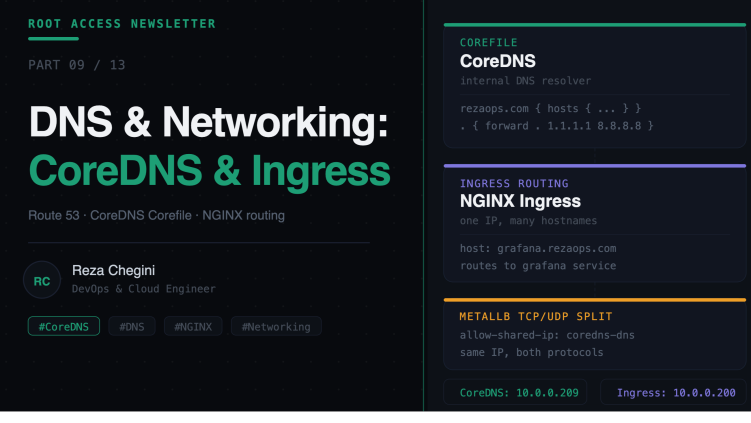
Overview
In Part 8 we completed the GitOps stack. But all those services are useless if you cannot reach them by name. In this article I cover the full DNS and networking setup that makes http://grafana.rezaops.com work from any device on the home network.
This was the most complex part of the entire build. We went through three different approaches before landing on the right solution. I will explain what we tried, why each failed, and what finally worked.
The DNS Problem on a Home Lab
This is the fundamental challenge. You type http://grafana.rezaops.com and your browser asks what IP is grafana.rezaops.com. Your ISP’s DNS server has no idea that grafana.rezaops.com should resolve to 10.0.0.200 on your local network.
Three approaches I tried, in order.
Approach 1 – /etc/hosts (Works on Mac Only)
The simplest fix, add entries to /etc/hosts on your Mac:
10.0.0.200  grafana.rezaops.com
10.0.0.200  jenkins.rezaops.com
Works on Mac. Does not work on phone, tablet, or other laptops.
Approach 2 – Route 53 Private Hosted Zone (Does Not Work)
Route 53 private hosted zones seem perfect but there is a hard AWS requirement:
Error: When creating a private hosted zone you must specify VPCId and VPCRegion
Private hosted zones must be associated with an AWS VPC. Your home servers are not in AWS. Private zones are only for AWS infrastructure.
What we did instead was create a public hosted zone with private IP records:
grafana.rezaops.com, 10.0.0.200 (public record, private IP)
The record is publicly visible but 10.0.0.200 is a private RFC1918 address unreachable from the internet. This still does not solve the device problem because your home devices use your ISP’s DNS, not Route 53 directly.
Approach 3 – Pi-hole (Broken in v6)
Pi-hole v6 completely rewrote its internals, replacing dnsmasq with its own FTL DNS engine. As a result:
- /etc/dnsmasq.d/ config files are ignored, the FTL engine does not read them
- pihole restartdns command no longer works, returns an error about a readonly variable
- pihole reloaddns partially broken, cannot reload custom config
After multiple attempts to work around the v6 changes, I abandoned Pi-hole entirely.
Final Solution – CoreDNS on Kubernetes
CoreDNS is what K3s uses internally for pod DNS. It is battle-tested, runs natively in Kubernetes, and has a simple configuration format called a Corefile.
I deployed a second CoreDNS instance specifically for external home network DNS, separate from K3s’s internal CoreDNS.
The Corefile
apiVersion: v1
kind: ConfigMap
metadata:
  name: coredns-external
  namespace: kube-system
data:
  Corefile: |
    rezaops.com {
        hosts {
            10.0.0.200 grafana.rezaops.com
            10.0.0.200 prometheus.rezaops.com
            10.0.0.200 jenkins.rezaops.com
            10.0.0.200 argocd.rezaops.com
            10.0.0.200 vault.rezaops.com
            10.0.0.200 longhorn.rezaops.com
            10.0.0.200 home.rezaops.com
            fallthrough
        }
    }
    . {
        forward . 1.1.1.1 8.8.8.8
        cache 30
    }
Corefile explained block by block.
The rezaops.com block handles all queries for rezaops.com and its subdomains. The hosts plugin works like /etc/hosts. Each line maps a hostname to an IP. When any device asks what grafana.rezaops.com is, CoreDNS returns 10.0.0.200.
fallthrough means if a hostname is not in the hosts list, pass the query to the next block instead of returning NXDOMAIN.
The dot block matches everything. Any query that is not for rezaops.com, like google.com or github.com, gets forwarded to Cloudflare (1.1.1.1) or Google (8.8.8.8).
cache 30 caches DNS responses for 30 seconds, reducing upstream queries and making browsing faster.
Deploying CoreDNS
- name: Deploy CoreDNS external
  shell: |
    cat <<EOF | kubectl apply -f -
    apiVersion: apps/v1
    kind: Deployment
    metadata:
      name: coredns-external
      namespace: kube-system
    spec:
      replicas: 1
      selector:
        matchLabels:
          app: coredns-external
      template:
        metadata:
          labels:
            app: coredns-external
        spec:
          nodeSelector:
            workload: monitoring
          containers:
          - name: coredns
            image: coredns/coredns:1.11.1
            args: ["-conf", "/etc/coredns/Corefile"]
            ports:
            - containerPort: 53
              protocol: UDP
            - containerPort: 53
              protocol: TCP
            livenessProbe:
              httpGet:
                path: /health
                port: 8080
              initialDelaySeconds: 10
            volumeMounts:
            - name: config
              mountPath: /etc/coredns
          volumes:
          - name: config
            configMap:
              name: coredns-external
    EOF
args: [“-conf”, “/etc/coredns/Corefile”] tells CoreDNS to use our ConfigMap-mounted Corefile.
The volumes section mounts the ConfigMap as a file at /etc/coredns/Corefile. When we update the ConfigMap, CoreDNS picks up the change automatically without restarting.
The livenessProbe checks /health on port 8080. If it fails, Kubernetes restarts the pod automatically.
The TCP/UDP Split – A MetalLB Limitation
DNS uses both TCP and UDP on port 53. A typical service with mixed protocols stays pending forever with MetalLB. This is a known MetalLB limitation in L2 mode.
The fix is to split into two services with the same allow-shared-ip annotation:
# TCP service
metadata:
  annotations:
    metallb.universe.tf/allow-shared-ip: "coredns-dns"
spec:
  ports:
  - port: 53
    protocol: TCP

# UDP service (same annotation value means same IP)
metadata:
  annotations:
    metallb.universe.tf/allow-shared-ip: "coredns-dns"
spec:
  ports:
  - port: 53
    protocol: UDP
Both services get the same MetalLB IP (10.0.0.209 in our setup).
Testing CoreDNS
# Query CoreDNS directly from your Mac
dig @10.0.0.209 grafana.rezaops.com

# Expected output
;; ANSWER SECTION:
grafana.rezaops.com.   3600   IN   A   10.0.0.200

# Test forwarding works for external domains
dig @10.0.0.209 google.com
# Should resolve to Google's IPs via 1.1.1.1 forwarding
Pointing Devices at CoreDNS
Mac, System Settings, WiFi, your network, Details, DNS tab:
10.0.0.209    CoreDNS (home lab)
1.1.1.1       Cloudflare fallback
8.8.8.8       Google fallback
iPhone, Settings, WiFi, your network, Configure DNS, Manual:
10.0.0.209
1.1.1.1
Docker Desktop on Mac, Settings, Docker Engine, add to JSON:
{
  "dns": ["10.0.0.209", "1.1.1.1"]
}
Docker Desktop runs in a VM with its own DNS and does not inherit your Mac’s system DNS settings. Without this, docker push registry.rezaops.com/myapp:latest fails with no such host.
How NGINX Ingress Routes Traffic
With DNS working, every request to *.rezaops.com resolves to 10.0.0.200, the NGINX Ingress controller’s MetalLB IP. NGINX then routes the request to the right service based on the Host header.
Request: GET http://grafana.rezaops.com/dashboards
        |
        | DNS: grafana.rezaops.com, 10.0.0.200
        v
NGINX Ingress Controller (10.0.0.200:80)
  reads Host header: grafana.rezaops.com
  checks Ingress rules
        |
        | matches rule in monitoring namespace
        v
Service: kube-prometheus-stack-grafana
        |
        v
Grafana Pod (on jarvis)
The Ingress resource is the routing rule:
apiVersion: networking.k8s.io/v1
kind: Ingress
metadata:
  name: monitoring-ingress
  namespace: monitoring
spec:
  ingressClassName: nginx
  rules:
  - host: grafana.rezaops.com
    http:
      paths:
      - path: /
        pathType: Prefix
        backend:
          service:
            name: kube-prometheus-stack-grafana
            port:
              number: 80
  - host: prometheus.rezaops.com
    http:
      paths:
      - path: /
        pathType: Prefix
        backend:
          service:
            name: kube-prometheus-stack-prometheus
            port:
              number: 9090
Key insight: you only need one LoadBalancer IP (the ingress IP) for all your services. Every additional service just needs an Ingress resource with a different hostname, not a new LoadBalancer IP.
Adding a New App Domain
For every new app you deploy, two steps:
Step 1, update the CoreDNS ConfigMap:
kubectl edit configmap coredns-external -n kube-system
# add: 10.0.0.200 myapp.rezaops.com
CoreDNS picks up ConfigMap changes automatically.
Step 2, create an Ingress resource:
apiVersion: networking.k8s.io/v1
kind: Ingress
metadata:
  name: myapp-ingress
  namespace: myapp
spec:
  ingressClassName: nginx
  rules:
  - host: myapp.rezaops.com
    http:
      paths:
      - path: /
        pathType: Prefix
        backend:
          service:
            name: myapp-service
            port:
              number: 8000
Two steps, under 2 minutes, and your new app is accessible at http://myapp.rezaops.com from every device on the network.
DNS Resolution Full Picture
Device: "What is grafana.rezaops.com?"
        |
        | DNS query sent to 10.0.0.209 (CoreDNS)
        v
CoreDNS checks hosts block for rezaops.com
  finds: 10.0.0.200 grafana.rezaops.com
        |
        | returns: 10.0.0.200
        v
Device connects to 10.0.0.200:80
        |
        v
NGINX Ingress Controller
  reads Host: grafana.rezaops.com
  routes to Grafana service
        |
        v
Grafana pod responds
For external domains (google.com), CoreDNS forwards to 1.1.1.1 automatically.
What’s Next
In Part 10 I will cover the homepage and container registry setup, how I deployed a static HTML dashboard as a Kubernetes pod and configured the Docker registry so every machine on the network can push and pull images with a proper domain name.